Zoom - Download and Log In

The following tutorial will take you through the process of downloading and setting up the Zoom application. Mobile devices can follow the same steps in order to find the application in the appropriate app store.


OS:
Layout:
one column
two columns

Step 1

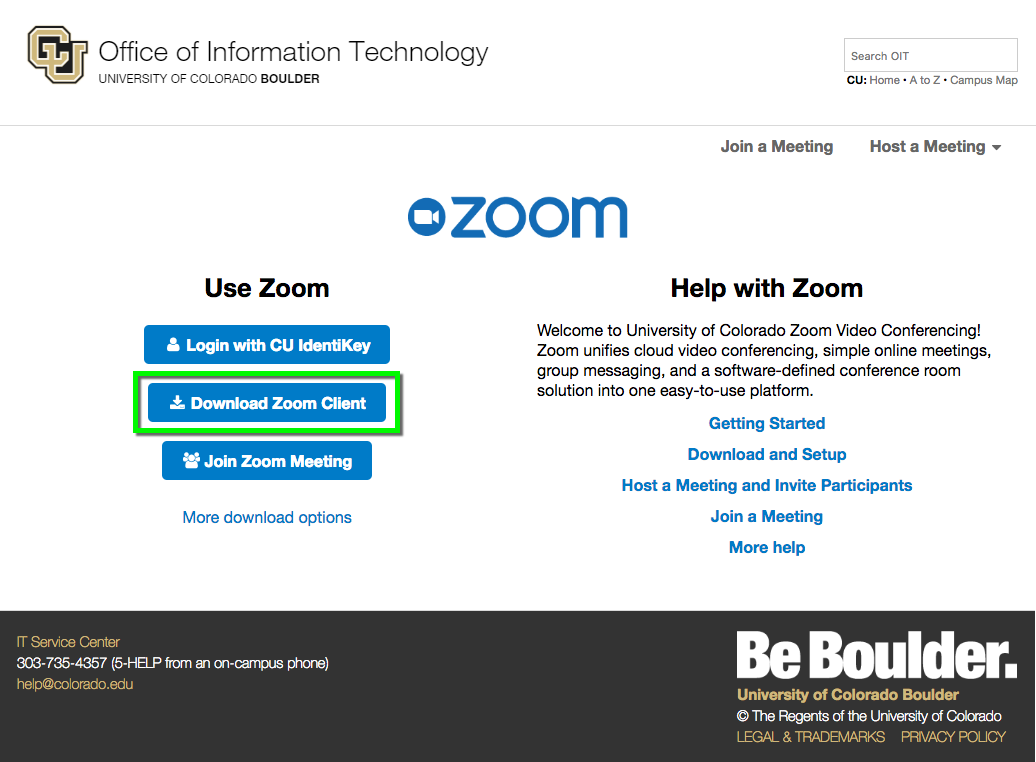
Go to http://cuboulder.zoom.us and click the Download Zoom Client button and install the downloaded file.
Step 2
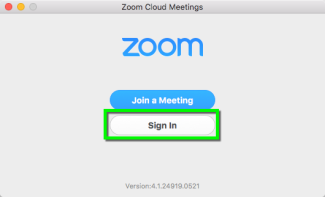
Zoom will open automatically once installed. You will be prompted to either Join a Meeting or Sign In. Since there is no login required to join a meeting, click the Sign In button.

Step 3

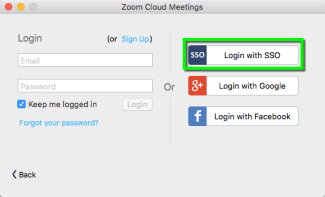
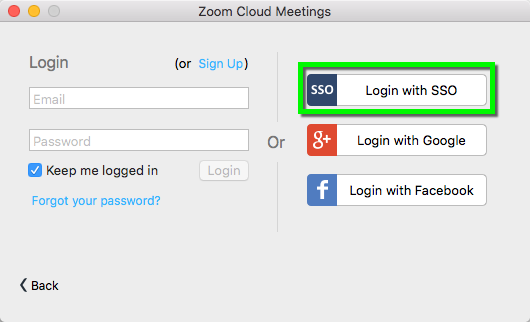
Click Sign in with SSO.

Step 4

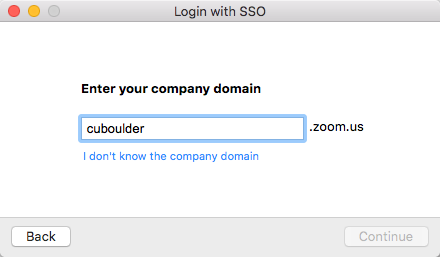
Under the Enter your company domain prompt, type cuboulder into the text field and click Continue.

Step 5

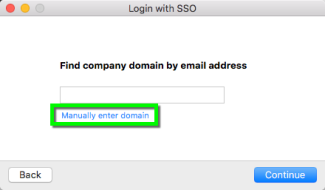
After clicking Sign In with SSO, you may see the option to Find company domain by email address, which will not work with CU Boulder's license. Instead, click the Manually enter domain link below the text field to get to the manual entry page (as shown in step 3).

Step 6

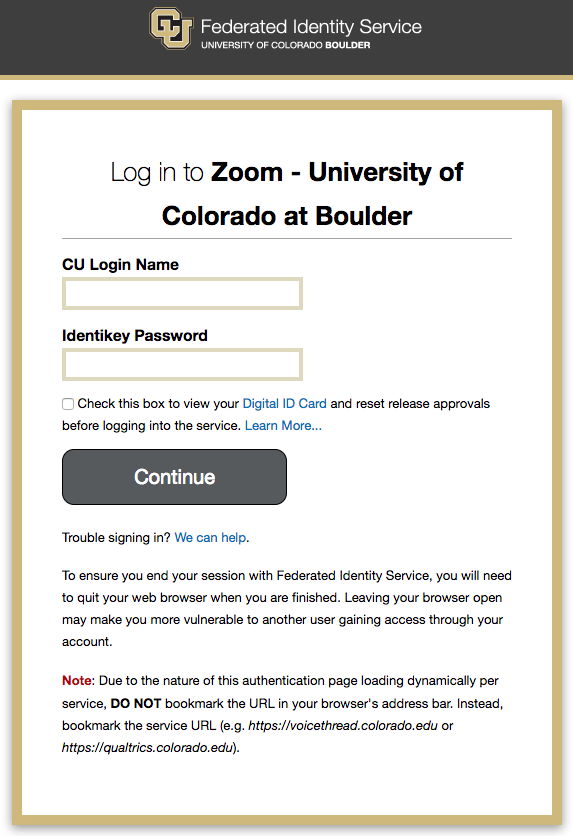
A web browser window will appear prompting you for your Federated Identity Service credentials. Enter your IdentiKey username and password, then click Continue.

Step 7

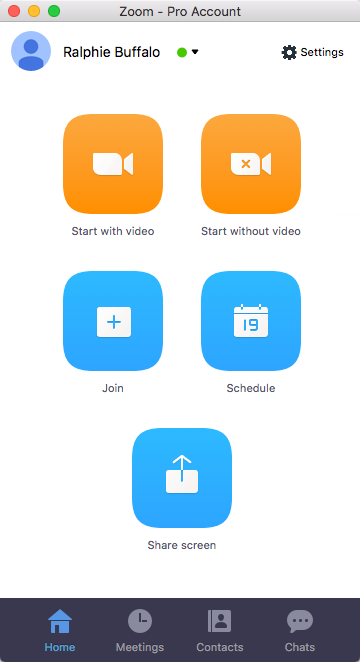
The full Zoom application will then open and you are now ready to use your Pro account.

To check and set audio and video options, click the Settings button.