
Overview
Wepa allows you to upload documents to their cloud-based server in a number of convenient methods to print. This page has basic instructions for printing at Wepa kiosks. For additional instructions, visit Wepa's user guide.
How to Print
You can print to a Wepa kiosk from:
- The Wepa Print app (mobile devices)
- A word-processing application (a.k.a., "traditional printing" from personal computers or OIT Lab computers)
- A web browser upload
- A learning management system (Canvas)
- Cloud storage (including Box, Dropbox, Google Drive and Microsoft OneDrive)
- An email
- A USB drive
Mobile Printing
Use the Wepa Print mobile app for iOS or Android to print from your mobile device.
Apple iOS
- Download the Wepa Print app from the Apple App store.
- Open the document you'd like to print and select the Share icon.
- Select Open in wepa Print.
- Log in to your wepa account and select the number of copies and properties of the print job (e.g., color, b/w, portrait, landscape).
- Tap Send to wepa.
- Go to a Wepa printer, log in, select your payment method and retrieve your document.
Android
- Download the Wepa Print app from the Google Play Store.
- Open the Wepa Print app and log in to your Wepa account.
- Tap the plus sign next to the print station graphic in the bottom right-hand corner.
- Select where to find the file: Camera, Files or Cloud.
- Select the file you'd like to print.
- Set the print options (e.g., number of copies, color, orientation), then tap Submit.
- Go to a Wepa printer, log in, select your payment method and retrieve your document.
Touchless Mobile Printing with Wepa Express
OIT has installed touch-free access devices to all print stations on the CU Boulder campus. Use the Wepa app to print your documents without having to touch the login screen.
- Ensure you have installed the Wepa mobile app.
- Select the rocket icon next to the files you'd like to print, or upload additional documents.
- Tap the print station graphic in the bottom right-hand corner.
- The summary screen will show which documents are ready to release, allow you to pay from your account, or show a Wepa Code for documents that can be released without payment at the print station.
- Go to a print station and log in by tapping your phone on the touch-free access device (as you would with Apple Pay or other mobile payment apps).
- Your documents will print as soon as you log in to the print station.
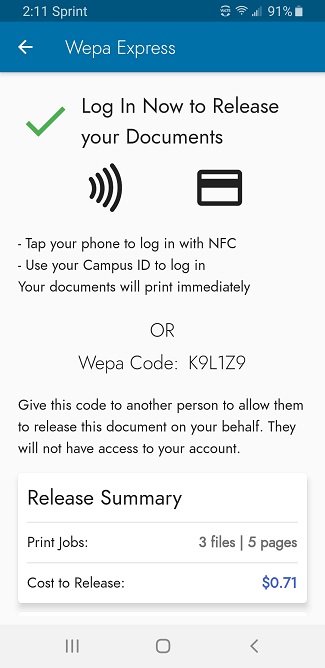
Learn more about Wepa Express touchless printing.
Traditional Printing
Download Wepa's desktop app that integrates with software on your personal computer to print documents directly to a Wepa print station. For detailed help downloading and using the desktop app, see the Mac Print App or Windows Print App support pages.
- Download either the Windows or Mac Wepa Print app and install it on your computer.
- After installation, search the institution list for University of Colorado Boulder (CU).
- You will be directed to sign in to CU Boulder's Federated Identity Service.
- Once logged in, Wepa will show up in your system tray and Wepa printers will be available when you choose to print documents.
- Open the document you want to print.
- Select Print and select the type of Wepa printer you want to send to (e.g., BW, Color, BW Two-Sided, Color Two-Sided).
- Set the print options (e.g., number of copies, color, orientation), then select Print.
- You will be given a code to enter at the Wepa kiosk to release the print job.
- Go to a Wepa printer and enter the code or log in to your account.
- Select your payment method and retrieve your document.
For more, watch a video tutorial of the Traditional Printing process.
Choosing paper size
When installing Wepa print apps, select the Large format option in order to print on paper sizes other than letter. When printing, most print dialog boxes will default to the correct paper size for the document you are printing. If you need to change this (e.g., to legal or tabloid) you should be able to select within the print dialog box. If printing from Adobe software (Acrobat, Photoshop, InDesign, etc.), after choosing Print, select Page Setup to adjust the paper size.
Web Upload
- Log in to wepanow.com.
- Select Document Upload.
- Add the document using the file finder or by dragging the document into the browser window.
- Set your print options (e.g., number of copies, color, orientation), then click Send print options to add the print job to your account.
- Go to a Wepa printer, log in, select your payment method and retrieve your document.
For more help, watch a video tutorial of the Web Upload process.
Print via Learning Management System (Canvas)
Print documents directly from your courses in Canvas at Wepa kiosks.
- Go to a Wepa printer kiosk and log in using your Buff OneCard, IdentiKey credentials or Wepa account.
- Select Canvas on the right-hand side of the screen.
- Log in to Canvas with your IdentiKey credentials.
- Select the document you'd like to print, then set your print options (e.g., number of copies, color, orientation).
- Select your payment method and retrieve your document.
Cloud Printing
Access your storage including Dropbox, Google Drive or Microsoft OneDrive from Wepa kiosks.
- Go to a Wepa printer kiosk and log in using your Buff OneCard, IdentiKey credentials or Wepa account.
- Select Cloud Storage, then pick where your document is saved (e.g., Dropbox, Google Drive).
- Log in to your cloud account.
- Select the document you'd like to print, then set your print options (e.g., number of copies, color, orientation).
- Select your payment method and retrieve your document.
For more help, watch a video tutorial of the Cloud Printing process.
Printing via Email
Use the email connected to your Wepa account to send documents to Wepa. Supported file types include: .doc, .docx, .xls, .xlsx, .ppt, .pptx, .pdf and .rtf.
- Compose a new email to print@wepanow.com.
- Attach the documents you'd like to print.
- If no other text is added to the email, your documents will default to black-and-white, single-sided.
- To change these settings, type "color" or "duplex" in the first line of the email body.
- Visit Wepa's Email to Print page for all text keywords for printing, including for PowerPoint.
- Send the email (maximum document size is 50MB total).
- A six-digit code will be emailed to you immediately.
- Go to a Wepa printer and use the code from the email or log in to your account. Then select your payment method and retrieve your document.
For more help, watch a video tutorial of the Printing via Email process.
USB
Print any time at a kiosk using a USB drive.
- Go to a Wepa printer and select USB drive from the printing options.
- Insert your USB drive into the available port.
- Select the files you'd like to print, as well as the properties of the print job (e.g. color, b/w, portrait, landscape).
- Select your payment method and retrieve your document.
For more help, watch a video tutorial of the Printing via USB process.



