
General
What is Microsoft Teams?
Microsoft Teams is a collaboration application that combines document collaboration, one-on-one and team chat, online meetings, Microsoft 365 and third-party integrations, and much more, all in one tool. Learn more about what is included in Teams.
Does Microsoft Teams work on a Mac or Linux machine?
Yes, Teams works on Mac, Linux, and Windows machines. Before downloading on your device, check the hardware requirements for Mac, the hardware requirements for Linux or the hardware requirements for Windows.
Does Microsoft Teams work on a mobile phone?
Teams apps are available for both iOS and Android. Check the hardware requirements for mobile devices before installing.
How do I call someone at CU Boulder?
Watch this short video to learn how to make and review calls, voicemail and phone settings, and much more.
We also recommend referencing the Microsoft Teams Quick Start Guide and OIT's Microsoft Teams service page.
How do I call an external or long distance number?
In order to make or receive external calls, you must have a Teams phone number. If you do:
- Open your preferred Microsoft Teams app, then log in with your IdentiKeyUsername@colorado.edu and IdentiKey password.
- Open the Calls tab.
- Follow the dialing instructions below.
- Local, in-state calls (only area codes 720 or 303): 8+Area Code+7-Digit Number
- Non-local calls in the US or Canada: 8+1+Area Code+7-Digit Number
- International calls (except Canada): 8+011+Country Code+City Code+Telephone Number
- Click Call.
I'd like more privacy when I'm on a Teams call. What types of headsets does OIT recommend?
Any headset compatible with your computer can work with Microsoft Teams. Visit the Recommended Computer Peripherals page for OIT's recommendations.
Here are the following headsets that are MS certified and available on Marketplace:
Wired Headsets
- Jabra Evolve 20 MS USB-A (Online price ranges: $50-$75)
- Jabra Evolve 40 MS USB-A (Online price ranges: $88-$130)
Wireless Headsets
- Jabra Evolve65 MS (Online price ranges: $230-$270)
- Jabra Evolve75 MS (Online price ranges: $293-$380)
How accessible is Microsoft Teams?
Microsoft Teams can be very difficult and time-consuming for users of assistive technology due to inconsistent navigation requirements, multiple regions, unpredictable focus changes, quantity of content, and lack of structural cues. If you or a colleague uses assistive technology, alternative options listed on the Teams Accessibility page should be considered instead of relying on Microsoft Teams for communication.
How do I forward calls?
Follow these links to learn how to forward calls to another number or Teams member or set up call groups and ring another number at the same time as your work number.
How do I set up a conference call?
Follow these links to learn how to add someone to a call or merge calls.
How do I configure my contacts with Teams Calls?
Watch OIT's Manage Contacts and Speed Dial in Teams Calls video for an overview of this process.
Does voicemail work with Teams?
Yes, watch OIT's video tutorial on how to configure voicemail, then visit Microsoft's website for information about how to play back voicemail, review summaries and transcripts, and customize voicemail settings.
Will calls still work if I don't have an internet connection?
Does the phone still ring if my computer is off or it is after work hours?
Tips & Tricks
How can I ensure my phone does not ring or interrupt me during a meeting or class?
There are several ways to do this. OIT recommends setting your status to Do not disturb. No notifications or calls will come through when your status is set to Do not disturb. Visit OIT's Change your status in Teams tutorial to learn how.
How can I silence Team notifications during times I need to focus and not be interrupted?
You can utilize the Do not disturb feature in the previous question, or edit your settings to not allow notifications when you are in a meeting. Teams pulls your calendar from Outlook, so you will need to ensure your calendar is up to date, as well as setting this notification. Visit OIT's Microsoft Teams - Change Notifications tutorial and scroll down to Meetings and Calls to set this up.
Please note: OIT is aware of a known issue affecting notfications. At this time, changes to notification settings are not working to silence calls. If you need to silence all calls, use the Do not disturb feature.
Will silencing notifications and calls in Teams silence all other calls on my personal cell phone?
No, changing your notification settings in Teams only affect calls that go to your university number using the Microsoft Teams application. Personal calls are not affected by these settings, and you can adjust notifications for them in your phone's settings.
Can I receive calls on my cell phone without sharing my personal phone number?
Yes. Simply install the Teams mobile app for iOS or Android to receive calls made to your campus phone number.
If I call someone using the Microsoft Teams app on my cell phone, will the recipient see my personal phone number?
No, the person receiving the call will see your work number as the incoming call number if you use the Teams mobile app to place a call.
If I call 911 from my laptop on campus, will it work? What if I'm off campus?
On Campus
If you're on campus, your location information will automatically update based on the network location you're connected to.
Off Campus
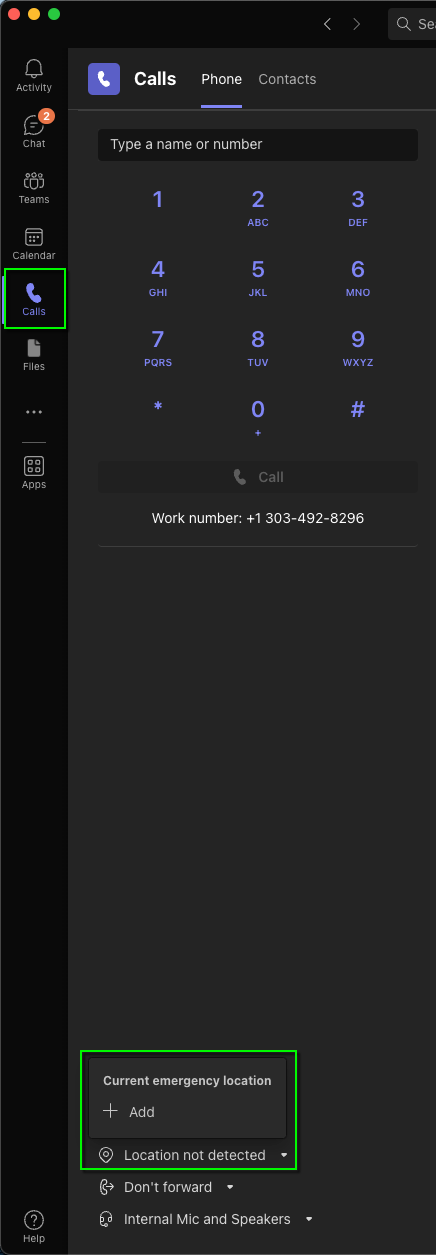
If you're off campus, you'll need to update your location information. Open your Calls tab, click Location not detected at the bottom of the window, and select Add.
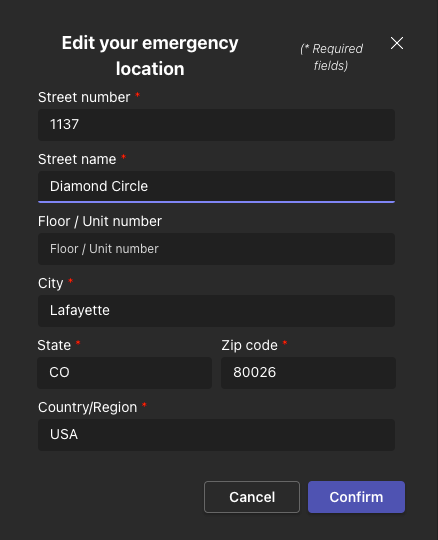
Enter your address and click Confirm. Your location in your Calls tab will update.
Telecommunications Tasks
Do telecommunications liaisons still need to request a phone line for new employees?
Yes, the standard procedure for requesting voice and data services remains in place.
When someone leaves the university, does our telecommunications liaison need to do anything?
Yes, please request a disconnect or name change for the existing directory number.
Transition from Cisco VoIP
Why did the campus transition from Cisco VoIP phones to Microsoft Teams?
In order to address hybrid and remote work modalities for CU Boulder, our phone service needed to adapt to provide flexible and agile communication functionality in ways that traditional physical phones, like the Cisco VoIP phones, just don't do well.
The convergence of the unified communications landscape, coupled with the university's investment in the Microsoft suite of tools, presented the opportunity to address our needs with Microsoft Teams.
With the campus voice service hosted on Teams, our phone service continues to provide traditional phone features, but also allows for seamless integration with Teams features like Chat, Calendar, Files and more. And because you can use Teams on your desktop, laptop or mobile devices, the experience is consistent and easy-to-use no matter if you are on-campus, working remotely or moving between both.
When did the transition happen?
The transition away from Cisco VoIP began in fall 2022. The conversion of phone numbers to Teams took place incrementally by organizational groups (e.g., departments, schools, colleges).
How were telecommunication liaisons involved?
OIT's Voice Services team provided telecommunication liaisons with a spreadsheet containing their department's information. They were asked to verify the information and submit any changes by a specific date.
What was the process for replacing a Cisco phone with a softphone (Teams)?
The user's Teams extension was activated on the Tuesday of their migration week. Once activated, users were able to place and answer calls from their desk, a personal cell phone, or anywhere they logged in to the Teams application using their current campus phone number. During the migration week, a technician came to their office or work space to remove the Cisco physical phone.
When the technician arrived, they followed these steps:
- Located the Cisco physical phone and verified the extension.
- Unplugged the data cable from the Cisco physical phone and plugged it directly into the user's computer or docking station.
- Removed the physical phone.
The process typically took less than 5 minutes.
What was the process for replacing a Cisco phone with a new physical phone?
Between Tuesday and the following Monday of the user's migration week, a technician came by the user's office or work space to replace the Cisco physical phone with a new physical phone.
When the technician arrived, they followed these steps:
- Located the Cisco phone and verified the extension.
- Unplugged the data cable from the Cisco physical phone and plugged it into the new AudioCodes physical phone.
- Waited for the AudioCodes physical phone to boot up and register, then tested the functionality.
The process typically took 5–10 minutes.
Did the original phone numbers remain active after the transition?
Yes, campus extensions remained the same.
When was the calling feature enabled in Microsoft Teams?
The calling functionality in Teams was enabled when the user's phone number was transitioned to Microsoft. Users received several emails in the weeks prior to the transition and again once it was complete.
How did the change impact call centers?
Call centers were migrated to a Microsoft Teams-compatible application after the first phase of phone migrations was complete.
What happened to Cisco conference units?
Any Cisco conference units that were purchased by the department were replaced with Teams-certified equipment.
What happened to physical phones in common locations, like classrooms and break rooms?
OIT replaced phones in places like classrooms, labs and other areas that require a phone for safety reasons.



