Overview
When a Microsoft Team is created, several Microsoft 365 services are also created and associated with the Team to make it easy for a team to collaborate on files, tasks, notes and video. These services include:
- SharePoint site for document storage and collaboration
- Plan in Microsoft Planner for task management
- OneNote notebook for note taking, agendas and other shared notes
All members of the Team have editor access to the content stored in these locations. These resources are all linked to the Team, so if a team owner deletes the Team, the associated resources may also be deleted.
Document Storage & Collaboration
Microsoft Teams uses SharePoint Online to store files uploaded to or created in a Team. Each channel in a Team has a Files tab, which corresponds to a folder in the SharePoint storage location associated with the Team. This allows Teams to act as a collaboration workspace while SharePoint stores and manages the underlying files.
There are significant advantages to using SharePoint to store files in Teams:
- All members of the Team have edit access to the files, which makes file sharing and permissions easier to manage.
- File versioning is enabled by default, allowing users to recover earlier versions of items.
- Files are accessible from supported devices.
- Deleted files can be recovered for up to 90 days from the SharePoint recycle bin.
- Document-related workflows can be created for files uploaded to or created in Teams.
- Channel folders can help organize content.
- Files are indexed and searchable by keyword, so team members can find relevant files.
Users can share files stored in Teams channels and chats, and upload files from local devices. Each channel and chat has a Shared tab for files and links, and each channel has a corresponding folder for files stored for that channel.
Chat files are stored in the OneDrive of the person who shared the file, while channel files are stored in the SharePoint site associated with the Team.
External File Sharing in Teams
Files shared in Teams are stored in SharePoint or OneDrive depending on where the file is shared. Channel files are stored in the Team's SharePoint site, while many chat files are stored in OneDrive.
Teams can share files from OneDrive, channel posts or chat messages, and sharing settings can be used to specify people and permissions, such as Can edit, Can review, Can view or Can't download.
When sharing files with people outside CU Boulder, use the most restrictive sharing option that supports the work. Use Specific people links when you want a link that only works for the people you invite. Access can be removed later through Manage access.
To learn more about external and guest access, see Microsoft Teams - Ownership & Access.
Collaboration Best Practices
Help keep your Team secure, organized and useful by following these recommendations:
- Remove members or guests who no longer need access.
- Use Teams for active collaboration by a project team, committee, department or working group.
- Store files in the Team when files should be shared with all Team members.
- Use channels and folders to organize content by topic, project or workstream.
- Share with groups or Team membership where possible instead of managing many one-off individual permissions.
- Use the lowest level of access needed for the collaboration.
- Use Specific people links when sharing files externally or when access should be limited to named individuals.
- Avoid sharing sensitive or regulated information unless Teams is approved for that data type and the Team is configured appropriately.
- Periodically review external guest access and remove guests when the collaboration ends.
OneDrive in Teams
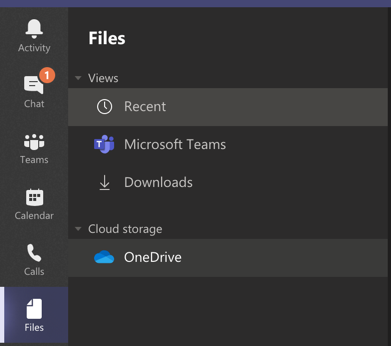
The Files tab in the left-hand Teams menu has several views to help you manage your files. These include recent Microsoft 365 files, files stored in your Teams, and cloud storage (OneDrive).
OneDrive is a window into the files you save to your Microsoft 365 OneDrive account, allowing you to work on files in OneDrive and then move or copy them to Teams once they are ready to be shared more broadly.
Frequently Asked Questions
Is there any guidance on the type of content I can store in Teams?
Yes, visit the Office of Information Security's Guidelines for Storing Documents in the Cloud.
Can I share a file in Teams with a user who is not a member of the team?
While Teams is designed to make sharing easy by ensuring that members of the team have access to files saved in the team, you can go to the Files tab in a channel and choose "Open in SharePoint" to share with a user who is not a member of the team.
What is the retention policy for files deleted in a team?
Deleted files in Teams can be restored from the SharePoint recycle bin up to 90 days after deletion.
What is the retention policy for files if an owner deletes a team?
File retention for files in a deleted team is currently set to 189 days. After 189 days, CU Boulder is unable to restore files from a deleted team.
Can I archive a Team?
Yes. See the Archive or Restore a Team Microsoft support article for details.
Archived teams can be reactivated, but you can't directly restore a team that has been deleted. Consider archiving the team first and postpone the deletion until you're sure you no longer need the team and associated files, channels and conversations.
Should I create a file in OneDrive or in Teams?
If the file is meant to be shared broadly with the team and does not contain sensitive information, create/save the file directly in your team. In cases where one or more people need to collaborate on a document before it is ready to be shared to the team, you can collaborate from OneDrive (or Google Drive) and then move the file to your Team when ready. In practice, it is best to move the file from OneDrive to Teams to reduce confusion about which version is current.
Additional details from Microsoft: Moving files from OneDrive to SharePoint guidance.
How can I make a file visible and easy to find for my team?
Click on the file and choose Make this a tab or Pin to top. When then document is no longer under active collaboration, you can unpin or remove the tab. This does not remove the original document.

Can I open and save documents from a Microsoft desktop app to Teams?
Yes, signing in to your Microsoft account will make Teams and OneDrive visible as save locations for Microsoft desktop apps on Windows and Mac devices.
Can I sync a local copy of Teams files to my PC or Mac?
Yes. Your OneDrive should sync automatically if you have the most recent version of Microsoft 365 installed. You can choose to sync the files in a Teams channel as well. Before deciding to sync files, be aware of the potential for file conflicts if several people are syncing files in Teams and working offline. The OneDrive sync client will detect conflicts and give you options to resolve the conflict.
Microsoft Resources
- Team owner, member, and guest capabilities in Microsoft Teams
- Make someone a team owner in Microsoft Teams
- Share files in Microsoft Teams
- Use guest access and external access to collaborate with people outside your organization
- Guest access in Microsoft Teams
- External or guest sharing in OneDrive, SharePoint, and Lists
- Shared channels in Microsoft Teams
- Share files and Loop components in external chats