
Step-by-step instructions, request forms, and general documentation are provided through both the OIT website and My Mediasite's support website. Reference the links below to learn more about setting up, recording, and sharing recordings.
My Mediasite Player Features
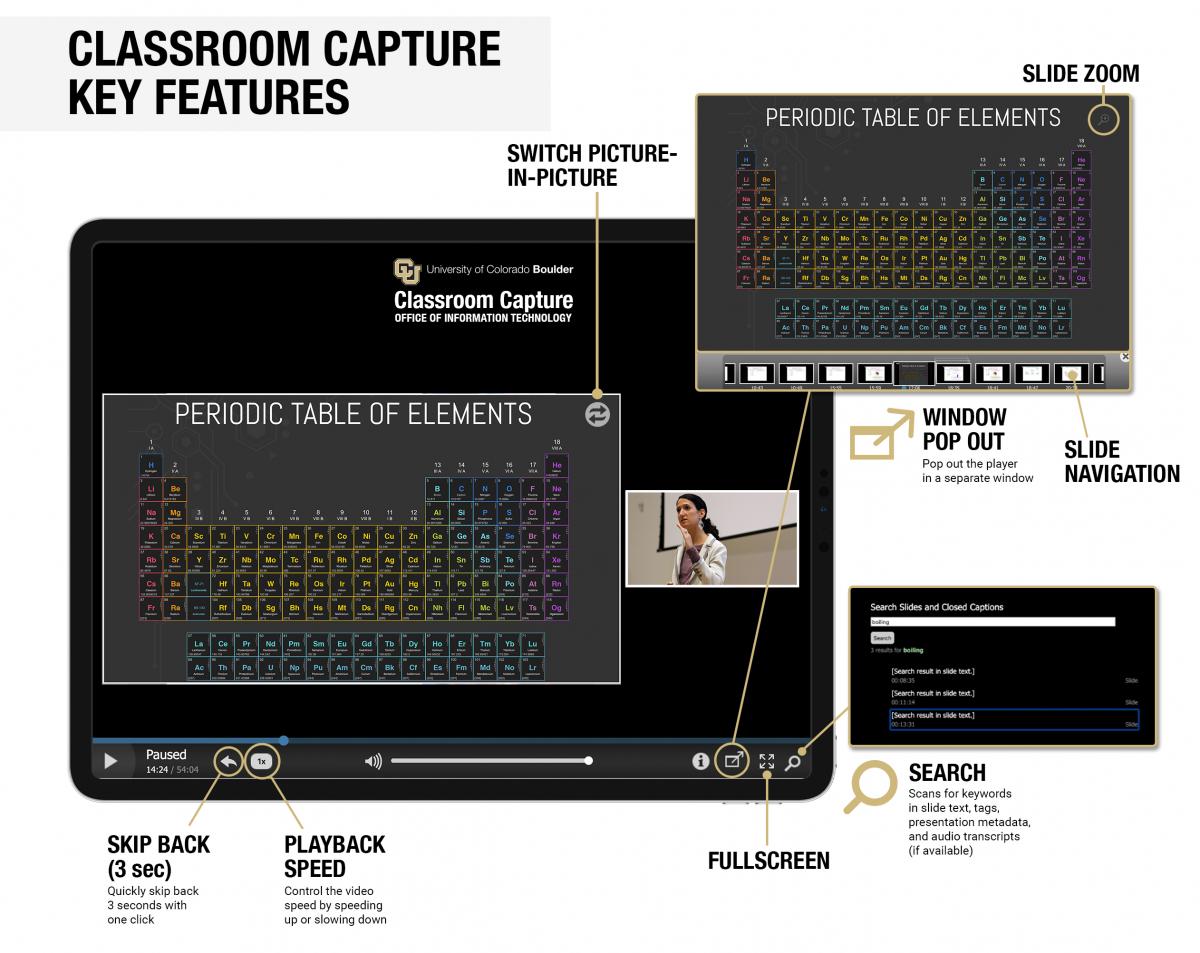
The mediasite player features intuitive playback features including slide zoom to focus on the content of a presentation, skip back, playback speed adjustments, search functions, and more!
My Mediasite Help Resources
My Mediasite
- Navigating My Mediasite
- Navigating Mediasite Player
- Getting Starting with My Mediasite (Advanced)
- How to Access from Canvas (tutorial coming soon)
My Mediasite Recording Options
- In-Browser Recorder
- Mediasite Mosaic desktop application:
Editing
MediasiteU Courses
Videos & Channels
- Create a Presentation on Windows or macOS
- Creating a Channel
- Note: If enrolled in Classroom Capture services, the channel for the course will be created per semester.
- How to Move a Video
- How to Move a Video to a Channel
- How to Upload a Video
- How to Change Video Visibility
- Sharing a Channel (video)
- Note: If enrolled in Classroom Capture services, the channel will be accessible to all faculty and students who are enrolled in the course. If you have a combined course and would like to allow everyone to have access to the content, submit the Share Recordings for a Combined Canvas Course form. For more information on Classroom Capture with combined courses, see the Combined Canvas Courses Information video.
- Sharing Channels (webpage)
- Sharing Videos Basics
- Sharing Videos Individually
Additional Resources
- To add recordings to Canvas, view the following video: Embed My Mediasite with CU Boulder with Canvas.
- Analytic Reports work the same as in Classroom Capture. Visit the Classroom Capture Analytic Reports Overview for more information.
- To request Classroom Capture services for a course, please visit the Classroom Capture service page.



