
March 2026
Zoom Workplace Desktop Application Updates
- Zoom Workplace 6.7.7 released (3/4/2026)
- Zoom Workplace 6.7.8 released (3/11/2026)
- Zoom Workplace 7.0.0 released (3/24/2026)
General Feature Updates
End of support for macOS 10.13 and 10.14
With this release, macOS users will need to be on macOS 10.15 or higher to continue to receive additional Zoom app updates. Devices still using macOS 10.13 or 10.14 will no longer be supported and will have 6.7.7 (or any additional patches in the 6.7.X branch) as the last version available.
End of support for legacy Linux distributions
With this release, the minimum supported Linux distributions are Ubuntu 20.04+, Fedora 32+, RHEL 9+/CentOS Stream 9+, Debian 11+, and OpenSuSE 16+ with GCC 9.4 or later. Users on unsupported legacy distributions can continue using version 6.7.5 (or any additional patches in the 6.7.X branch), but will not receive further updates.
Meeting Feature Updates
Enhanced Waiting Room Options
Zoom host can now control who can bypass the waiting room if enabled through the webportal Settings > Meeting > Security > Edit Options:


Webinar Feature Updates
Computer sound sharing in webinars during simultaneous screen share
Panelists can share computer sound when multiple people are allowed to screen share simultaneously in webinars. Previously, the ability to share computer sound was disabled when multiple screen sharing was enabled to prevent audio conflicts. This update improves the webinar hosting experience by providing consistent audio sharing capabilities during multiple screen sharing sessions across Zoom Meetings and Zoom Webinars.
Hub Feature Updates
Notification badge on Zoom Hub
To stay informed about file updates, users receive notifications directly on their Zoom Hub tab in the Zoom Workplace app. The notification badge reflects the precise number of unread notifications, automatically updates as users read or mark notifications as read, and disappears once all notifications are marked as read. This enhancement provides immediate awareness of important file-related updates while users work across different browser tabs or applications.
February 2026
Zoom Workplace Desktop Application Updates
- Zoom Workplace 6.7.5 released (2/10/2026)
Meeting Feature Updates
Introducing "My notes"
My notes is a new feature that replaces the previous Notes functionality with AI-powered capabilities.
My notes enables users to take manual notes while AI Companion transcribes Zoom Meetings, in-person meetings, or meetings on other platforms, then expands on and helps organize key takeaways.
My notes includes automatic voice activity detection when a potential meeting audio event is accessing the device microphone to deliver a notification to remind the user to start a new note, managed in the Zoom desktop app settings.
All notes created with My notes can be accessed in Zoom Hub and Zoom Docs.
Instantly start a meeting using zoom.new
Users can start a new meeting when they type zoom.new in their browser's address bar. The system detects user sign-in status and redirects unauthenticated users to sign in first.
Once signed in, users are then taken to the new meeting instance, either the Workplace app when detected or via the Web App.
After joining, the host will be prompted to invite contacts into the meeting or share the invite link with others.
Dynamic gallery video layout
Dynamic gallery is a user-selectable video layout that automatically crops video tiles to focus on faces and best utilize available screen space.
Copy meeting link option added to new meeting flyout menu
When creating a new meeting from the Zoom desktop app's Home tab, users can click Copy meeting link, allowing them to reference meeting URLs immediately after creating a meeting.
Previously, the only options were Copy ID and Copy invitation.
Canvas Integration Updates
Enhancement to LTI Pro Easy Scheduler
Added the option to select a future start date when creating schedules on the LTI Easy Schedule.
For more information on Easy Scheduling, please see Zoom's "Using LTI Easy scheduler for office hours" article.
Enhancement to auto-sharing of meeting recordings with the meeting invitees
When scheduling a meeting in LTI Pro, users can select the desired meeting invitees. Additionally, there will also be support for auto-populating the course roster into the meeting invitees list, which can be enabled on the LTI configuration page.
December 2025
Zoom Workplace Desktop Application Updates
- Zoom Workplace 6.6.11 released (12/1/2025)
- Zoom Workplace 6.7.0 released (12/15/2025)
- Zoom Workplace 6.7.2 released (12/30/2025)
General Feature Updates
Enhanced navigation framework for desktop app
The Zoom Workplace desktop app navigation menu has moved to a left panel, replacing the horizontal navigation bar at the top of the app.
Enhancements include a simpler default state with five visible tabs and eliminates the previous auto-pinning behavior. Users can toggle between collapsed and expanded panel views, customize tab order through an intuitive reorder interface, and access overflow items in the redesigned grid-style More tab.
Next to the global search bar at the top of the app, a centralized creation option was added that provides one-click access to start meetings, create documents, send messages, make calls, and perform other common tasks without navigating into specific product tabs first.
The enhanced interface supports improved cross-product engagement and provides a more intuitive experience for Zoom's expanding workplace solution portfolio.
Expanded language support for automated captions on device
Automated captions on device support is expanding to include Spanish and French. Users can experience automated captions generated on their eligible devices in these additional languages. Automated captions on device requires Zoom desktop app version 6.5.3 or higher.
Meeting Feature Updates
Simplified mobile in-meeting experience with redesigned toolbar and visual improvements
Users on the Zoom Workplace mobile app can access meeting controls more efficiently through a streamlined interface that addresses previous navigation challenges.
Simplified desktop in-meeting experience with enhanced meeting toolbar and controls
The meeting toolbar has been simplified to provide a cleaner, consistent, and easier to navigate in-meeting experience.
This enhancement includes:
- Simplified default in-meeting toolbar layout with essential features shown.
- Improved consistency of toolbar button behaviors and expandable menus.
- Consolidated host tools and meeting feature settings into the right panel.
- A new More experience for features that are not shown on the default toolbar.
- Support pin/unpin functionality. Users can pin an item from the More menu to the primary toolbar and unpin items from the primary toolbar.
Note: The most recent features used will be automatically pinned to the toolbar. - Updated meeting window left header to show meeting name and a drop-down that provides quick access to meeting information.
- The in-meeting chat panel color will match the in-meeting experience, and light mode users can revert to a light in-meeting chat panel from in-meeting Settings > Display & controls > Display > Dark right panel (toggle off).
Simplified desktop in-webinar experience with enhanced webinar toolbar and controls
The webinar toolbar has been simplified to provide a cleaner, consistent, and easier to navigate in-webinar experience.
This enhancement includes:
- Simplified default in-webinar toolbar layout with essential features shown.
- Improved consistency of toolbar button behaviors and expandable menus.
- Addition of Host tools which contain the settings that control the in-webinar experience for panelist video and audio defaults, as well as other feature controls.
- A new More experience for features that are not shown on the default toolbar.
- Support pin/unpin functionality. Users can pin an item from the More menu to the primary toolbar and unpin items from the primary tool bar.
Note: The most recent features used will be automatically pinned to the toolbar. - Updated webinar window left header to show webinar name and a drop-down that provides quick access to webinar information.
November 2025
Zoom Workplace Desktop Application Updates
- Zoom Workplace 6.6.110 released (11/17/2025)
General Feature Updates
GIPHY integration in meeting chat
Meeting participants can use GIPHY to send GIFs in meeting chat. Participants can access animated GIFs directly through the chat interface during meetings, regardless of Advanced Chat Encryption settings.
Expanded language support for automated captions on device
Automated captions on device support is expanding to include Spanish and French. Users can experience automated captions generated on their eligible devices in these additional languages. Automated captions on device requires Zoom desktop app version 6.5.3 or higher.
October 2025
Zoom Workplace Desktop Application Updates
- Zoom Workplace 6.6.5 released (10/22/2025)
- Zoom Workplace 6.6.6 released (10/27/2025)
General Feature Updates
Redesigned video settings interface with improved appearance controls
Users can access a redesigned video settings interface with the Camera tab renamed to Video and separate sections for camera and appearance settings.
- Camera settings include options such as HD, Original ratio, and Mirror my video preview (previously Mirror my video).
- Appearance settings include Touch up my appearance, Adjust for low light, Portrait lighting, and Auto-framing.
September 2025
Zoom Workplace Desktop Application Updates
- Zoom Workplace 6.5.12 released (9/1/2025)
- Zoom Workplace 6.6.0 released (9/15/2025)
- Zoom Workplace 6.6.2 released (9/29/2025)
General Feature Updates
Removed functionality for live streaming on Workplace from Meta
Due to Meta's recent announcement about the closure of Workplace from Meta, Zoom customers can no longer live stream Zoom meetings or webinars on Workplace from Meta. As an alternative, it is recommended to live stream a meeting or webinar to a custom platform, such as Workvivo. Learn more about enabling and setting up custom live streaming on your Zoom account or setting up a custom live stream to Workvivo.
Note: Live streaming a Zoom meeting or webinar on Facebook is still available.
Expanded language support for automated captions
Automated captioning support is expanding to include the following languages and regional dialects: Afrikaans, Arabic (Gulf), Bengali, Catalan, Croatian, Galician, German (Switzerland), Greek, Latvian, Norwegian, Serbian, Slovak, Somali, and Zulu. These languages are enabled by default, but admins can control the availability of the languages through the Automated captions setting within the web portal.
Note: The following locales were rolled back due to backend issues: English (Australian), English (India), English (Ireland), English (New Zealand), English (Scot), English (South Africa), English (United Kingdom), English (Welsh), Spanish (Mexico).
Meeting Feature Updates
Support video auto framing for meeting participants
With the video auto-framing feature, meeting participants are automatically kept centered in the camera view as the technology detects and adjusts to their movements. The auto-framing capability works with both standard in-built laptop cameras and external webcams, removing the need for manual camera adjustments when participants change position. This ensures a consistent and professional visual presence is maintained throughout Zoom Meetings.
Enhancement to make microphone modes easily accessible
Users can switch microphone modes from the audio flyout. They can switch between default noise removal, personalized audio isolation and original sound for music. The centralized audio controls help users to easily switch mode, from a noisy office environment that isolates their voice to a private music lesson where they need to hear every note.

Allow alternative hosts to manually reclaim host status when rejoining
Alternative hosts can reclaim host status when rejoining meetings they were previously hosting. This feature ensures meeting continuity by preserving host assignments even when connection issues occur. When an alternative host who was acting as the meeting host disconnects and then rejoins, they must manually reclaim host status.
August 2025
Zoom Workplace Desktop Application Updates
- Zoom Workplace 6.5.8 released (8/4/2025)
- Zoom Workplace 6.5.9 released (8/11/2025)
- Zoom Workplace 6.5.10 released (8/18/2025)
Meeting Feature Updates
Support 5G network slicing for meetings
Users connecting to Zoom Meetings on Android devices can leverage 5G network slicing technology for superior video performance. The feature helps maintain sustained connectivity in both light and dense environments, from cell tower proximity to edge coverage areas. This implementation matches existing iOS capabilities that use mobile device management for high-priority applications. The feature operates transparently with cellular rate plans and requires no user intervention.
For more information please see Zoom's "Using network slicing with Zoom meetings and phone calls" article.
Enhancements to joining personal meetings rooms
Users can join personal meeting rooms more efficiently when multiple users share the same personal link name. When there is no overlap in personal link names, users directly join the personal meeting ID (PMI). If an overlap exists with a user in the same account, they can choose to join that specific PMI or enter a full URL/meeting ID for a different one. For overlapping personal link names outside their account, users can enter either the full URL or meeting ID to join the correct meeting. This improvement helps users avoid joining incorrect meetings while protecting privacy and account information.
Team Chat Features
Create direct message, group chat or channel from the "New Message" button
The message creation experience has been improved. Users can create a direct message, group chat, or channel directly from the New Message (plus) button (Command + N), streamlining the process and making it more flexible. This update also introduces a clearer distinction between group chats and channels, as group chats will no longer have topics. If you want to name the conversation, simply create a channel. With this update, the channel creation process has also been simplified, requiring fewer steps to set up.
Audio messaging enhancements in the mobile app
Users can more easily record and send voice messages using streamlined touch controls. By pressing and holding, they can quickly capture a message, which is sent automatically upon release. Sliding up cancels the recording, and users also have the option to preview messages before sending. The updated interface includes playback controls allowing users to review the audio message. These enhancements simplify the voice messaging process by minimizing steps and improving usability.
July 2025
Zoom Workplace Desktop Application Updates
- Zoom Workplace 6.5.5 released (7/14/2025)
- Zoom Workplace 6.5.6 released (7/27/2025)
- Zoom Workplace 6.5.7 released (7/22/2025)
Meeting Feature Updates
Support for personalized audio isolation on iPads
Personalized audio isolation enhances the meeting experience by enabling clear conversations even in loud environments with background talkers. Users can enable or disable this mode from the Audio section in their Zoom mobile app settings. Users need to record a voice print to use personalized audio isolation on mobile including iPad.
Host controls for managing participant speaking languages and translations
Meeting hosts can adjust the speaking language settings for any individual participant when any participant in the meeting has Translations enabled. When Translations is active, participants retain their own speaking language settings, which can sometimes conflict with default caption language updates. The host can access this control through the participant list drop-down menu, allowing them to modify language settings in main meeting rooms. This feature helps hosts resolve situations where transcriptions become inaccurate due to mismatched language settings, improving the overall translation and captioning experience for all participants.
Expanded language support for voice recorder with multi-language detection and transcription
Users can access voice recorder functionality across different languages. The feature automatically detects the speaking language during recording and allows users to switch languages if the detected language differs from the configured setting. Transcripts and summaries are generated in the primarily spoken language, even if initially configured differently. Supported languages for this release include English, French, Italian, Chinese, Arabic, Spanish and Indonesian.
Enhancement to Smart Recording with AI Companion transcript availability for playback
Users can access Smart Recording with AI Companion features including highlights, summary, smart chapters, next steps, and meeting coach without requiring a meeting transcript to be displayed with the cloud recording on the playback page. The AI features remain functional and accessible independently of the transcript availability, improving the flexibility and usability of AI-powered meeting features.
Enhancement to gallery view for 3-5 person meetings on mobile
Meeting participants on the mobile app can experience an improved gallery view layout that better utilizes available screen space in meetings with 3-5 participants. The new design displays equally-sized video tiles that are larger compared to the previous layout, moving away from the traditional speaker view format where one participant appears larger than others. The toolbar's behavior adapts based on display settings, maintaining separation from video tiles in always-on mode or allowing overlay in fade mode. This enhancement delivers a more balanced and visually appealing gallery view.
June 2025
Zoom Workplace Desktop Application Updates
- Zoom Workplace 6.5.0 released (6/17/2025)
- Zoom Workplace 6.5.1 released (6/23/2025)
- Zoom Workplace 6.5.3 released (6/30/2025)
General Features
Zoom Voice Recorder with AI Companion (mobile device feature)
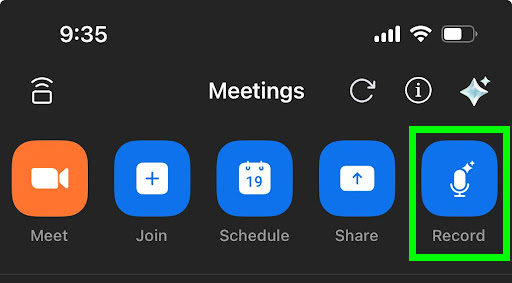
Using the Zoom mobile app, users can now create an impromptu audio recording using the AI Companion. On the Zoom mobile app, simply select the record button:
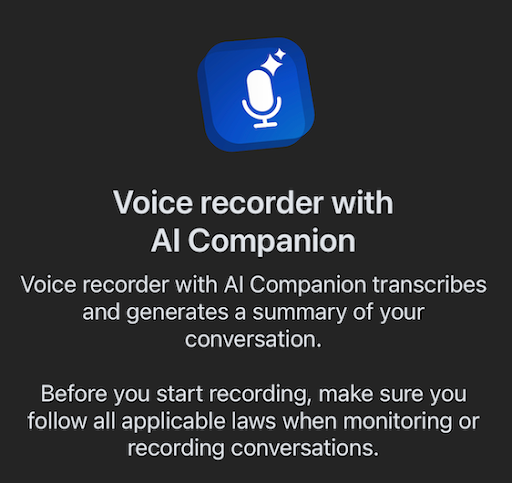
Then click Continue on the pop-up notification:
An AI Companion summary will be automatically created once the recording is completed. The summary and recording can be accessed by visiting the Zoom web portal.
For more information, please see Zoom's "Using Voice Recorder with AI Companion" article.
Bi-directional Zoom and Microsoft presence synchronization
Users are now able to enable "presence" for their Zoom account. By enabling the presence integration, Zoom will update your availability to reflect if you are in a meeting (Zoom, Teams, etc.) or out of the office. For more information, please see Zoom's "Configuring Zoom and Microsoft presence synchronization" article.
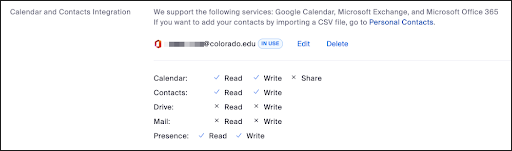
Note: To enable presence, a Zoom account must be integrated. For steps on this process, please see the Zoom - Integrate Meetings into Your Calendar tutorial.
Meeting / Webinar Feature Updates
Host/co-host option to dismiss questions answered by panelists
Hosts and co-hosts can dismiss questions that panelists have marked "Answer Live" in webinar Q&As. When a panelist clicks "Answer Live" to answer a question, both the host and the co-host can click "Done" on the panelist's behalf to complete the answer and move it to the answered queue.
Meeting Feature Updates
Automated captions on device
Users can experience automated captions generated on eligible devices. This means that for some meetings with lower internet connectivity or lower quality audio, users can still receive reliable captions when the Automated captions and Automated captions on device settings are enabled in the Zoom web portal.
Minimum device requirements include: Windows devices with Intel 11th Gen CPU or higher and 6 cores or higher, Windows devices equipped with AMD Ryzen 7 or higher and having 6 cores or higher, or macOS devices with Apple silicon of M2 or higher.
Note: This feature will not be immediately available, as it is dependent on a backend server update currently scheduled for June 30, 2025.
Enhancements to captions and transcripts language support
Users can access improved language detection and specification capabilities for captions and transcripts in Zoom Meetings. Users can customize caption settings with a new default mode, drag captions outside the meeting window, and resize the caption display. These enhancements enable clearer communication in multilingual meetings and improve accessibility for all participants.
May 2025
Zoom Workplace Desktop Application Updates
- Zoom Workplace 6.4.10 released (5/19/2025)
- Zoom Workplace 6.4.12 released (5/29/2025)
General Features
Enhancements to Workplace app desktop settings interface
New tabs
- Video & effects
- Camera selection from the Video tab is now combined with the Backgrounds & Effects tab, resulting in a single tab to control all settings related to your appearance.
- Meetings-related settings from the Video tab have been moved to the new Meetings tab.
- Notifications & sounds
- Combines notification and sound-related settings previously located across several settings categories.
- Meetings
- Combines meetings-related settings previously located across several settings categories. Settings impacting similar parts of the meeting experience are grouped together to make them easier to find.
Changes to existing tabs
- General
- Meetings-related settings have been moved to the new Meetings tab.
- System settings are now grouped together in a subcategory.
- Added a Zoom apps cache setting.
- Audio
- Ringtones have been moved to the new Notifications & sounds tab.
- Meetings-related settings have been moved to the new Meetings tab.
- Share screen
- Created sub-categories for content sharing settings, divided into three sections: When others share, When I share, and Share button behavior.
- Team Chat
- Desktop notification-related settings for Team Chat have been moved to the Notifications & sounds tab.
Meeting / Webinar Feature Updates
Enhancement to spotlighted tab display
When sharing multiple screens simultaneously during a meeting, participants can distinguish spotlighted tabs through a newly designed visual pill that appears next to the selected tab. The spotlight functionality has been refined to work seamlessly with existing gradients and color schemes in the interface.
Meeting Feature Updates
Ability to use slides as meeting presentation backgrounds
Users can select a PowerPoint or Keynote slide deck to be presented in the background. Users can navigate through their uploaded slide deck images while presenting, and adjust the size and location of their webcam video. The feature is available to Free, Pro and Enterprise users. This enhancement provides presenters with a flexible way to create engaging visual presentations while maintaining speaker presence on screen.
Ability to choose the meeting waiting room default screen
When the waiting room is enabled, participants see a default screen unless account owners, admins or hosts customize it. This screen may change over time to reflect Zoom's latest products or features—for example, switching from the Zoom Workplace image to the AI Companion image.
With this release, customers can choose to keep the Zoom Workplace image or use the AI Companion image as the default screen shown in the waiting room.
- Account owners and admins can manage this setting at the account or group levels under the Meeting tab > Security section > Waiting Room Options > Customize Waiting Room.
- If allowed within the account, the host can also change this setting for their personal use under Settings > Meeting tab > Security section > Waiting Room Options > Customize Waiting Room.
This feature will be added to feature release controls.
AI Meeting Summary in Microsoft Teams
This update adds a post-meeting summary feature to the Zoom integration in Microsoft Teams. After a Zoom meeting ends, a View meeting insights with AI Companion link will automatically appear in the Microsoft Teams meeting card. To use this feature:
- Zoom AI Companion must be enabled.
- The Insert meeting details option in Zoom web settings must be turned on (enabled by default).
- Located under the Mail & Calendar tab.
- Clicking the link opens the AI-generated summary directly in Teams. Users can continue interacting with Zoom AI Companion via a deep link to the Zoom app included in the summary.
April 2025
Zoom Workplace Desktop Application Updates
- Zoom Workplace 6.4.5 released (4/16/2025)
- Zoom Workplace 6.4.6 released (4/21/2025)
Meeting / Webinar Feature Updates
Enhanced waiting room layout with expanded self-view and streamlined audio controls
The waiting room enhanced interface provides a larger preview area for users to check their video appearance and background settings before joining Zoom Meetings or Webinars. This enhancement creates a seamless transition from the preview window to the main meeting/webinar interface. Users who have not connected their audio can quickly access audio settings directly from the waiting room window. These improvements enable participants to optimize their appearance and audio setup more effectively before joining sessions.
AI Companion features
Meeting summary templates
Customers can use 10 out-of-the-box meeting summary templates, including one-on-one meetings and brainstorming sessions. They can also build their own meeting summary templates with custom templates.
March 2025
Zoom Workplace Desktop Application Updates
- Zoom Workplace 6.4.0 released (3/17/2025)
- Zoom Workplace 6.4.1 released (3/22/2025)
- Zoom workplace 6.4.3 released (3/31/2025)
General Features
Enhanced Zoom Workplace App interface for signed-out users
When a signed out user opens the Zoom Workplace App, they would see the enhanced workplace interface with tabs that reflects Zoom products. The last login of the user will be saved for a seamless sign-in. Upon signing in, users would only see the products as per their license entitlements. For customers who use device level policies, a new MSI/GPO flag, EnableNewSigninUI, will be enabled by default to show this experience. It can be disabled to continue showing the older experience.
February 2025
Zoom Workplace Desktop Application Updates
- Zoom Workplace 6.3.5 released (1/6/2025)
- Zoom workplace 6.3.6 released (1/15/2025)
Meeting Feature Updates
Improved preview experience for joining meetings
Users joining a meeting will consistently see the new simplified preview dialog. This screen displays the selected audio and video sources, the default audio join method (computer audio), and an option to configure their name. Users can easily view and change these settings before joining the meeting so they are properly heard and seen.
Enhancements to recording sharing with simplified request and approval workflow
Meeting participants can request access to recordings directly from the meeting card or recording link without having to send separate messages through chat, email, or calls.
Meeting hosts receive these requests through in-product notifications and emails, which direct them to a viewing page where they can manage access permissions.
Hosts can view all requesters on the share modal, grant or deny access, and manage existing permissions for specific users.
The feature respects all security settings, including authentication requirements and password protection.
End of meeting access to meeting recordings, summaries, and shared content
After a meeting ends, a dynamic pop-up appears, based on the assets utilized during the meeting, directing users to the meeting details page. Here, they can access available meeting assets such as meeting recording, summary, continuous chat log, as well as any content shared during the session, such as whiteboards, links, and notes.
Ability to spotlight a specific shared item for participants in meetings
Hosts and co-hosts can spotlight a shared item to direct participants' attention to it during meetings. They can select a shared item and mark it as spotlighted so participants know which content to focus on among multiple shared items. Only one shared item can be spotlighted at a time. If a spotlighted share stops, no shares will be spotlighted until a host or co-host spotlights another share. This feature helps hosts manage participant attention so they are focused on the right content.
AI Companion Features
AI Companion integrated into additional mobile tabs
Users can access AI Companion from additional tabs in the Zoom Workplace mobile app, including Whiteboards, Notes, Clips, Workspace, Apps, and Events.
January 2025
Zoom Workplace Desktop Application Updates
- Zoom Workplace 6.3.5 released (1/6/2025)
- Zoom workplace 6.3.6 released (1/15/2025)
General Features
Enhancements to global navigation menu to reduce interface complexity
The Help icon (?) has been removed from the global navigation bar to reduce visual clutter while maintaining Help functionality through alternate access points. Users can still access Help features through the native operating system toolbars or the profile menu.
Webinar Feature Updates
Simulive webinars with automatic transition to live
Hosts can schedule webinars to start with a pre-recorded video and automatically roll over to a live session after the recording completes. Hosts have the option to end the simulive portion early and transition to live manually. Attendees experience a seamless transition from the pre-recorded content to the live segment. Hosts and panelists are notified before the rollover to prepare for the live portion. This feature ensures webinars start on time with engaging content while enabling live interaction with the audience. Users must be on Zoom Workplace App version 6.3.5 or later to use this feature.
Teams Chat Features
New and improved sidebar experience in Team Chat
Zoom Team Chat's newly redesigned sidebar gives you complete control over your workspace. For more information, please see Zoom's "New Zoom Team Chat sidebar experience" article.
Integration Features
Enhancement to Zoom for Microsoft Teams
Zoom for Microsoft Teams has been enhanced for a better user experience. The Meeting and Phone tabs have been combined into a single Zoom Workplace tab. The user interface of the Meeting function, as well as the Notification to Chat, has been updated.
December 2024
Zoom Workplace Desktop Application Updates
- Zoom Workplace 6.3.1 released (12/23/2024)
- Zoom Workplace 6.3.0 released (12/16/2024)
General Features
AI Companion 2.0 for Zoom workplace mobile apps
AI Companion 2.0 is now available for users on Zoom Workplace mobile app both when in a meeting and out of a meeting. AI Companion provides users with a personal assistant that helps them stay up-to-date on important conversations and synthesize information to make faster, more informed decisions. If AI Companion 2.0 is enabled in web settings, users can access the AI Companion 2.0 screen from the mobile app header. Users can ask AI Companion 2.0 questions and receive tailored responses using information across Zoom Workplace, uploaded documents, and, if connected, Microsoft O365 and Google email and documents.
Replace photo picker with Android photo picker
The Zoom Workplace app for Android now utilizes the Android photo picker to allow users to select individual photos from their device's photo gallery when inserting photos into messages or documents. This change ensures Zoom only has access to photos selected by users to share within the app.
Meeting / Webinar Feature Updates
Support for shared polls in meetings and webinars
Meeting and webinar hosts can access to shared polls and initiate them during their sessions. This feature allows hosts to leverage user to user shared poll content, eliminating the need to duplicate polls. By providing a centralized repository for shared polls, hosts can efficiently integrate engaging and interactive elements into their virtual events, fostering greater participant engagement.
Meeting Feature Updates
Support muted audio notification for mobile apps
Users will receive a consistent reminder across Zoom Workplace desktop and mobile app when they are speaking while muted during a meeting. The reminder stays visible long enough for users to read and unmute themselves.
Access meeting insights with My Meeting Coach
Users can access and review stats provided by the AI My Meeting Coach directly from the Zoom Workplace app. My Meeting Coach provides personalized feedback and analytics after a meeting is finished. It shows the highlights and stats in the post-meeting card, allowing users to analyze their performance and receive feedback on areas such as filler words, speaking time, and more. This feature provides valuable insights to help users improve their communication skills and conduct more effective meetings.
November 2024
Zoom Workplace Desktop Application Updates
- Zoom Workplace 6.2.11 released (11/25/2024)
- Zoom Workplace 6.2.10 released (11/18/2024)
- Zoom Workplace 6.2.7 released (11/11/2024)
Meeting / Webinar Feature Updates
Improved visual indicators for lowering hand in meetings and webinars
In a meeting or webinar, the lower hand icon and a floating lower hand button above the toolbar will appear providing a clear visual cue. The floating button remains visible regardless of the Display your reactions above toolbar setting, so users don't miss the lowered hand state.

Meeting Feature Updates
Improved speaker visibility in gallery view with follow drag order and sort by active speaker option
During a meeting, users can keep the most recent active speaker visible in the gallery view. When a participant starts speaking, they will remain in their current position until they finish speaking or are muted, even if they lower their hand.
Webinar Feature Updates
Shared content-only view mode for webinars
Webinar hosts and co-hosts can select a shared content-only view mode that displays only the shared content to attendees, hiding all panelist video tiles. This mode is available even when panelists have their cameras turned on. Hosts and panelists can also select this view for their personal use from the view menu or participant list. Attendees will see this view automatically if the host has set the attendee view to shared content only, or to follow host view with the host in the shared content only view.
This feature provides hosts with more control over the attendee experience, allowing them to prioritize shared content in situations like slide presentations, webpage sharing or video playback.
The following settings must be enabled through Zoom Recording settings:
- Enable Record active speaker with shared screen
- Enable Record gallery view with shared screen
- Enable Record active speaker, gallery view and shared screen separately
- Enable Shared Screen (this is a sub-setting under Record active speaker, gallery view and shared screen separately)
- Disable Record thumbnails when sharing
For more information, please see Zoom's "Adjusting recording video layouts" article.
Survey & Polls Feature Updates
Integrate surveys and polls in the Zoom desktop app
Users can access and manage surveys and polls directly from the Zoom desktop app. They can create new surveys or polls, manage their personal survey library, access survey or poll results, and preview surveys or polls. This integration provides a seamless experience for users to work with surveys and polls within the Zoom desktop app, eliminating the need to switch between different apps.
Mail & Calendar Feature Updates
Bi-directional calendar sync enabled by default
Once a user integrates their calendar with Zoom, the bi-directional syncing is enabled by default.
With bi-directional syncing, users can ensure their Zoom meetings are correctly synced with their connected third-party calendar by enabling bi-directional sync.
October 2024
Zoom Workplace Desktop Application Updates
- Zoom Workplace 6.2.6 released (10/28/2024)
- Zoom Workplace 6.2.5 released (10/22/2024)
General Feature Updates
Zoom AI Companion 2.0
The AI Companion within the Zoom Workplace desktop app provides users with a personal assistant that helps users get more done. AI Companion 2.0 is available in Zoom Workplace in a convenient side panel to help users stay up-to-date on important conversations, synthesize information to make faster, more informed decisions. If enabled within the account, users can use the AI diamond to open a right-side panel where they can ask questions and receive tailored responses sourced from different data sources and contexts available to the user.
Note: This feature is currently supported in the Zoom Workplace desktop app only.
Meeting / Webinar Feature Updates
Support keyboard shortcuts for in-meeting chat
New keyboard shortcuts will be added to the Zoom Workplace desktop app to improve navigation and chat usage during meetings or webinars. This enhancement aims to help users, particularly those using screen readers, participate more efficiently in chat conversations during meetings and webinars. New keyboard shortcut scope for this release are as follows:
Focus chat input field
- macOS: Shift+Command+E
- Windows: Alt+Shift+E
Start new chat
- macOS: Command+N
- Windows: Ctrl+N
Team Chat Feature Updates
Send message to multiple chats or channels at the same time
Users composing a message in Team Chat can now choose to send it to multiple chosen contacts, groups, and channels simultaneously. The message will appear as natively sent in each conversation. Before sending, users can edit the list of recipients. After sending, users can modify the message content from each sent location. This streamlines sharing information across multiple conversations in Team Chat.
Image annotation for shared images in Zoom Team Chat
Users can annotate any image shared in Zoom Team Chat by clicking on the image and selecting the Annotate option. The image opens in an annotation interface, allowing users to mark up the image using various annotation tools. Users can then save the annotated image back into the chat as a new message. This feature streamlines the workflow by enabling direct annotation within the chat, reducing the need for external tools. Note: This feature is available only on macOS and Windows.
Enhancements to shared space channel management
Users can convert private channels to public channels within a shared space. Private channels are made accessible to all shared space members, with options to add or remove members as needed. Public channels can also be converted to private, limiting access to current members. Additionally, users can change the sync status of public channels, controlling whether membership changes in the shared space are reflected in the channel. This provides greater flexibility in managing channel access and membership within shared spaces.
September 2024
Zoom Workplace Desktop Application Updates
- Zoom Workplace 6.2.3 released (9/30/2024)
- Zoom Workplace 6.2.2 released (9/25/2024)
- Zoom Workplace 6.2.0 released (9/16/2024)
General Features Update
Manage signed-in devices and sessions
From both the Zoom Workplace app and the Web Portal, users can manage devices and sessions where they are logged in, with the ability to log out of individual devices or log out of all devices and sessions. This feature will not be immediately available, as it is dependent on a backend server update currently scheduled for Sept. 23, 2024.
Audio tone support for mute/unmute actions
The Zoom Workplace app offers an option to play audio tones when muting or unmuting the microphone, providing enhanced accessibility for users with visual impairments or other disabilities. This setting is off by default and can be enabled from the Zoom Workplace app under Settings then Audio. When enabled, users will hear a tone, audible only to them, indicating the mute or unmute action.
Meeting / Webinar Feature Updates
Simplified muted audio notification
Users will receive a consistent reminder across Zoom Workplace desktop app when they are speaking while muted during a meeting. The reminder stays visible long enough for users to read and unmute themselves. The reminder message is simplified removing multiple options for unmuting.
Show time of next recurring session in meeting and webinar waiting room
When waiting to join a recurring meeting or webinar series, users are shown the start time and date of the next scheduled session. The waiting room displays Starting at followed by the upcoming session's time and date, replacing the previous Recurring label. If the next session is not on the same day, the day is also displayed.
Webinar Feature Updates
New branding features
Zoom is adding new branding features for Webinars. Hosts and co-hosts gain the ability to change the webinar wallpaper within the Zoom Workplace app, similar to the experience in Zoom Meetings. This update enhances user control and personalization, allowing for a more productive and visually cohesive webinar experience. Additionally, admins can upload and define default wallpapers, providing a unified branding approach across different Zoom services.
Ability to demote alternative host to attendee
Hosts can demote an alternative host to an attendee role. This allows alternative hosts, who were automatically added with scheduling privileges or added manually by the host, to participate as regular attendees when not needed for hosting duties. The demoted user can leave and rejoin the session to regain alternative host privileges.
Slide control practice mode in Backstage for webinar presenters
Presenters can now practice using slide controls within Backstage as they prepare for webinars. This new practice mode simulates the live webinar experience, allowing presenters to navigate through slides and get accustomed to the slide control functionality. Backstage provides a dedicated environment for presenters to rehearse their presentations and become comfortable with the slide controls before the actual webinar.
Improved navigation for panelists moving from Backstage to Webinar
The icon for Enter Webinar or Enter Backstage is more prominent, making it easier for panelists to find and switch between the two spaces.
Mail & Calendar Feature Updates
Visually appealing calendar color palette revamp
The calendar color palette has been revamped with a consistent color mapping and visually pleasing color options. The new palette avoids overly bright colors or high contrast shades that can strain the eyes.
August 2024
Zoom Workplace Desktop Application Updates
- Zoom Workplace 6.1.11 released (8/26/2024)
- Zoom Workplace 6.1.10 released (8/19/2024)
Meeting / Webinar Feature Updates
Meetings and Webinars capacity alert and live streaming guidance for hosts
Hosts who hold a license for the largest meeting or webinar attendee capacity are made aware when a meeting or webinar is reaching capacity so they can take measures and start live streaming to handle the overflow. When meeting or webinar capacity reaches 80%, hosts receive a prompt to start a live stream. At 100% capacity, another prompt appears notifying hosts that the meeting or webinar is full and suggesting they start a live stream to accommodate additional attendees.
These prompts only appear if the host is allowed to start a live stream and had not started one for the ongoing meeting or webinar. This feature ensures all attendees can participate in meetings and webinars, even if the capacity is exceeded.
Meeting Feature Updates
Ability to pre-configure upcoming breakout rooms during active breakout sessions
Hosts can pre-configure the next breakout room setup, including assigning participants to specific rooms, while the current breakout session is active. This feature enables a smoother transition between breakout sessions, as the next configuration is ready to launch immediately after the current session ends. Hosts can efficiently manage and prepare for subsequent breakout discussions, enhancing the overall meeting productivity.



