
The Classroom Capture service now automatically adds videos to the corresponding Canvas course. You no longer need to manually create the button on the navigation bar.
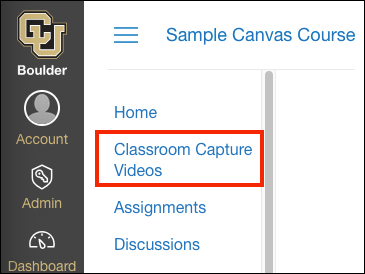
By enabling the Classroom Capture Videos link in the course navigation, instructors can share the videos automatically. By default, the videos are only shared with the students enrolled in the section of the course that is being recorded.
This guide outlines how to identify if you have a combined course and how to request for your Classroom Capture videos to be shared with all sections.
Learn more: Watch our Classroom Capture & Combined Canvas Courses Video Tutorial.
What are combined courses in Canvas?
For the purposes of Classroom Capture, the term "combined courses" refers to main (e.g., lecture) sections that are part of the same Canvas course. Each section has its own unique enrolled students. The addition of recitation and lab sections are not considered a "combined course."
How can I check if my course is combined?
To determine if you have a combined course, navigate to the People button on the course navigation bar. From that section, you can review the enrolled students and see if they are all enrolled in the same main lecture section.
Expand the sections below to view examples of combined and standard courses.
Combined course with two main sections
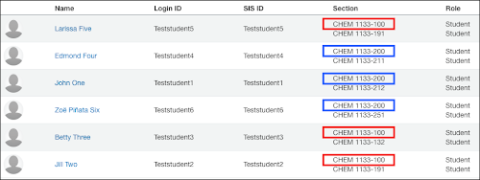
In this example, there are two main course sections: CHEM 1133-100 and CHEM 1133-200. There are three students enrolled in each main section.
Note: The main sections (100, 200) are used to determine combined courses rather than the lab or recitation sections (132, 191, 211, 212).
Standard (not combined) course with one main section
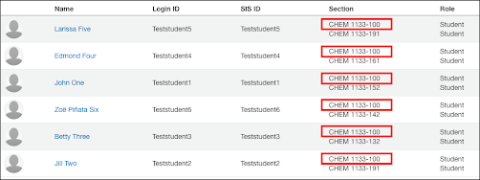
In this example, there is only one main course section: CHEM 1133-100. All six students are enrolled in the same main section.
Combined course with three separate courses sharing the same class session
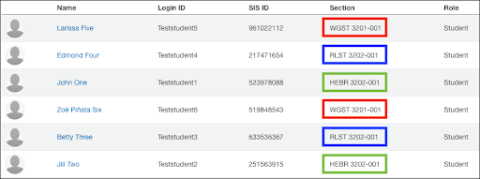
In this example, there are three separate courses in which students are uniquely enrolled. All three courses share the same class session (dates/times/location); however, each course is separate in the system recorders.
I have a combined course. How do I share the videos with everyone?
A new field is available on the Classroom Capture request form. Please use that field when requesting Classroom Capture.
If you have already requested Classroom Capture and need to share the videos, please fill out the Share Recordings for a Combined Canvas Course request form.
I have a combined course and record both sections. If I share with everyone, what will the students see?
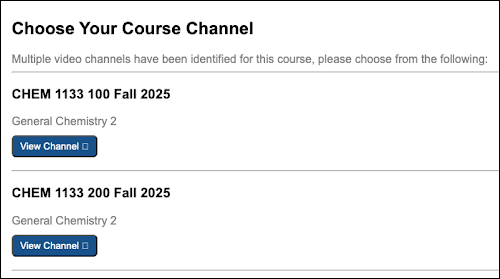
Each time they click the Classroom Capture Videos button, students will be given a prompt to pick which set of recordings to watch.
What will students see if they aren't enrolled in the recorded section and videos aren't shared yet?
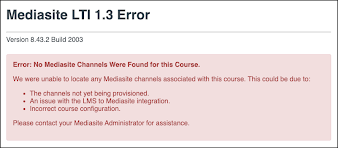
Students will see an "Error: No Mediasite Channels Were Found for this Course" error message.
Considerations when sharing content in combined Canvas courses
Instructors should be familiar with FERPA guidelines when sharing course content across multiple sections.



