
Features
Zoom My Notes allows an individual to make notes as well as record the transcript of a meeting for future personal use. For more information, see Zoom's "Using My notes" article.
Who Can Get It
Anyone with a Zoom Pro account can choose to enable and use this tool.
How to Get It
To enable My Notes and adjust the settings, you can follow along with this video tutorial or use the written instructions below.
- Log in to Zoom Web Conferencing with your IdentiKey credentials.
- Go to Settings.
- Select the Notes tab.
- Under the General heading, click the toggle to Enable My notes.
- In the pop-up confirmation window, click Enable.
For additional support, please visit the Zoom Support Center or contract the IT Service Center at 303-735-4357 or oithelp@colorado.edu to request assistance.
FAQs
How do I use Zoom My Notes?
When in a Zoom meeting, select the note icon in the top right corner and choose Start taking notes.

Can I use Zoom My Notes outside of Zoom?
Yes. By default, Zoom My Notes will be enabled to use outside of Zoom as well.
When joining a meeting, a pop-up message will appear indicating that you can use Zoom My Notes with the third-party software.
For example, here is the popup for when using Microsoft Teams:

Select the Take notes option to use the feature.
Can I disable the Zoom My Notes feature from third parties?
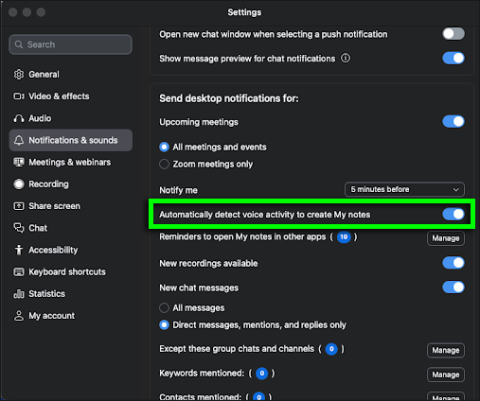
Yes. To disable this feature for third-party applications:
- Open the Zoom Workplace desktop application.
- Go to Settings.
- Select Notifications & sounds.
- Scroll down to the Send desktop notifications for: section.
- Locate the Automatically detect voice activity to create My notes setting.
- To disable this feature entirely, click to toggle it off.
- To disable the feature for specific applications only, click the Manage button below the toggle, then use the toggles to enable or disable the feature per application.
Does Zoom My Notes notify the meeting host if enabled?
No, Zoom My Notes does not notify the host that My Notes is being used, because My Notes is a personal note taking tool.
However, if the meeting is in Zoom and the host opens the participant list, they can see who is using My Notes by the pencil icon next to their name.

If someone is using My Notes in my Zoom meeting can I stop them?
Yes. With the participants view open, the Zoom host can select the pencil icon and choose Stop notes transcription. This will notify the user that had enabled My Notes that the transcription has been stopped by the host.
The user can still use My Notes, but will no longer be able to record the transcription.
Here is an example of the message a user would receive if the Zoom host stopped their transcription:

Is it possible to disable the Zoom My Notes from both my Zoom and third party?
Yes. Simply sign in to the Zoom web portal, go to Settings and select Notes. Once selected, disable Enable My notes.




