Jamf Connect and Microsoft Multi-Factor Authentication (MFA)
Issue
Multi-Factor Authentication is now enforced on all Microsoft logins with your University of Colorado credentials. This includes Jamf Connect, the tool used for authentication and login on all macOS devices.
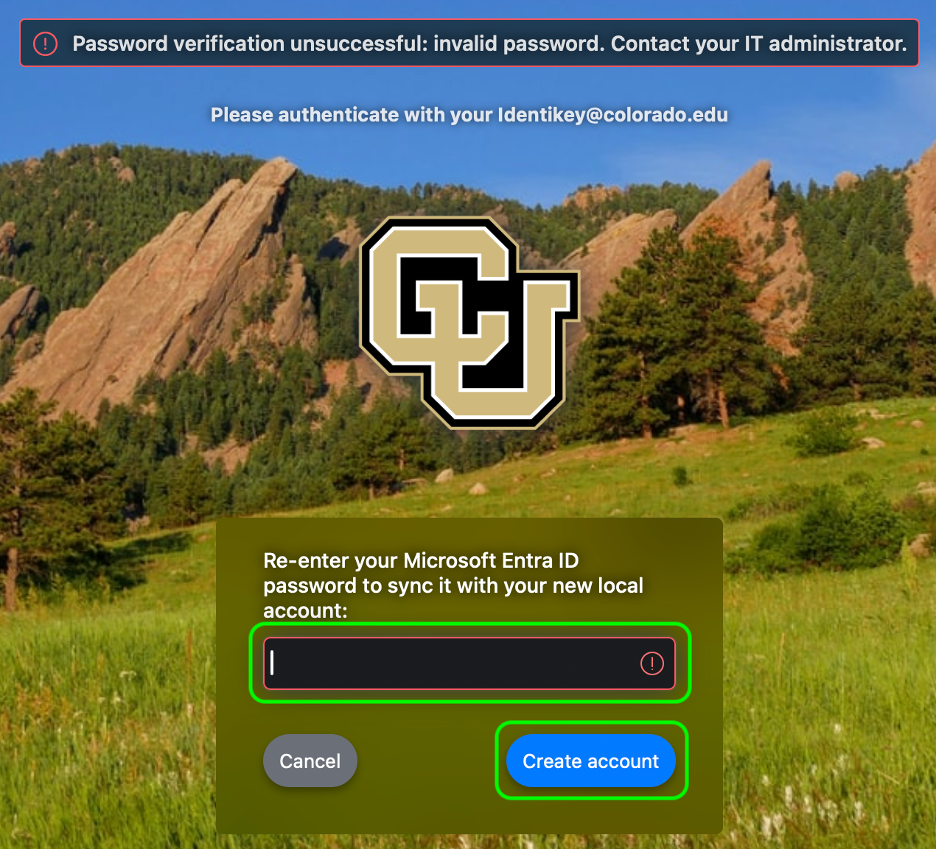
There is one known issue that may cause some confusion when enrolling an Apple computer. This issue will only occur when you first login after enrolling a macOS device and have Passwordless MFA enabled. Jamf Connect requires a password from the user to be able to create a local account. With Passwordless MFA a password is never provided so Jamf Connect will give an error until a password is entered.
Workarounds
There are two options you can use to provide this password and continue setting up your device.
Option 1: Manually switch to Password MFA
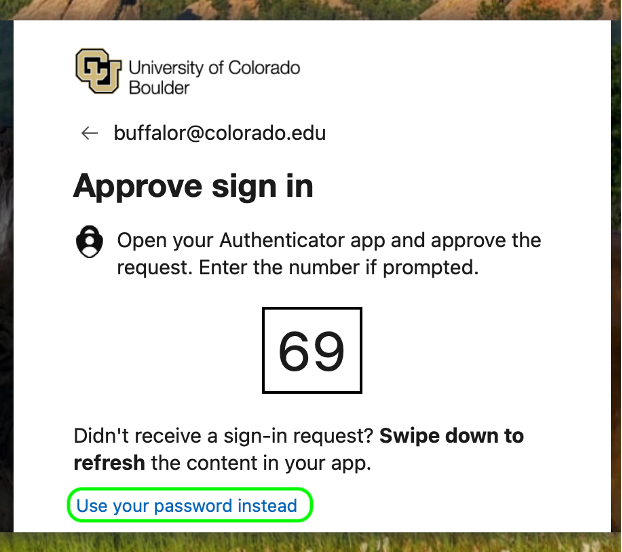
- After entering your IdentiKey username for the first time, you'll be prompted for MFA. Click Use your password instead to cancel the request on your MFA device.
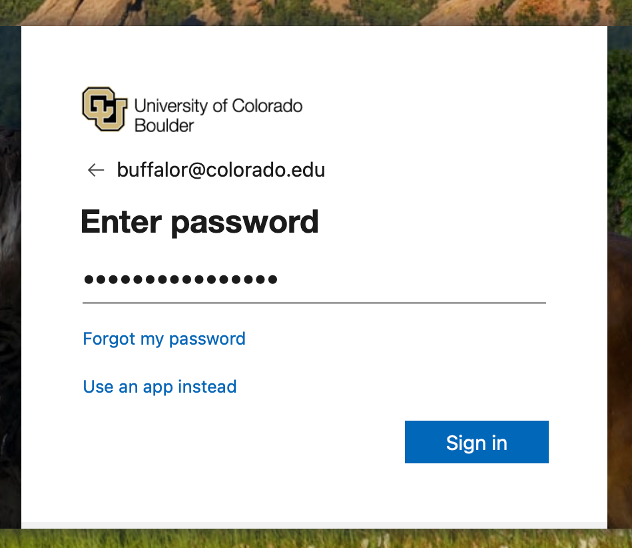
- Enter your password, hit Sign In, and answer any MFA requests
Option 2: Enter password via Jamf Connect Error Message
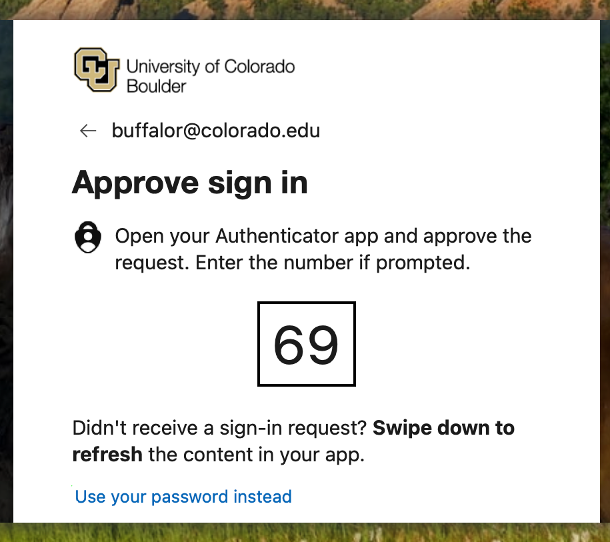
- After entering your IdentiKey username for the first time, complete the Passwordless MFA prompt as given.
- Jamf Connect will show an error message but allow you to enter your IdentiKey password to create the account. Enter the password in the field provided and click Create Account.