Zoom - Schedule a Meeting on Behalf of Another User

Zoom scheduling privilege allows users to grant others access to their account to schedule Zoom meetings on their behalf. Follow this tutorial to learn how to schedule Zoom meetings using Microsoft Outlook, Zoom Workplace, or the Zoom web portal on behalf of others. Follow our Grant Scheduling Privilege to Another User tutorial to learn how to grant others access to schedule meetings.

Please note: When scheduling on behalf of others, the Zoom meeting will not display on your Outlook calendar unless you add yourself to the meeting as well.

Layout:
one column
two columns

Before scheduling on behalf of others for the first time, you may want to check that your Zoom account is integrated with Office 365 using the Zoom - Integrate Meetings into Your Calendar tutorial

Microsoft Outlook Instructions

Step 1

Launch Microsoft Outlook, select Calendar view and create a calendar event.

Step 2

Select Zoom then Settings.

In Outlook meeting, click Zoom then Settings

Step 3

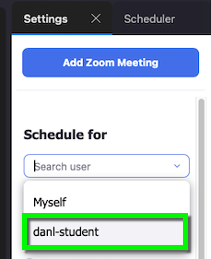
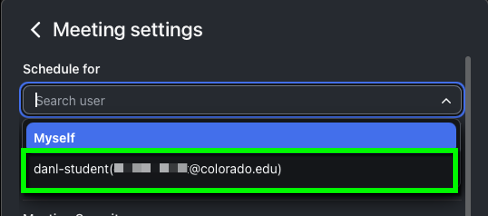
Switch the Schedule from “myself” to the name of the individual you are scheduling on behalf. If needed, edit any additional settings. 

Select the individual you're scheduling a meeting for.

Step 4

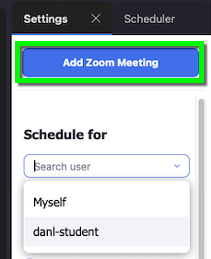
Select Add Zoom meeting.

Click Add Zoom Meeting to add Zoom info to the meeting invite.

Step 5

You should see that the Zoom meeting information has been added to the body of the Microsoft Outlook message. Add attendees and save/send as normal.

Zoom Workplace Instructions
Step 1

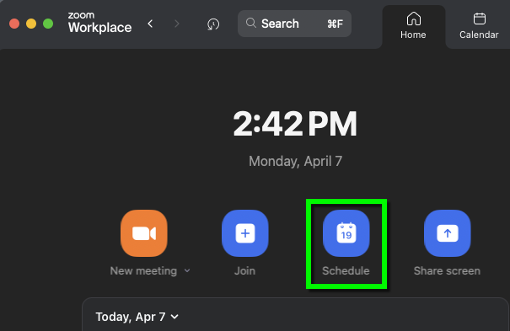
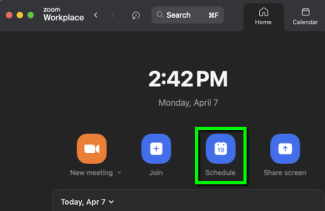
Launch the Zoom Workplace app on your computer and select Schedule.

Select Schedule button

Step 2

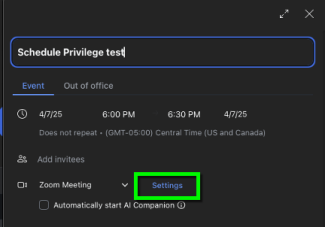
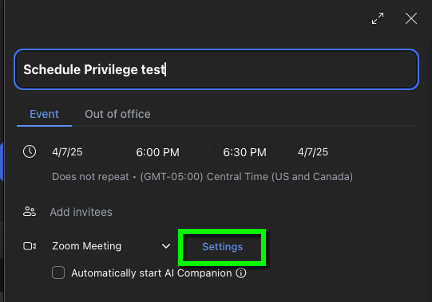
Next to the Zoom Meeting dropdown, select Settings.

Next to Zoom Meeting dropdown, click Settings

Step 3

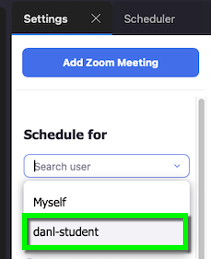
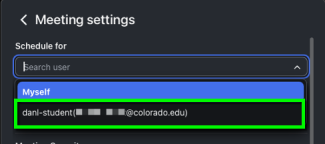
Change the Schedule for from “myself” to the name of the individual you are scheduling on behalf of.

Select the individual you're scheduling a meeting for.

Step 4

Continue creating the Zoom meeting as normal.


Zoom Web Portal Instructions

Step 2

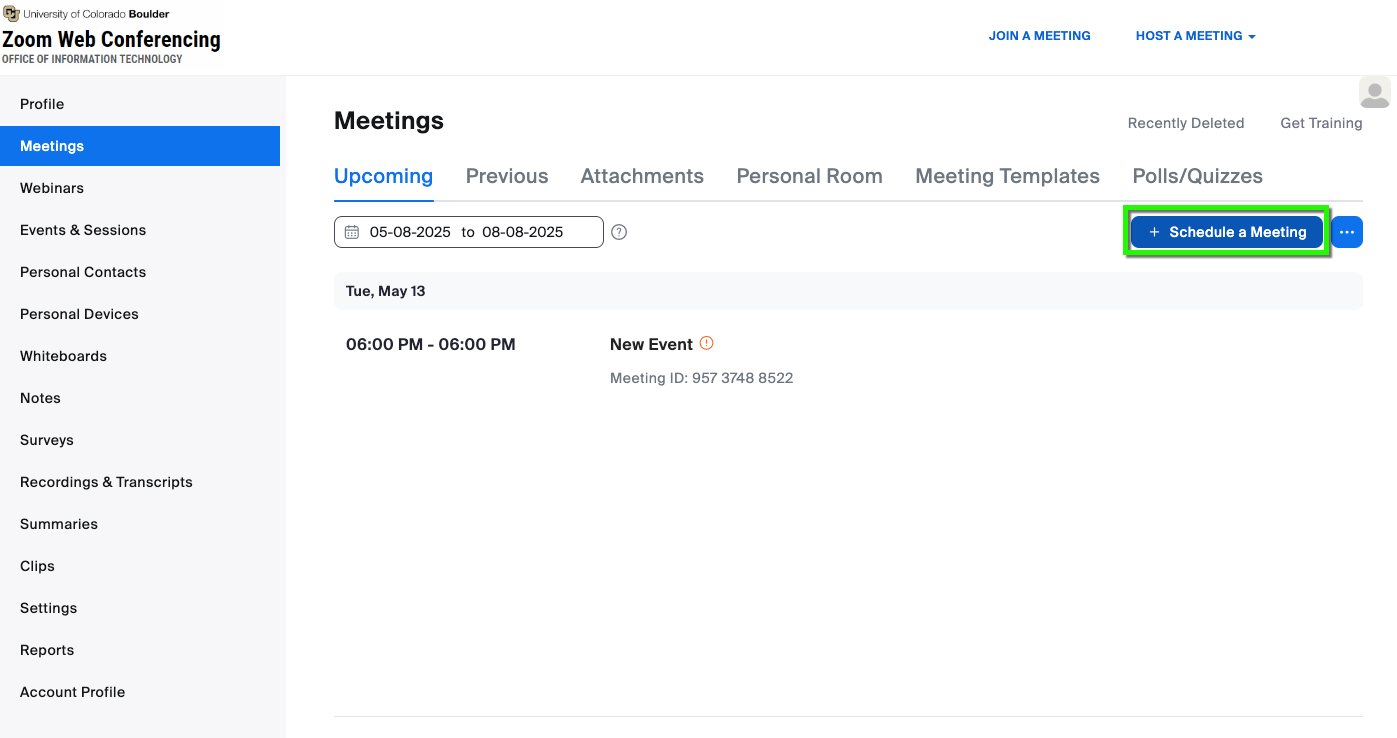
Select Meetings from the menu on the left.
Step 3

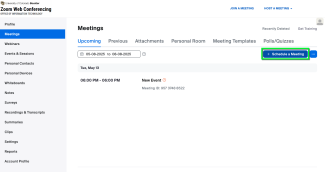
Select Schedule a meeting.

Click Schedule a meeting

Step 4

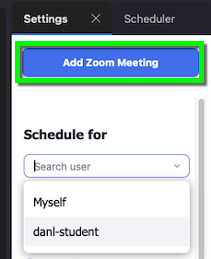
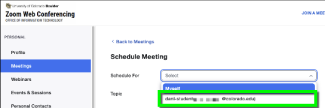
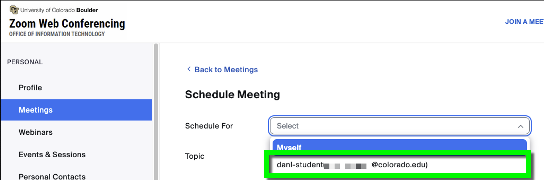
Change the Schedule for from “myself” to the name of the individual you are scheduling on behalf of.

Select the individual you're scheduling a meeting for.

Step 5

Continue creating the Zoom meeting as normal.