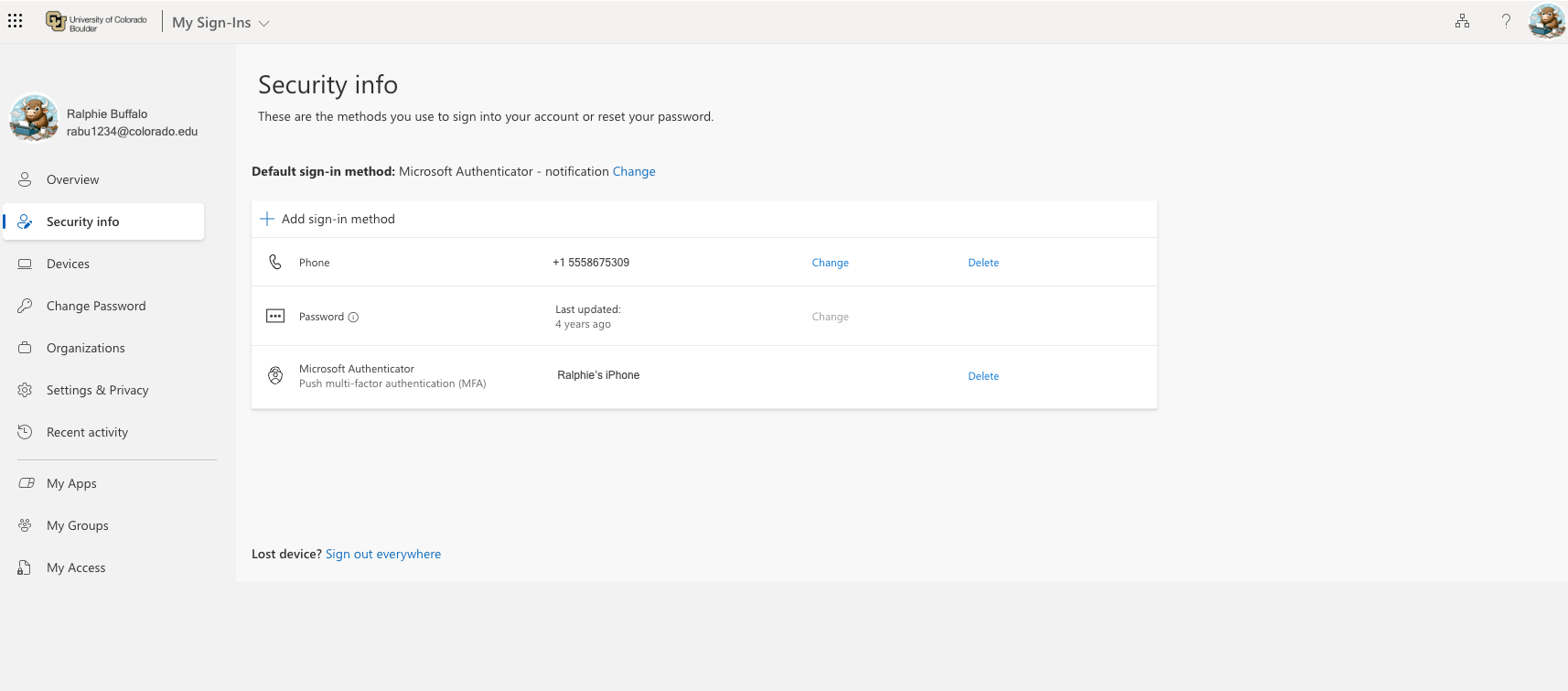
Step 1
Step 2

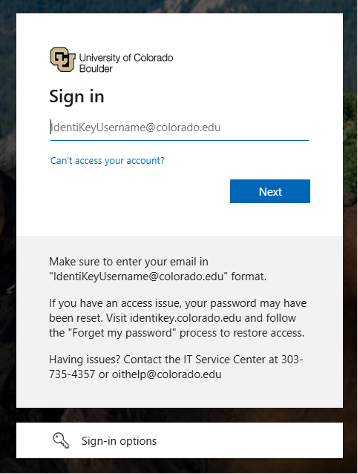
Step 3
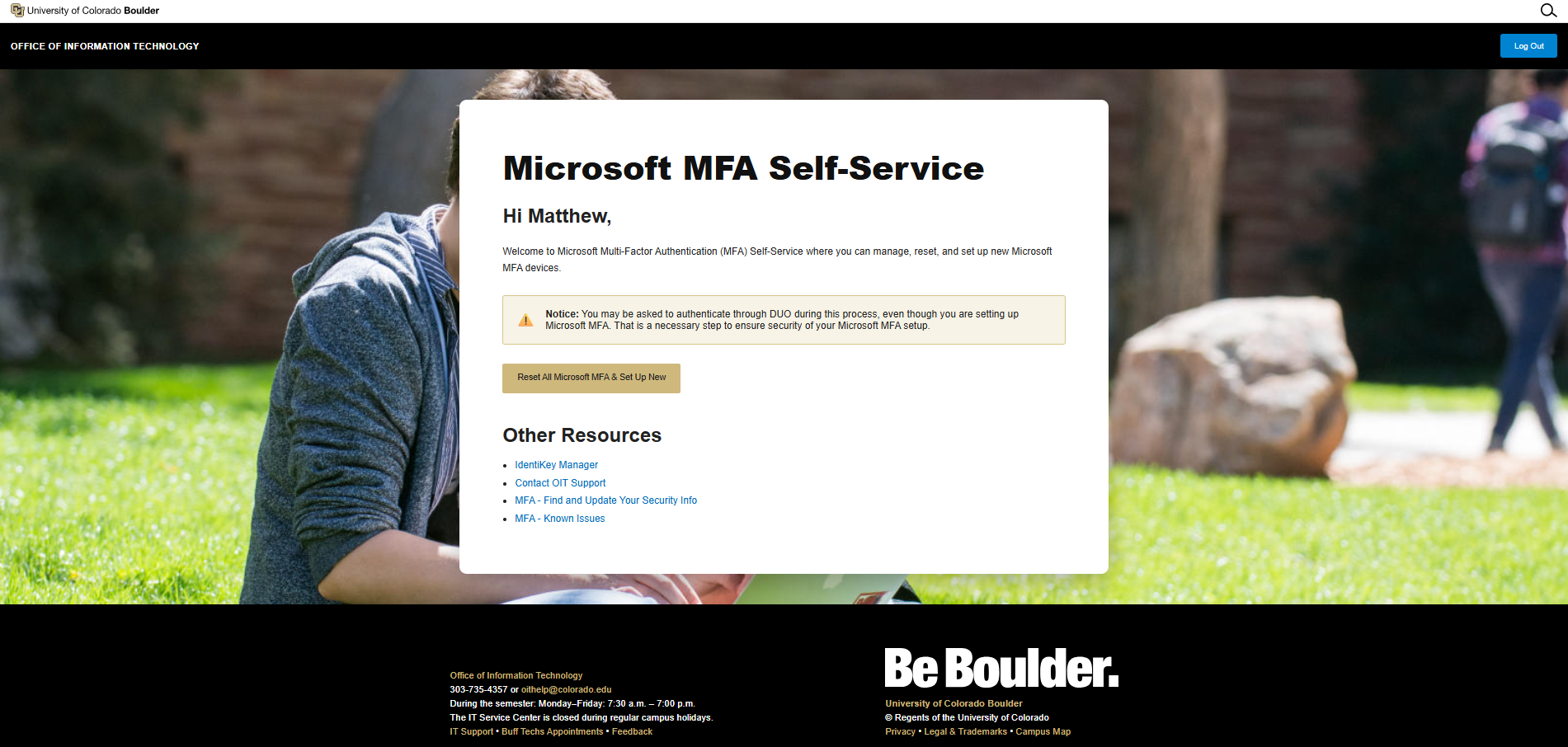
Step 4
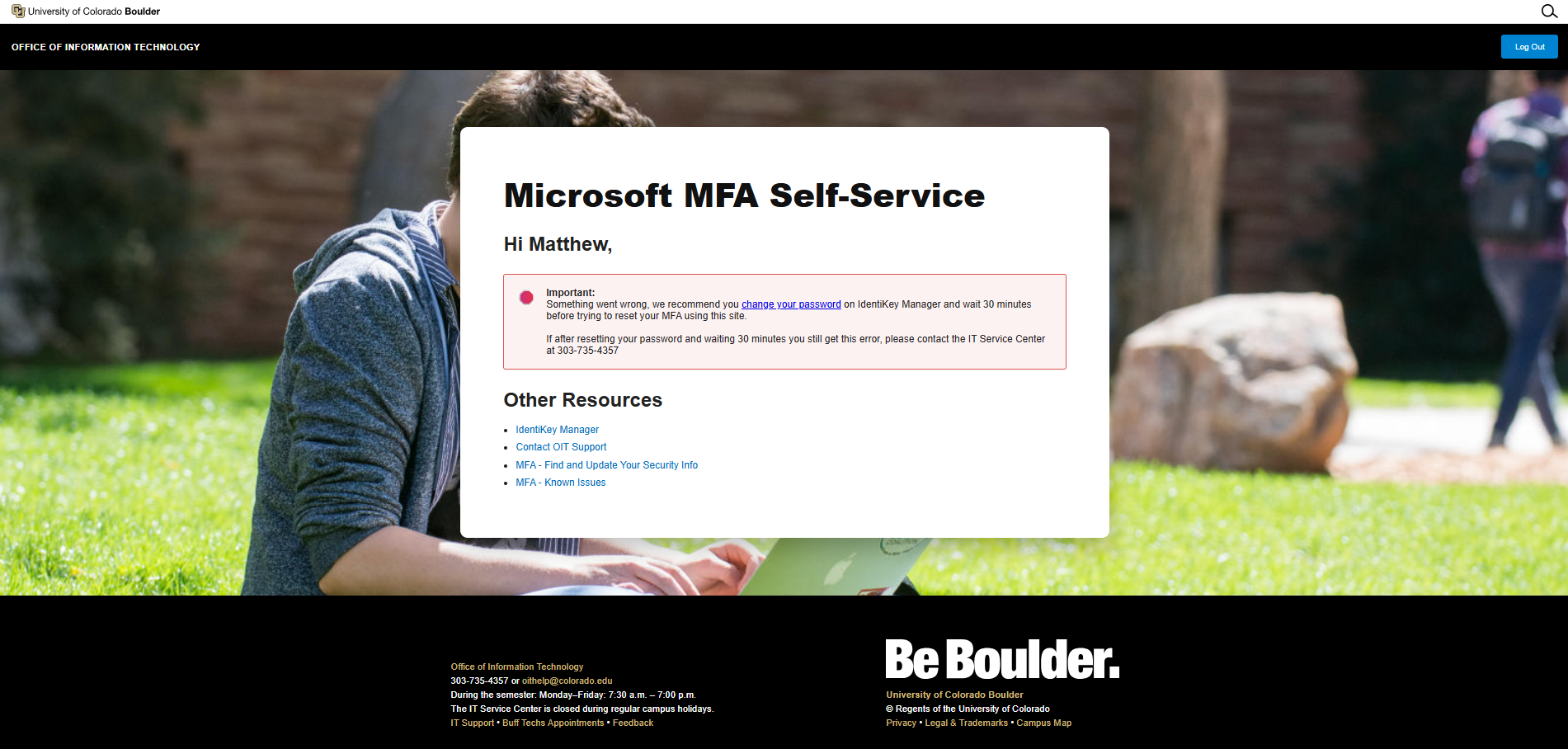
If you receive an error page like the one shown, you may not be eligible to use the MFA Self-Service site. Try changing your password on the IdentiKey Manager website, wait several minutes, then return to the Microsoft MFA Self Service site and try again. If the issue persists, please contact the IT Service Center 303-735-4357 or oithelp@colorado.edu.
If you do not receive an error and can access the site, skip to the next step.


Step 6
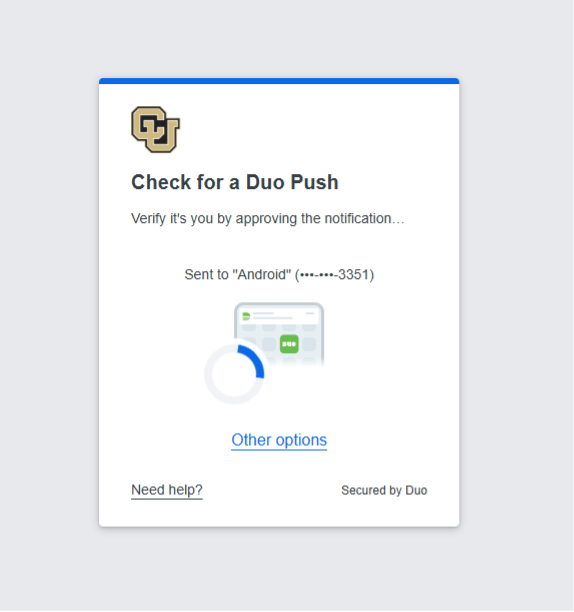
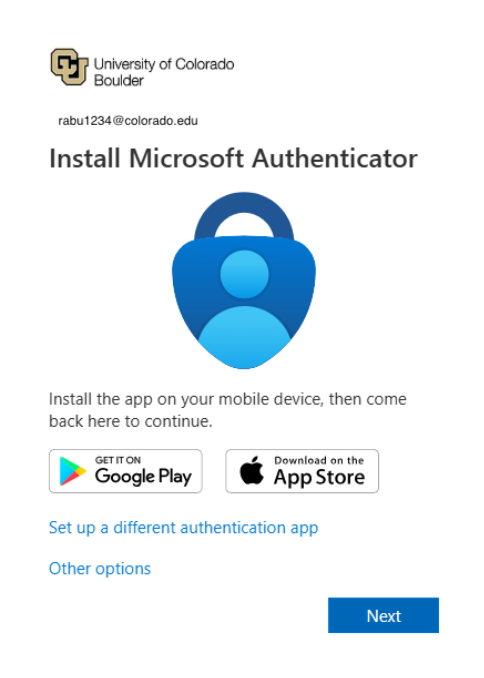
After successful authentication, the site will automatically have you go through the process to set up the Microsoft Authenticator app. Follow our Register and Set Up Microsoft Authenticator app tutorial for assistance.

Step 7
After registration is complete, you'll be directed to your Microsoft 365 Security Info page where you can verify the MFA method you just added and set up a back up if desired. Our Find and Update Your Security Info tutorial shows how to get to this page and add additional methods for authentication.