Step 1
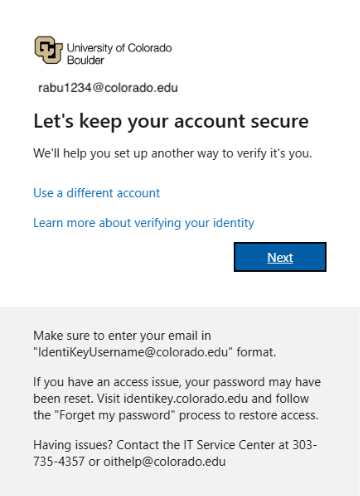
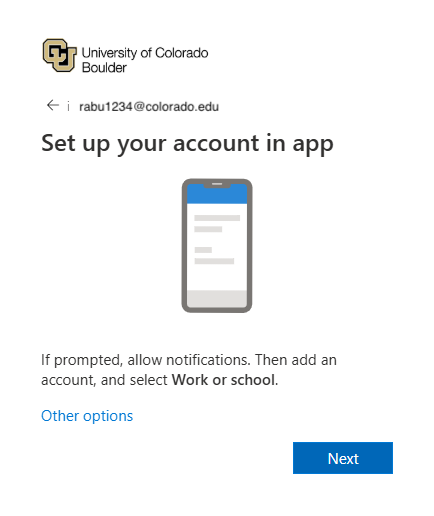
The first time you go to sign into a CU Boulder service, you will be prompted to register for MFA. When prompted with the screen shown here, click Next.
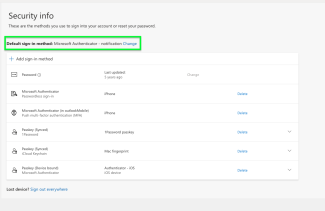
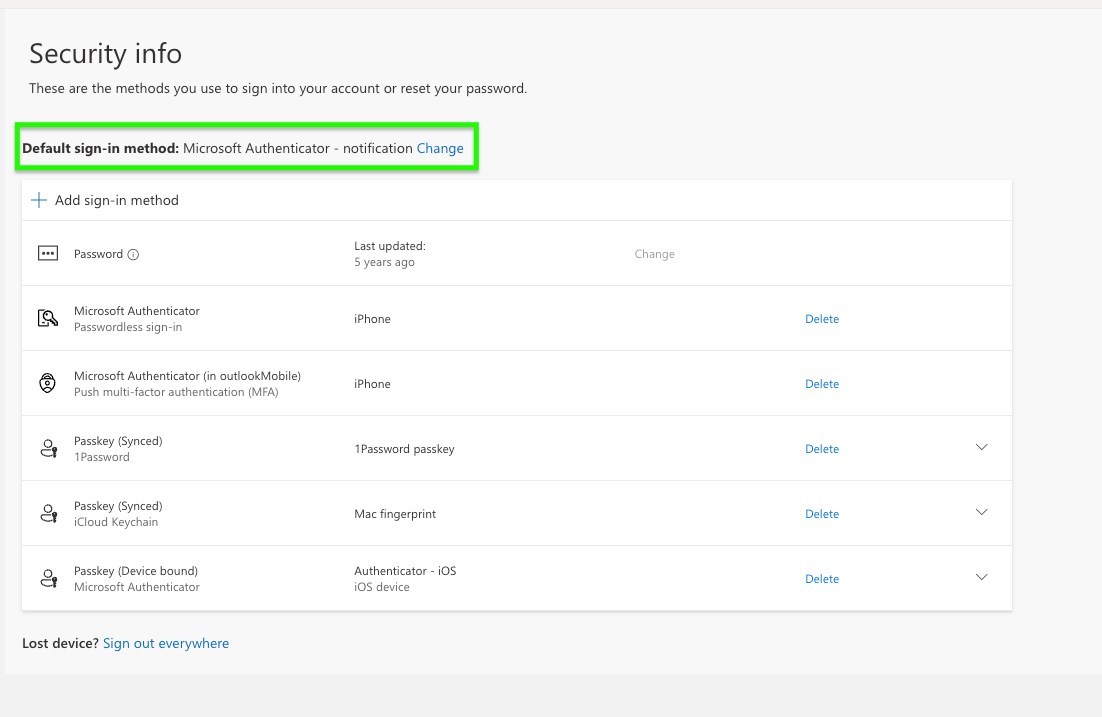
Please note: If you already set up MFA with another method and are adding the Microsoft Authenticator app to your account, use the Find and Update Security Info tutorial to get started.

Step 2
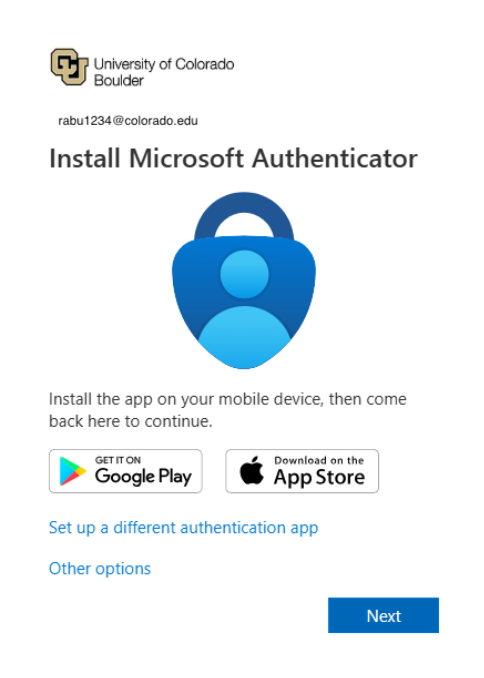
You will be prompted to install the Microsoft Authenticator app on your mobile device. If you do not already have the app, download the Free Microsoft Authenticator App from the Microsoft's Authenticator App page, the link provided on screen, or visit your mobile device's app store to download.
When the app is downloaded on your mobile device, click Next.

Step 3

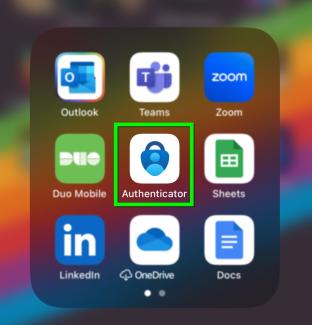

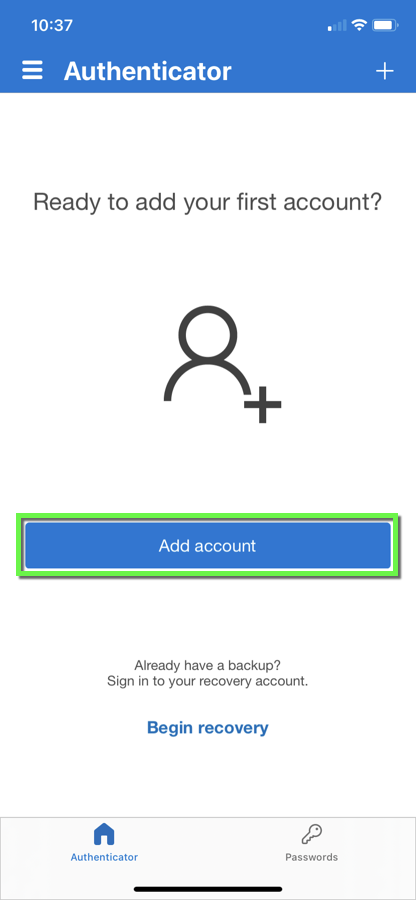
Step 6
If you already have an account set up on the app, you will likely need to authenticate with your other account before the app will allow you to add a new one. If you are only using the Microsoft Authenticator app for your CU Boulder account, and the app is asking you to authenticate, you may need to uninstall and reinstall the app.

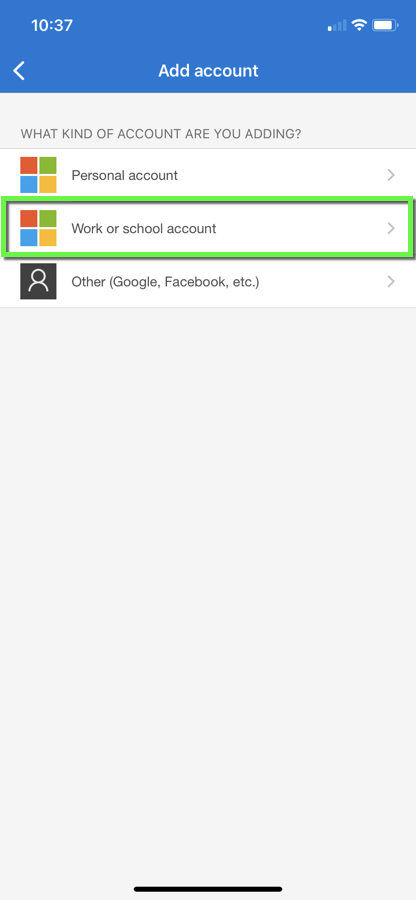
Step 8

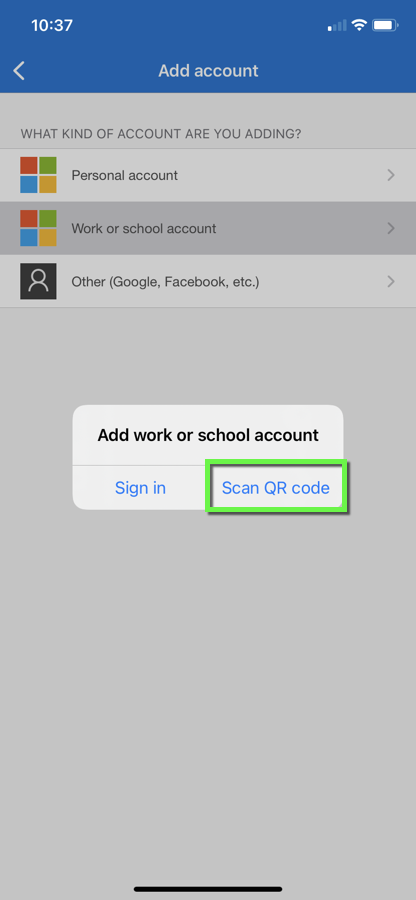

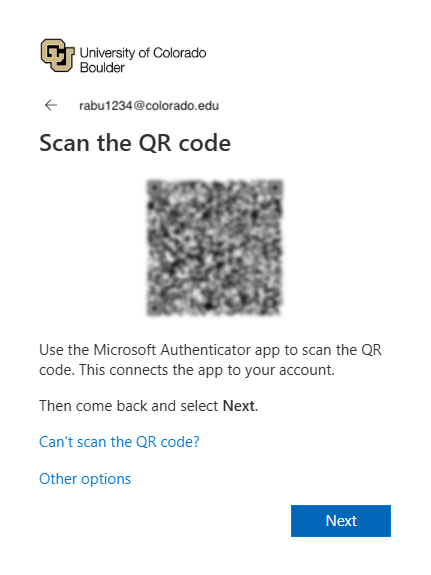
Step 10

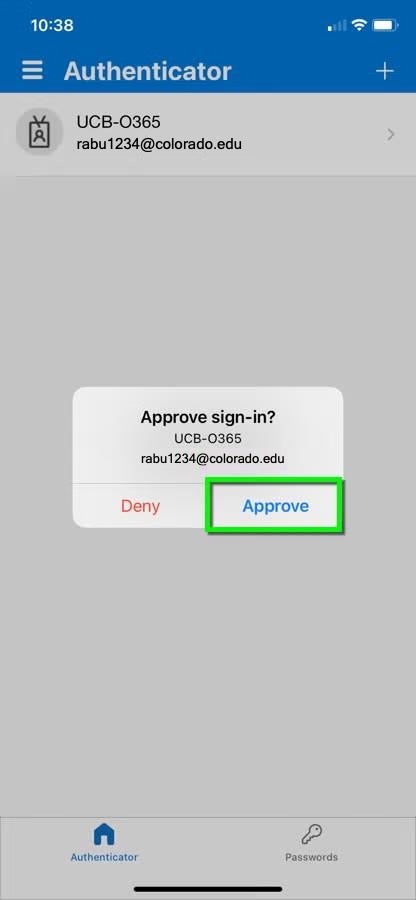
Step 11
The Authenticator app is set up as your default sign-in method. You can update your settings at any time on the My Account page of your Microsoft account.
Use our Find and Update Security Info tutorial to add additional sign in methods (e.g. a back up phone number) or if you change devices and need to register your new device.
Please note: You may be prompted to re-authenticate to access other Microsoft 365 applications (e.g., Teams, Outlook) after adding a new authentication method.