
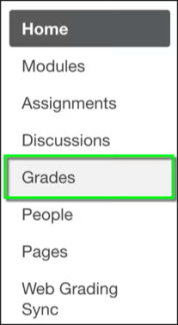
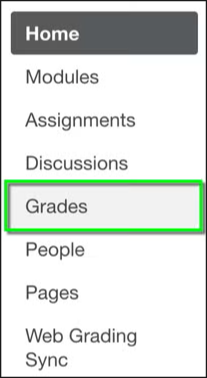
Step 2
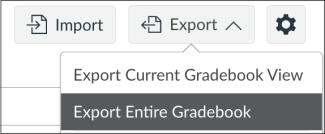
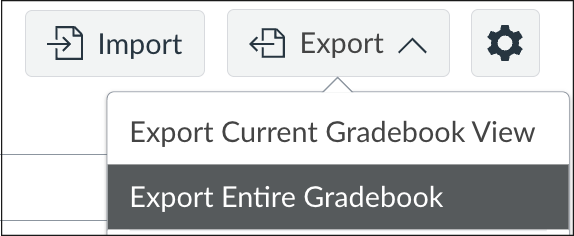
Step 3
Open the CSV file in Microsoft Excel.


Step 5
Step 7
Optional:
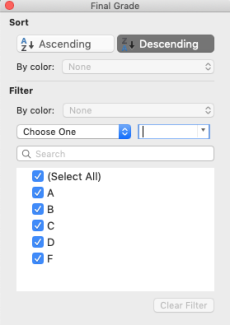
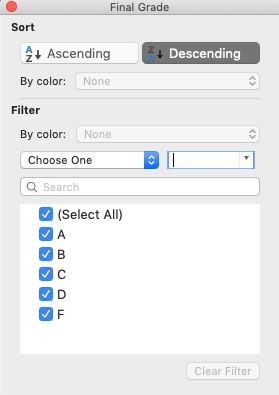
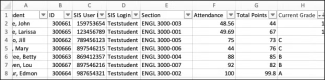
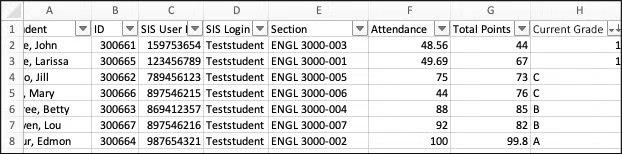
- Locate the column for Attendance and click the drop-down menu arrow in the column header cell.
- Filter by Ascending order.
- Put a 1 in the cells that indicate excessive absences.
Step 8
Delete all remaining rows.
Step 9
Step 10
Step 11
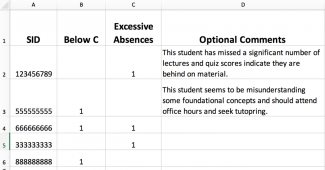
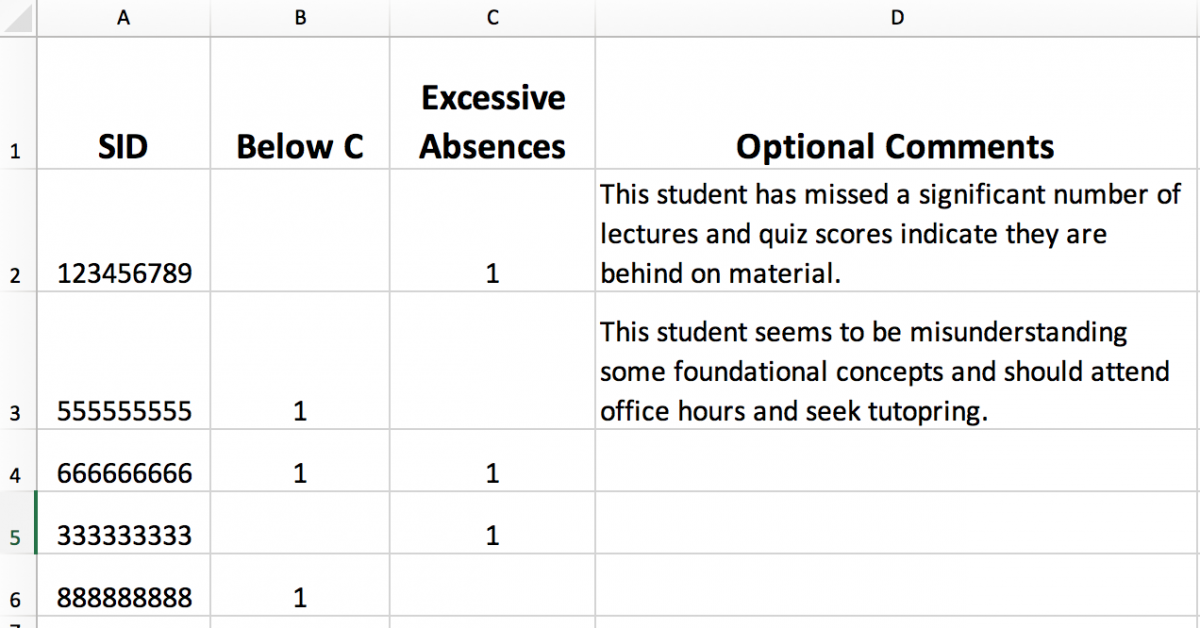
All sections of a course can be uploaded at once or separately. The column heading will need to match this format:
| SID | Below C | Excessive Absences | Optional Comments |
|---|
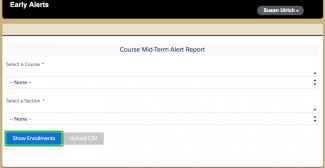
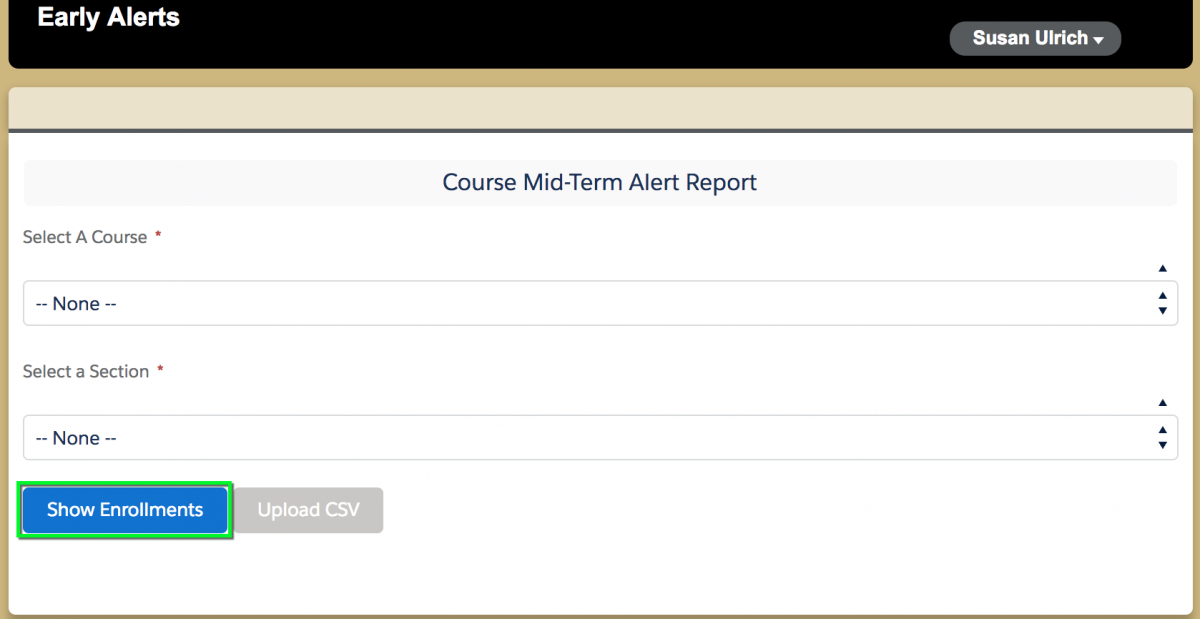
Click on Upload CSV and find the file to upload.
Please Note: Only include students in the file who should receive an alert notification, not the full roster. If any of those .csv columns have a value, it will generate an alert record!
A message will appear indicating the number of net new alerts added from the csv file they upload, X alerts uploaded from .csv. Click Confirm and a success message will appear.



