What They Are
Microsoft Teams has two options for collaborating with people outside of the organization:
| Collaboration Type | Use When |
|---|---|
| External access | You need to chat, call or meet with people outside of CU Boulder, but they do not need access to Team channels or Team files. |
| Guest access | You need to invite a person outside of CU Boulder into a Team so they can participate in Team conversations, meetings and file collaboration. |
Guest Users
Guest access is provided to people outside of CU Boulder who have been invited to a Team in our organization. When a guest is invited, a guest account is created in CU Boulder's Microsoft 365 instance.
Guest users need to be signed in to CU Boulder's Microsoft 365 instance in order to be notified of activity in Teams; otherwise, they will receive missed activity emails.
When to use: If a CU Boulder user needs to invite a guest user to participate in team conversations, meetings, and document creation and access other resources in specific Team channels.
How to use:
External Users
External access allows CU Boulder users to contact people outside of CU Boulder who have a Microsoft 365 or Microsoft account.
You can search for an external user by email address in the Teams directory and participate in 1:1 chats, calls or schedule a Teams meeting.
When to use: If a CU Boulder user needs to have a 1:1 chat, audio or video call, or schedule a meeting with an external Microsoft 365 user, but does not need to invite them into a Teams channel.
How to use:
Guest User View in Teams
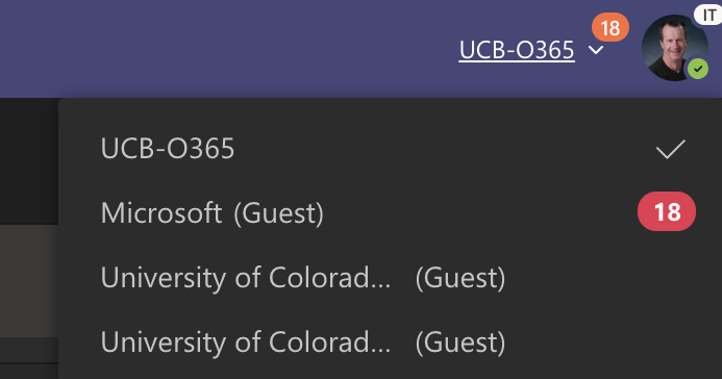
When you are invited to be a guest user in another organization, you will see the organization picker in the top right corner of the Teams desktop client or Teams on the web. The picker will list all organizations to which you have been invited as a guest user.
Start a Chat with an External User
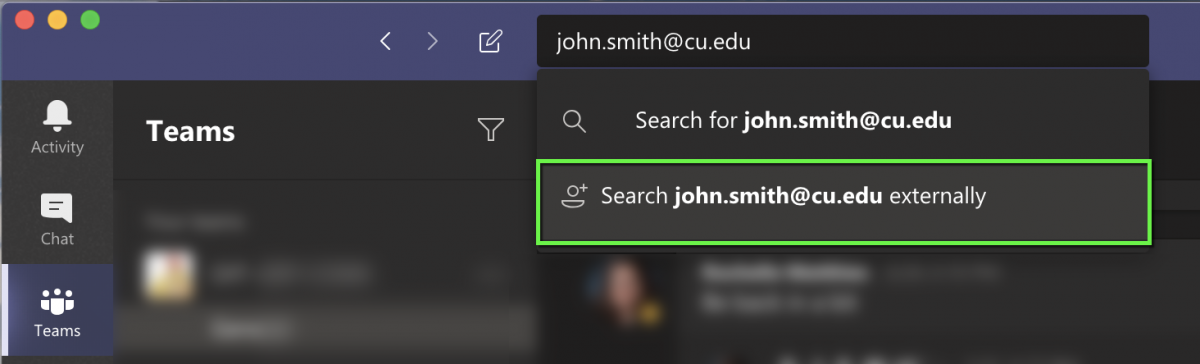
Start a new chat and enter the external Microsoft 365 user's email address. You will see an option to "search externally" for the user. Once the user is found, you will be able to chat, call and see the external user's availability (presence) information.
Communicating with External vs. Guest Accounts
You may see two entries for a user who you've chatted with and who has also been invited into a team at CU Boulder as a guest. Microsoft Teams delineates between the two using (External) and (Guest):
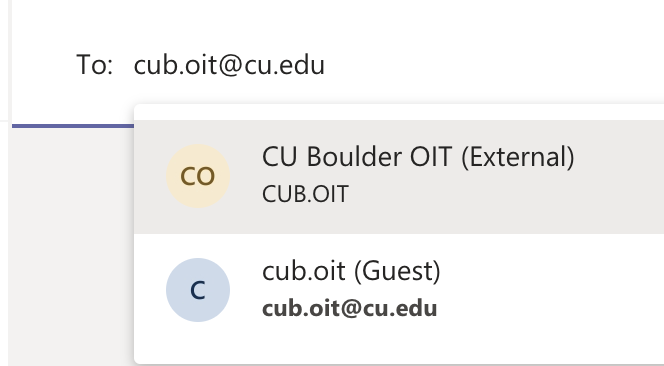
In most cases, choosing the (External) entry is the best way to chat with or call the user, since it's unlikely a guest user will always be signed in to CU Boulder's Teams.
The (Guest) option is better if the guest needs to participate in team meetings, document sharing and extended multi-person channel conversations.