
Step 1
Log in to https://securefiletransfer.colorado.edu (available starting 11/10/2026), then click the Compose button on the upper left.


Step 2

Step 3
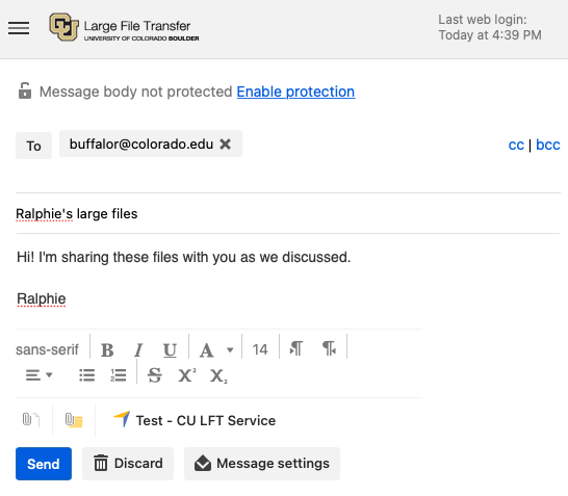
To attach a file or a folder containing a number of files, choose one of the two paperclip icons at the bottom of the message:
- The icon with a paperclip over a file will ask you to select files from your computer. Use the shift button + mouse to select multiple files.
- The icon with a paperclip over a folder will ask you to select a folder from your computer. The folder will be compressed into a .zip file before sending, which is a much more convenient way to share a number of files.
Select the files or folders to upload, then click the Choose for Upload button.


Step 4
To check the optional settings available for your message, click Message Settings. This is also where you can check when your file attachment links will expire and be removed from the Secure File Transfer service.
- Protect message body: If you want to make sure even the text of your message body is secure, checking this button will require recipients to sign in to Secure File Transfer to view the message.
- Notify me when file attachments expire: You will receive an email when the file link expires, and whether or not recipients have opened or downloaded the file.
- Notify me when files are downloaded: You will receive a time-stamped email that includes the name of the file and the email address of the person who downloaded it.
- Send me a copy: You will also receive a copy of the message.


