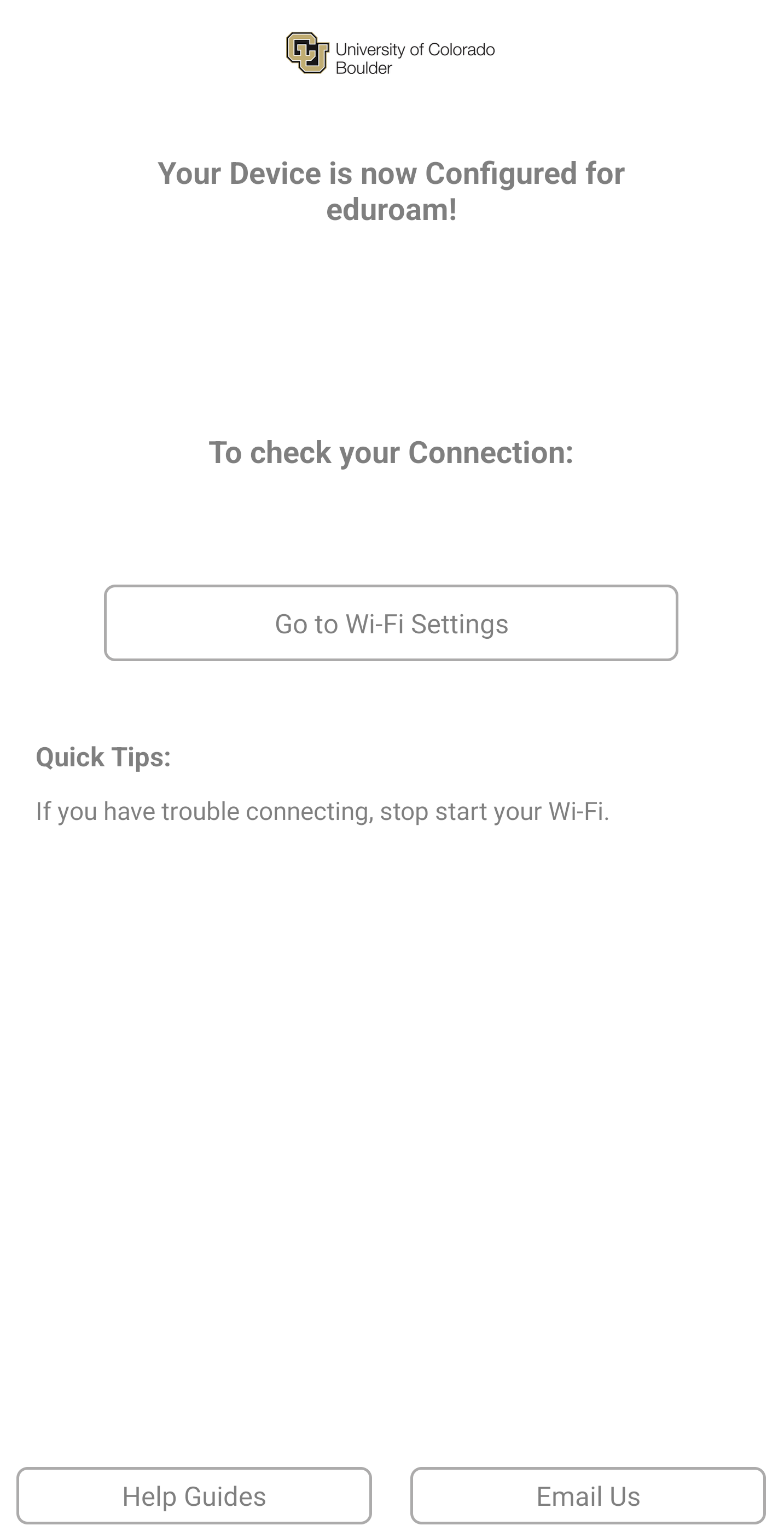
Step 1
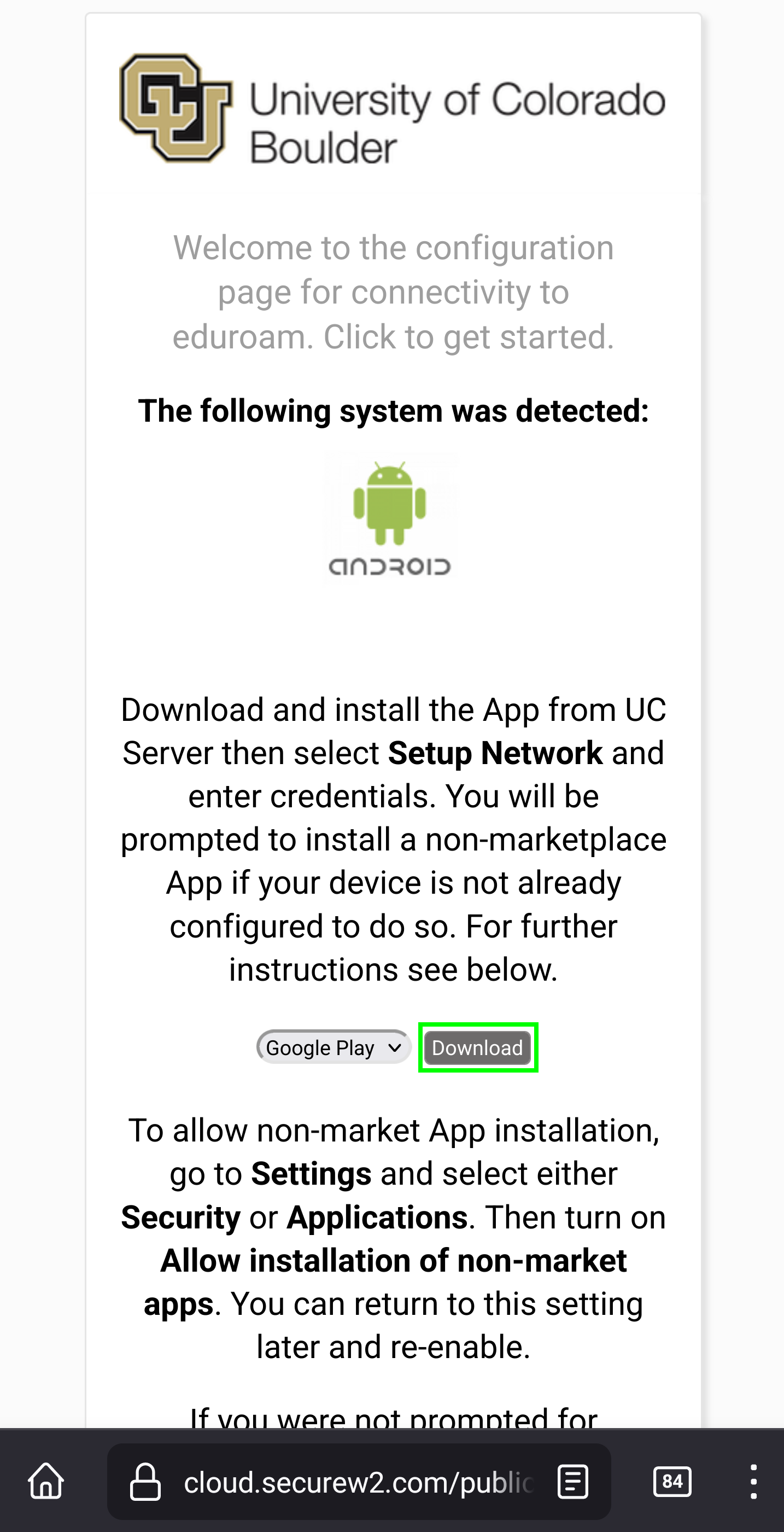
Open a browser and go to the Android configuration start page.
Note: Use CU Secure, CU Guest or another network to download and first sign in to this app. Be aware that eduroam will fail or show out of range if you're not on campus while trying to connect.


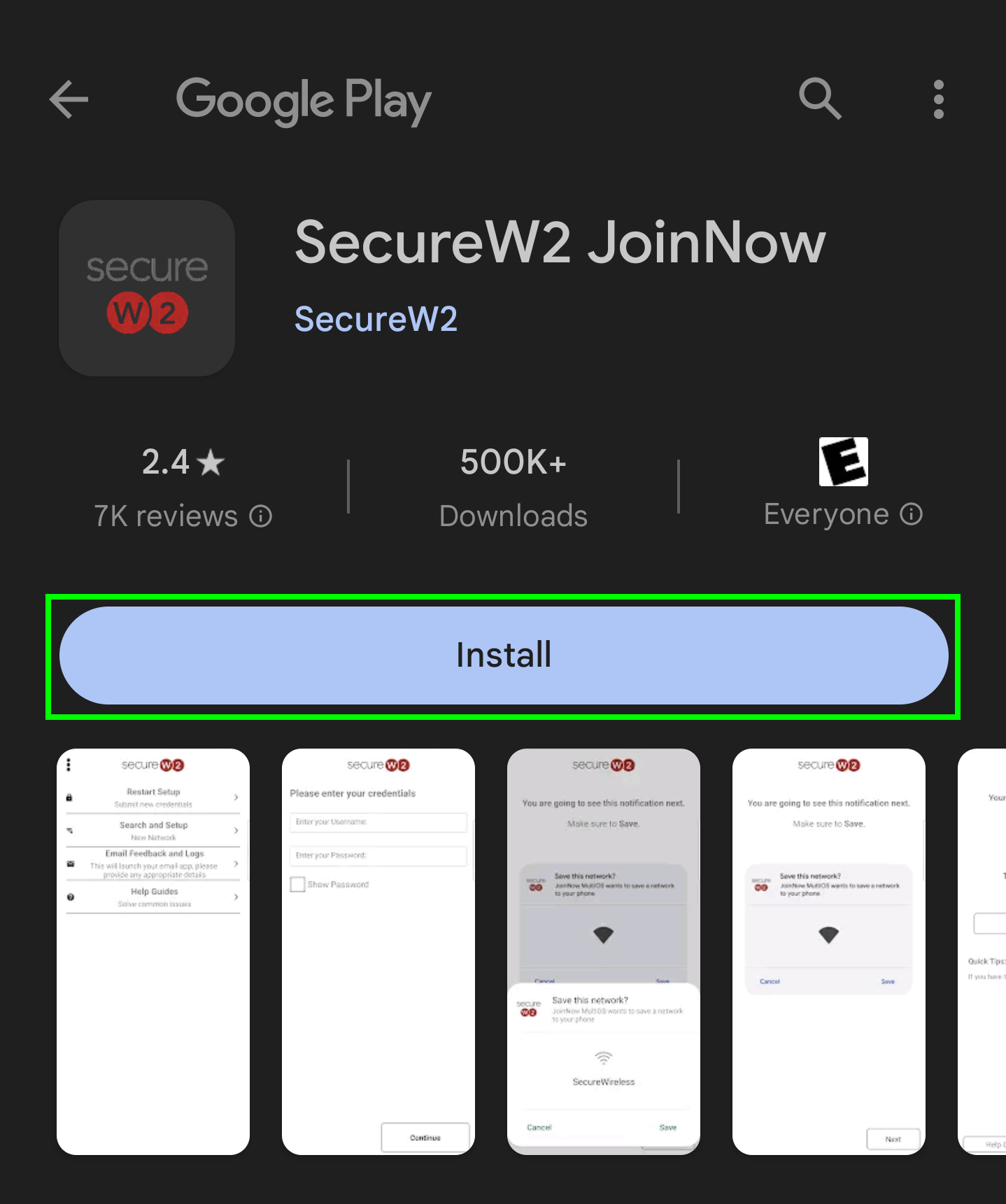

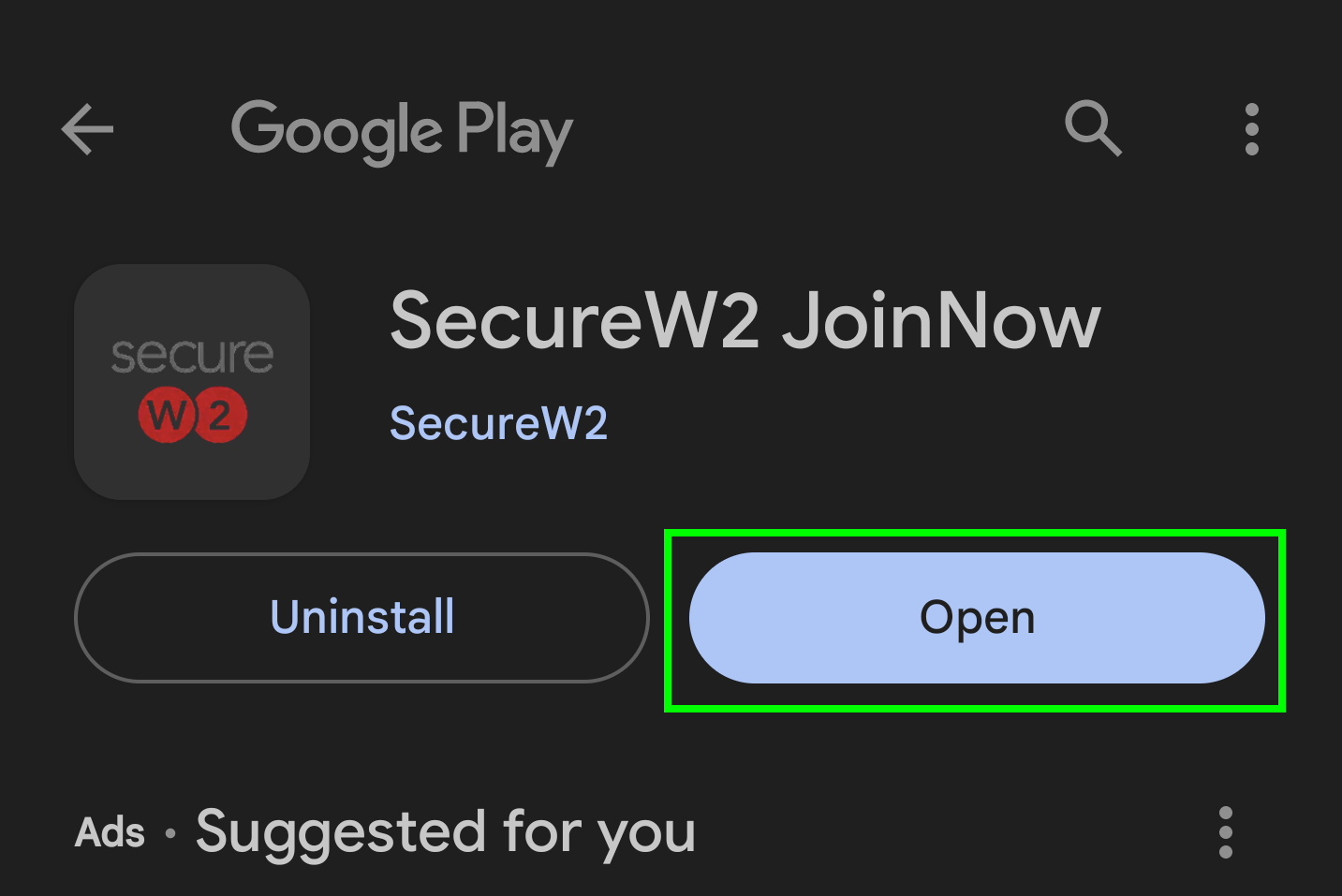
Step 5


Step 8
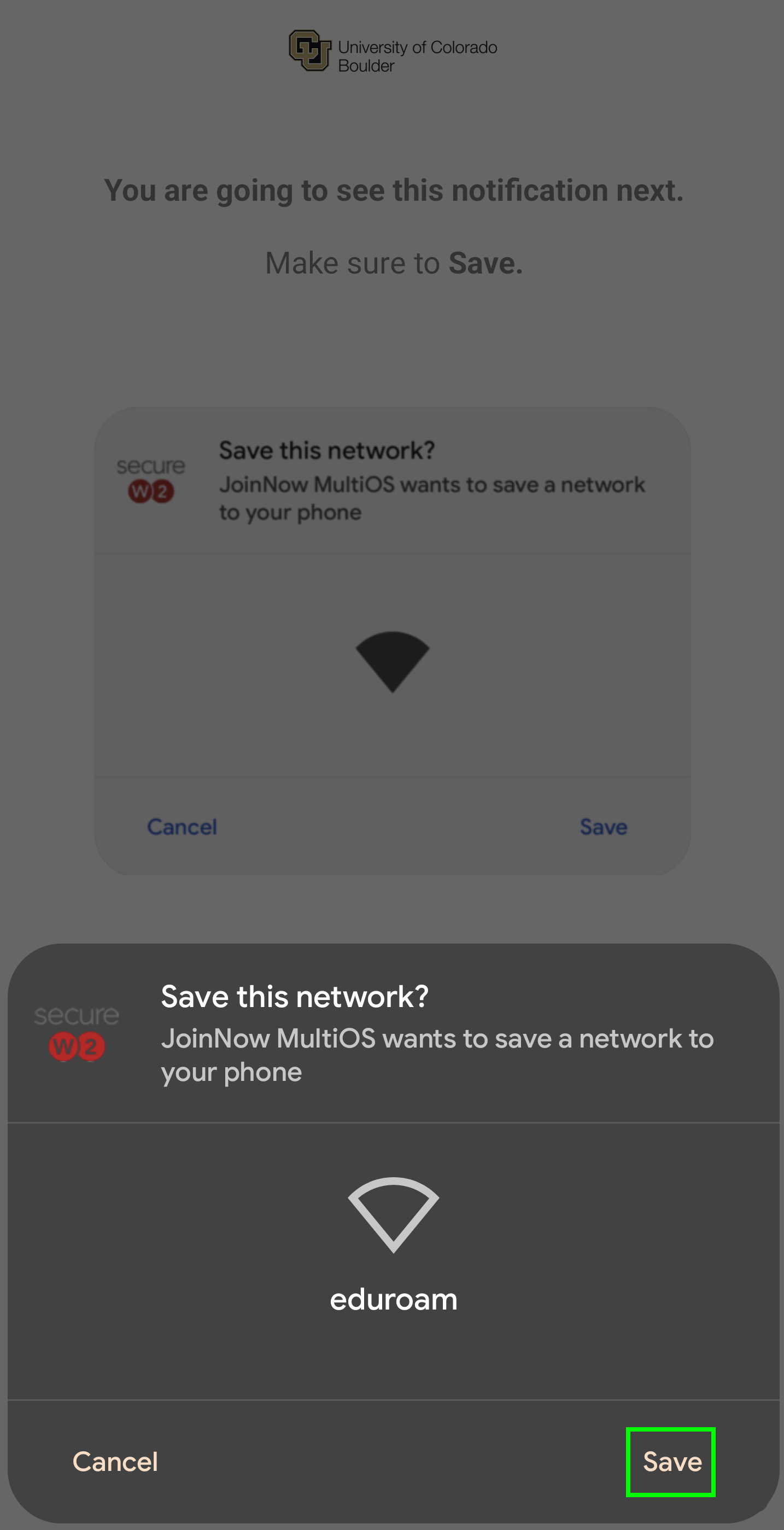
You will now be set up and connected to the eduroam secure wireless network.
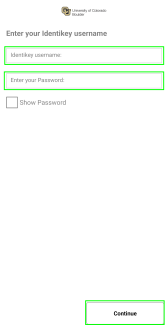
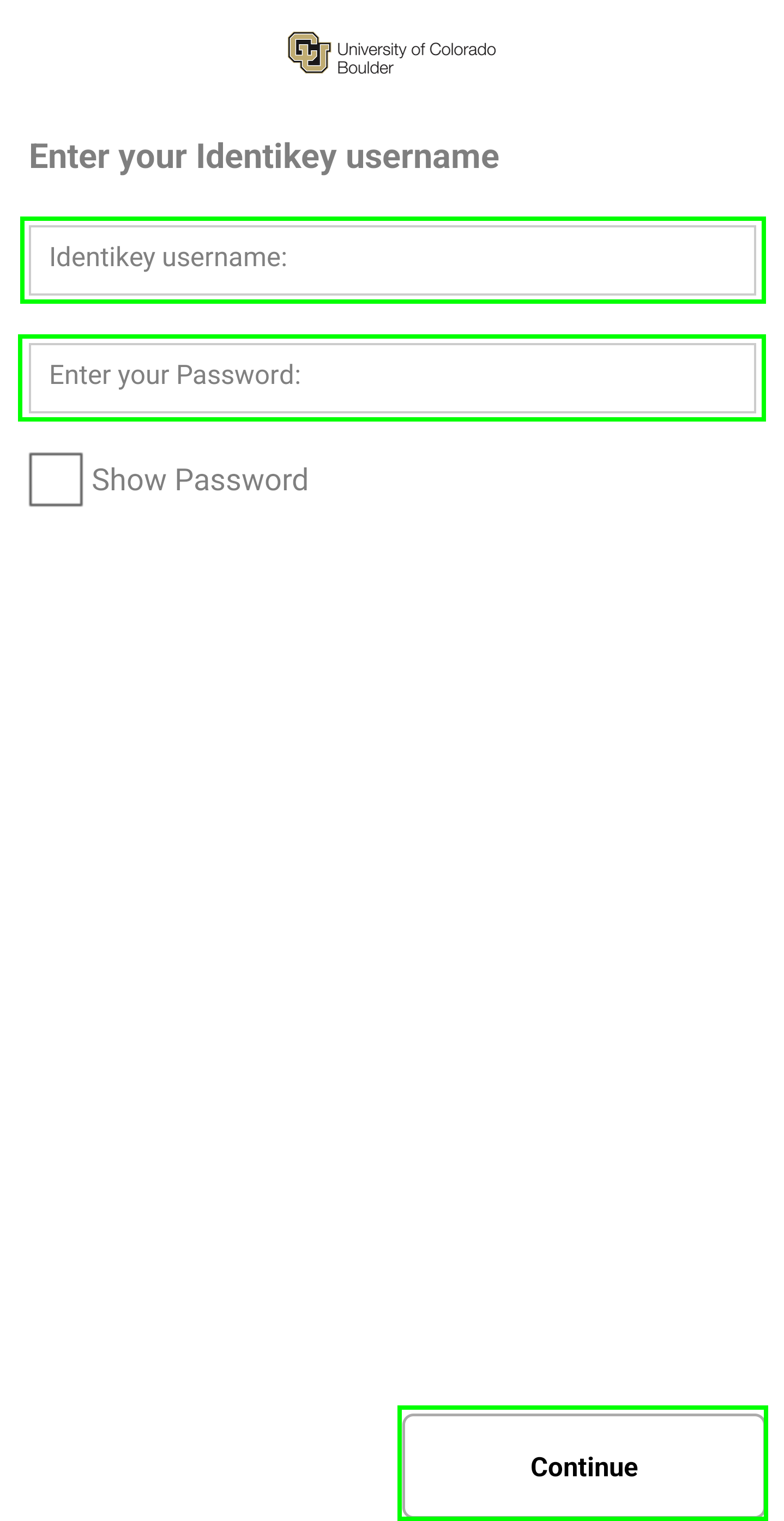
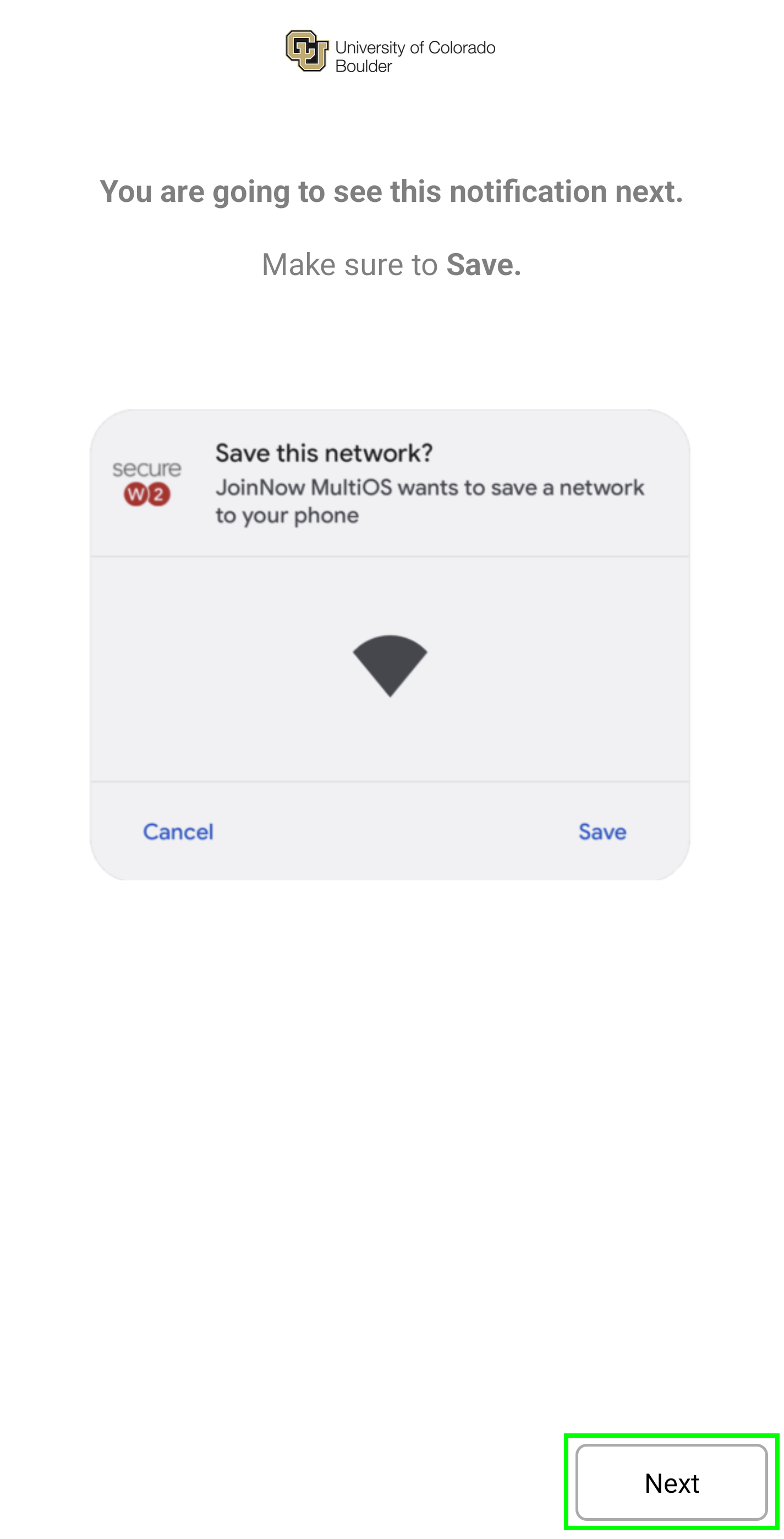
*Note: If this screen does not appear and a "failed to connect to the network" message appears, return to the Android configuration start page from step 1, then click the JoinNow button. You will be prompted to re-enter your credentials, as shown in step 6.