
Google Storage Limitations
Google has ended unlimited storage for K–12 and higher education communities. Learn about Google's storage limitations.
General Information
How do I log in to Google Workspace?
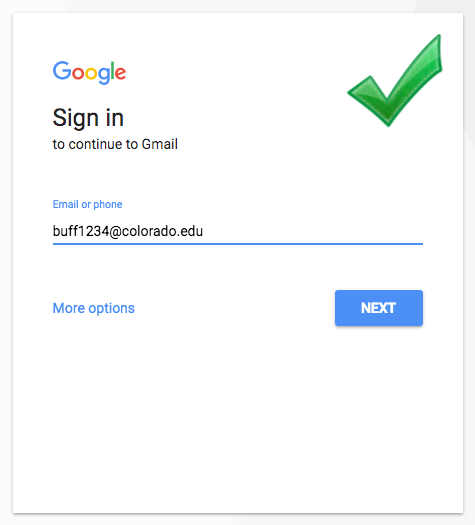
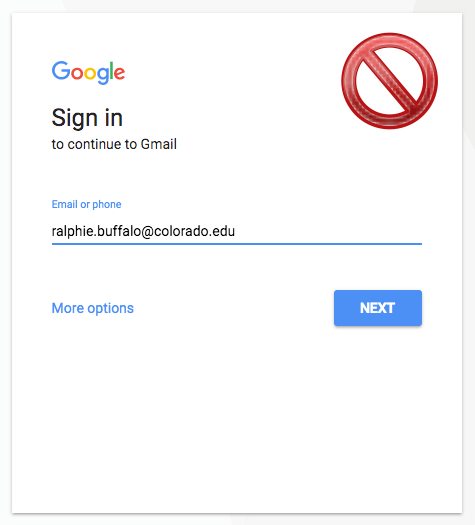
Log in to Google Workspace using your IdentiKeyUsername@colorado.edu email address (not first.last@colorado.edu) and your IdentiKey password.
Can students merge their campus Google Workspace account with an existing Google account or Gmail inbox?
No, but there are ways to work within multiple accounts.
How much storage space does Google Drive offer?
Google has ended unlimited storage for the academic community. Under the new storage model, Google provides CU Boulder with a limited amount of storage that is pooled and shared across all CU Boulder Google accounts. The individual quota for each account is 5 gigabytes.
Learn more about Google's storage policy and explore storage options on the Google Storage Limitations page.
Is the backup / restore ability available for Google Docs?
CU Boulder will not provide backup/restore services for Google Accounts. However, if you are concerned about archiving your data on your own systems, follow Google's instructions for downloading your data.
What apps are included for faculty and staff?
The core set of Google Workspace services for faculty and staff includes:
- Docs
- Drive & Drive File Stream
- Forms
- Groups
- Sheets
- Sites
- Slides
For a complete list, see Google Workspace - Applications.
What apps are included for students?
The core set of Google Workspace services for students includes:
- Contacts
- Docs
- Drive & Drive File Stream
- Forms
- Groups
- Sheets
- Sites
- Slides
For a complete list, see Google Workspace - Applications.
Will I retain access to my Google account when I graduate?
No. Once your degree posts to your transcript, you'll have 90 days to save important files from your CU Boulder-provided Google account before they're deleted.
To learn how, see "What to do before you lose access".
Your access to other IT services will be adjusted according to the schedule on Accounts & Eligibility - Alumni.
Can I use Gmail for my CU Boulder email?
No. CU Boulder email is provided for faculty, staff and students via Microsoft Outlook.
Calendar
Is it possible to sync a Google calendar with an Outlook calendar?
While a number of applications claim to sync Outlook Exchange calendars with Google Calendars, such applications tend to be inconsistent and may lead to corrupted data.
OIT will continue to monitor Google and Outlook calendar sync options and make a recommendation if a particular solution proves reliable.
When I leave CU Boulder, what will happen to my shared Google Calendars?
If you create a Google Calendar using your CU Boulder-provided Google account (i.e., a "secondary" calendar), then you're considered that calendar's owner.
Unless you transfer ownership of any shared secondary calendars, those calendars will be automatically deleted along with the rest of your Google account after you leave.
Note: OIT removes access to IT services according to role-based timelines. To determine when you'll lose access to Google Workspace, visit the Accounts & Eligibility subpage for your current role: student, employee or limited employee.
Next Steps
Follow these steps to transfer ownership of a shared secondary Google Calendar before you leave:
- Identify any shared Google Calendars that you created and that others are using.
- Work with your supervisor to identify a new owner for the calendar(s).
- To transfer ownership:
- On your computer, open Google Calendar.
- On the left side of the page, click My calendars.
- Next to the calendar, click Options > Settings and sharing.
- Under "Shared with," locate the person that you want to transfer the calendar to, then click the drop-down menu next to their name.
- Select Transfer ownership.
To confirm, click Transfer ownership.
Note: As soon as the new owner accepts the transfer, your permission level for the calendar will automatically change to "Make changes and manage sharing."
To learn more, see Google's "Transfer calendars or events in Google Calendar" article.



