CU Secure Wi-Fi - Register Your Chromebook

Follow these instructions to register your personal or non-Secure Computing* Chromebook or other ChromeOS device on the CU Secure Wi-Fi network. Once installed, the certificate will allow the device to automatically connect to CU Secure when in range.

*Note: Devices enrolled in CU Boulder's Secure Computing framework are automatically configured to connect to CU Secure Wi-Fi and don't require manual registration.

Tips


Layout:
one column
two columns

Step 1

  • If your device is connected to the internet: Continue to Step 2.
  • If your device isn't connected to the internet: Use eduroam, CU Guest or a wired connection to complete this process.

Step 2

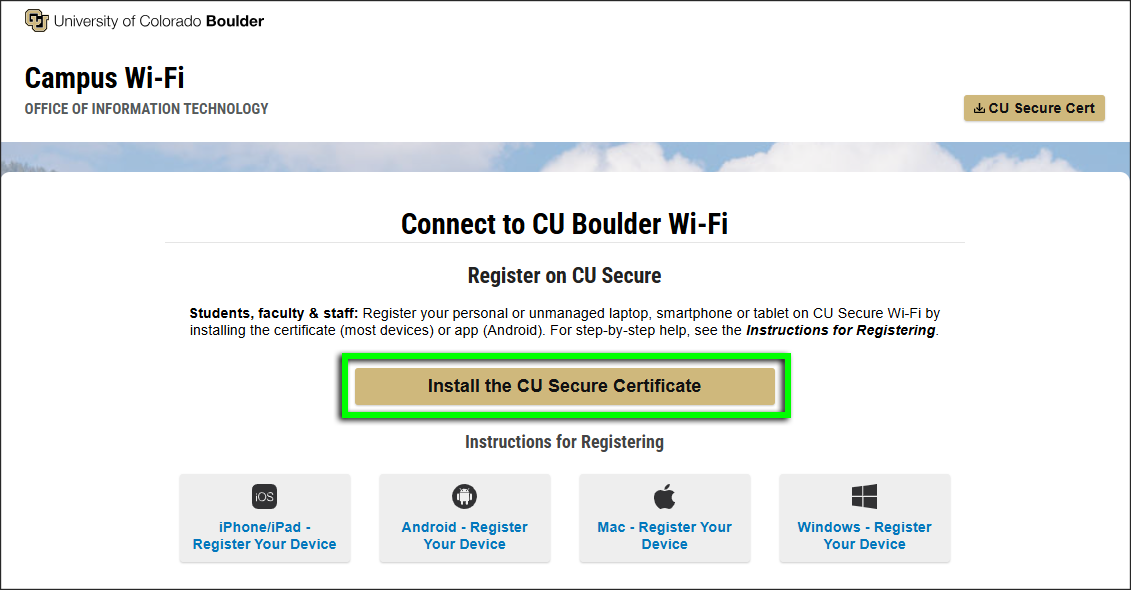
Go to wifi.colorado.edu, then click the Install the CU Secure Certificate button.

Step 3
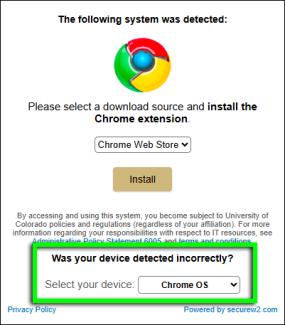
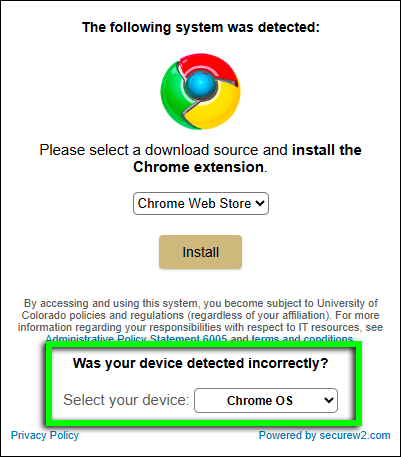
Confirm that your operating system was identified correctly. If it wasn't, use the Select your device drop-down to change it.

Step 4

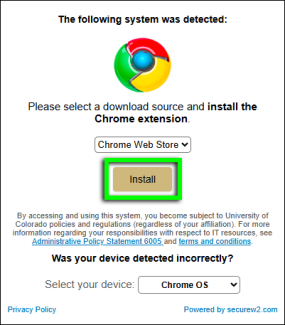
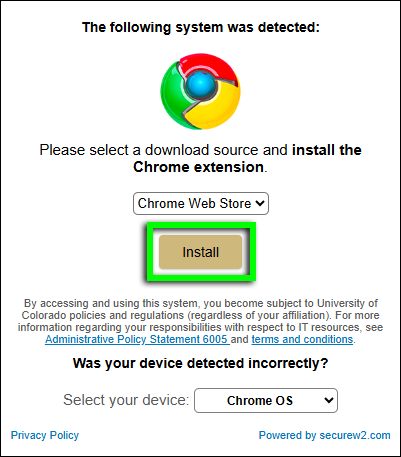
Click Install.

Step 5

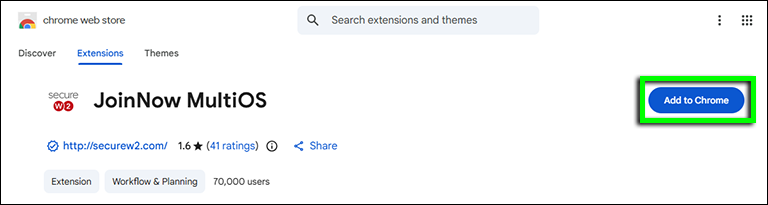
You should be directed to SecureW2's JoinNow MultiOS page in the Chrome Web Store. Click Add to Chrome.

Note: If you see a Remove from Chrome button instead of Add to Chrome, then the extension is already installed. You may need to uninstall and reinstall the extension to continue.

Step 6

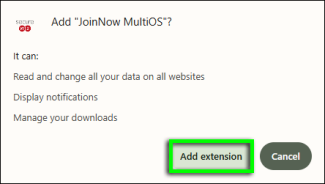
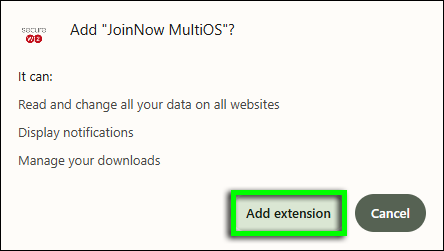
A pop-up window will ask whether to add "JoinNow MultiOS." Click Add extension.

Step 7

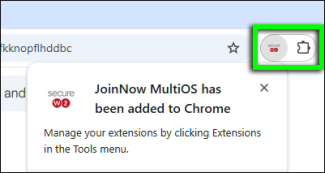
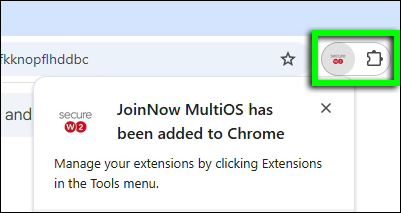
A browser notification will confirm that JoinNow MultiOS has been added to Chrome.

Step 8

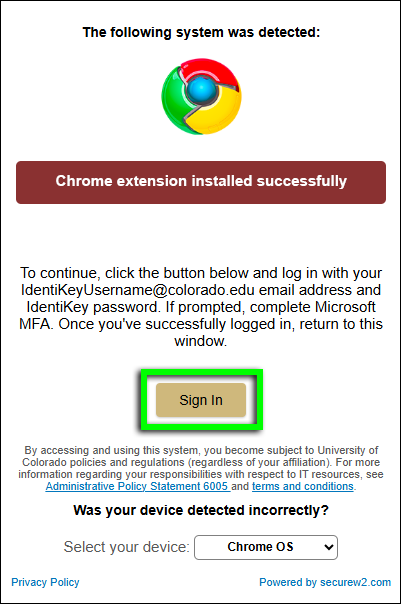
Back on the CU Secure registration page, a notification will confirm that the Chrome extension was installed successfully. To continue, click the Sign In button.

Step 9

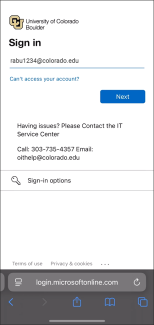
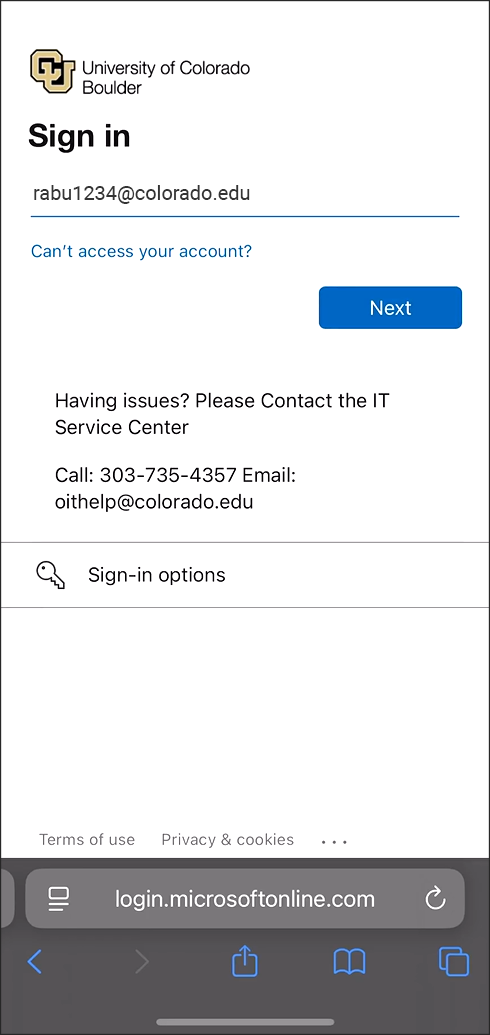
On the Microsoft login page, enter your IdentiKeyUsername​@colorado.edu, then click Next.

Step 10

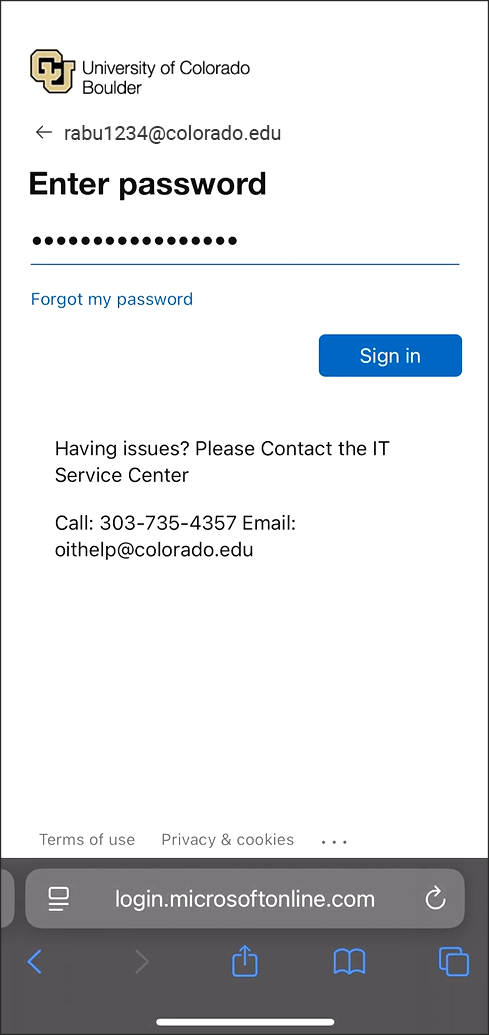
Enter your IdentiKey password, then click Sign in.

Step 11

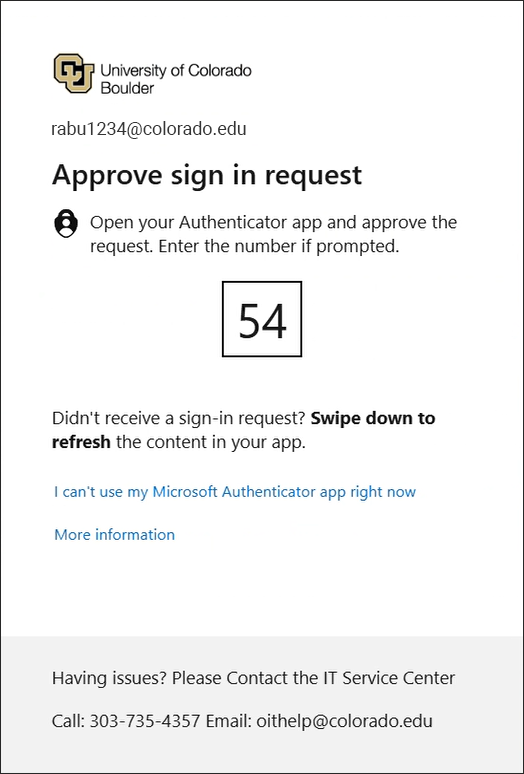
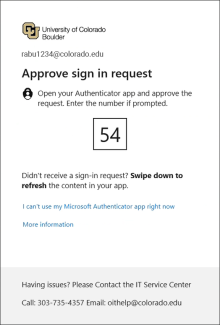
If prompted, complete Microsoft multi-factor authentication.

If you receive an error message, see our troubleshooting page for next steps.
Step 12

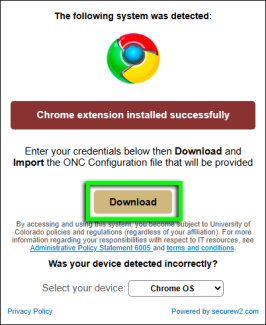
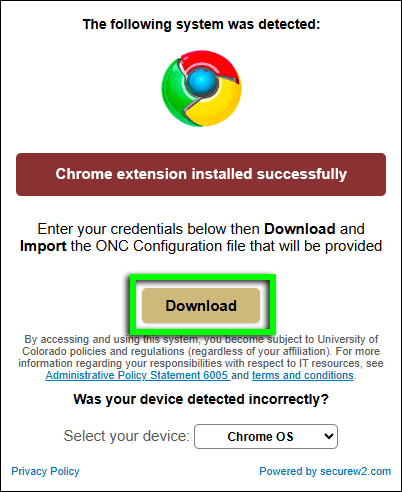
Back on the CU Secure registration page, click the Download button.

Step 13

The registration page will display a "Loading" message, then confirm that "Enrollment succeeded."  

Step 14

After a few seconds, a new Network tab will open in your browser. The registration page will instruct you to switch to that new tab.

Step 15

On the Network tab, scroll down to the Import ONC file section and click Choose File.

Step 16

Locate and select your downloaded ONC file, then click Open.

Step 17

If the certificate installs successfully, you'll receive an email from CU Boulder Secure Wi-Fi (securewifi_noreply@colorado.edu) confirming your device is registered on CU Secure.

Your device should connect to CU Secure Wi-Fi automatically when in range. If it doesn't, go to your available Wi-Fi networks and select CU Secure.