Zoom - Import a Canvas Course That Uses the Canvas/Zoom Integration

This tutorial will guide you through the process on how to correctly copy/import a Canvas course that uses the Canvas/Zoom integration for classroom lectures or office hours.


Layout:
one column
two columns

Step 1

Step 2

Open the Canvas course you want to import the content into.
Step 3

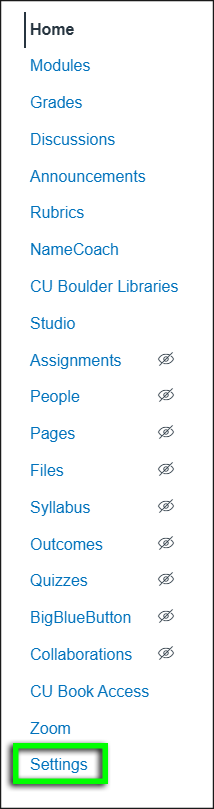
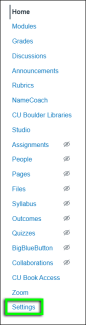
In the left-hand course menu, select Settings.

In the left-hand course menu, go to the bottom and select
In the left-hand course menu, go to the bottom and select "Settings."
In the left-hand course menu, go to the bottom and select

Step 4

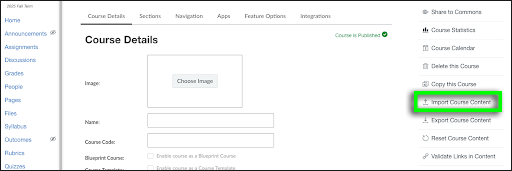
In the right-hand settings menu, select Import Course Content.

In the right-hand settings menu, select
In the right-hand settings menu, select "Import Course Content."
In the right-hand settings menu, select

Step 5

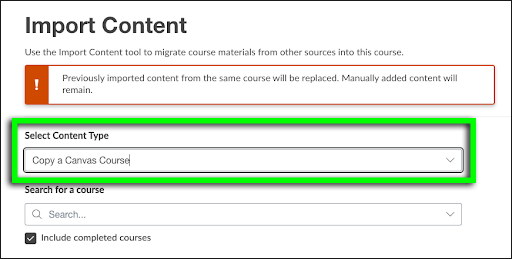
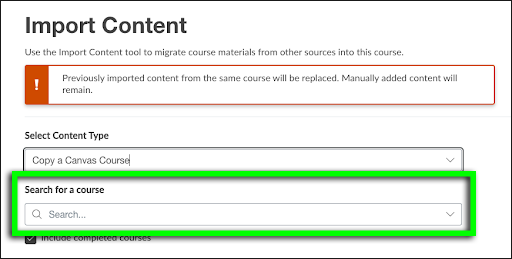
Under Select Content Type, choose Copy a Canvas Course.

In the Import Content tool, open the
In the Import Content tool, open the "Select Content Type" drop-down and select "Copy a Canvas Course."
In the Import Content tool, open the

Step 6

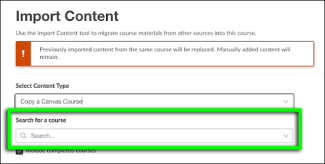
Under Search for a course, find the course you want to copy or import content from.

In the Import Content tool, open the
In the Import Content tool, open the "Search for a course" drop-down and select the course you would like to import the content from.
In the Import Content tool, open the

Step 7

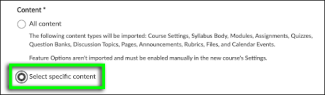
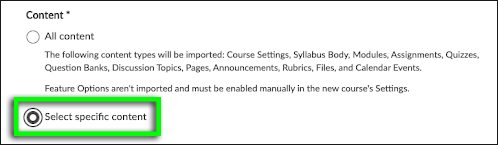
Under Content, choose Select specific content.

Please note: By default, All content is selected. If you don't change this setting, all previous Zoom calendar events will be copied over and will need to be manually deleted one by one.

Under the
Under the "Content" heading, tick the radio button to "Select specific content."
Under the

Step 8

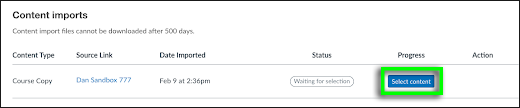
Under Content imports, click the Select content button.

Under the
Under the "Content imports" heading, a table includes the selected content type, source link, date imported, status, progress and action. In the "Progress" column, click the "Select content" button.
Under the

Step 9

Select every item that needs to be copied over. Make sure that Calendar Events is not checked.

Step 10

The Canvas course will now be copied over without showing previous Zoom meetings on the calendar.