
Wireless Internet - Turn Off Private Wi-Fi Address on iPad and iPhone

Apple's Private Wi-Fi Address feature, introduced in macOS Sequoia and updated for iOS 18 and iPadOS 18, can cause connectivity issues when using campus Wi-Fi networks if not set to "off."

OIT strongly recommends turning off Private Wi-Fi Address for eduroam and CU Guest (CU Secure is not affected).

Because Private Wi-Fi Address is a per-network setting, OIT's recommendations apply only to CU Boulder networks. Learn more about these recommendations.


OS:
Layout:
one column
two columns

Step 1

Open the Settings app, then tap Wi-Fi.

Step 2

Tap the More Info button next to the network name.

Note: If the network you're trying to edit isn't listed, tap Edit in the upper-right corner to view additional Wi-Fi networks from your connection history.

Step 3
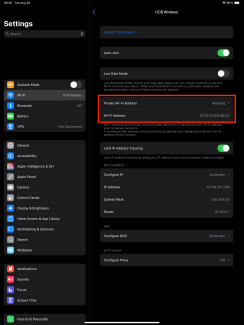
Configure the setting:

  • If using iPadOS 18, iOS 18 or later, tap Private Wi-Fi Address, then tap Off.
  • If using an earlier OS, turn Private Wi-Fi Address off.

iPadOS 18 Private Wi-Fi Address settings

Step 4

If you still have issues connecting to the campus networks after turning off Private Wi-Fi Address, you may want to "forget" the network on your device and reconnect.
