Step 1
On your Windows computer, open a web browser and go to the Microsoft 365 My Account page.
Step 2
Log in using your IdentiKeyUsername@colorado.edu email address and IdentiKey password, then complete Microsoft MFA using your previously configured authentication method.
Please note: If you have not yet set up Microsoft Authenticator on your smartphone, you will be prompted to do so. Microsoft does not allow you to skip phone setup and go straight to using a YubiKey.
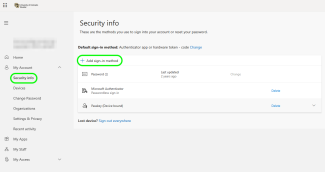
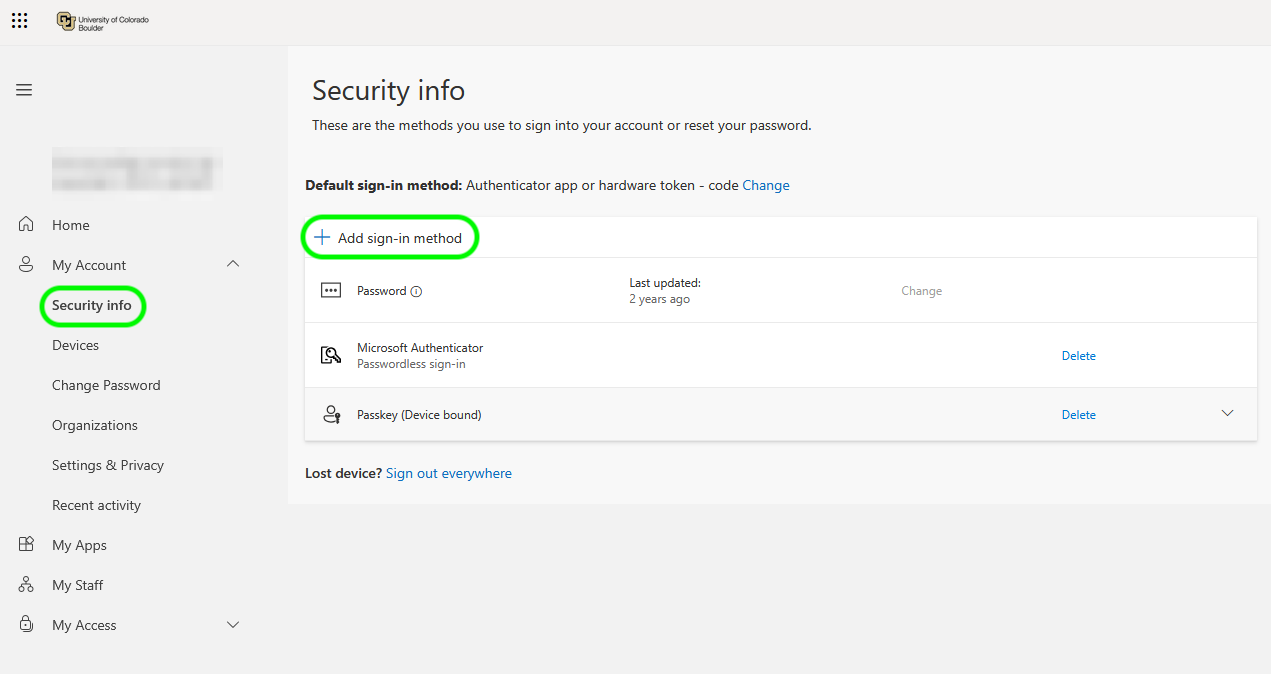

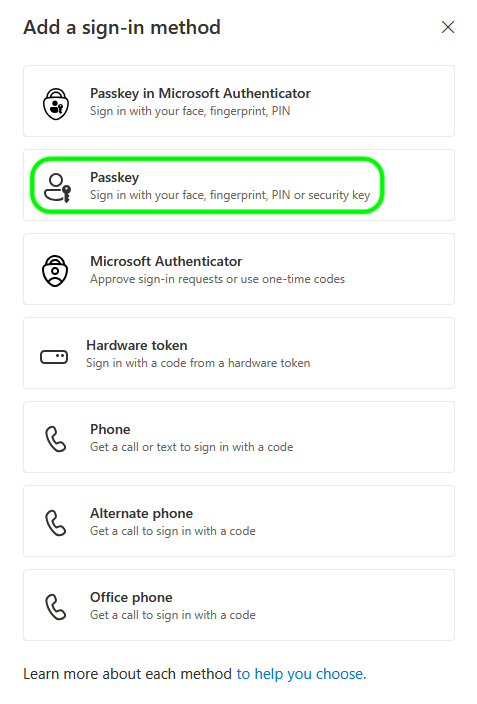
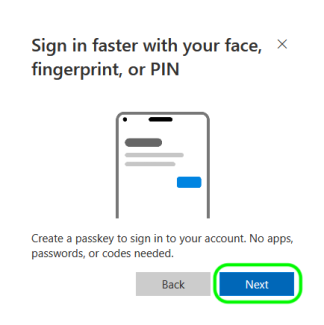
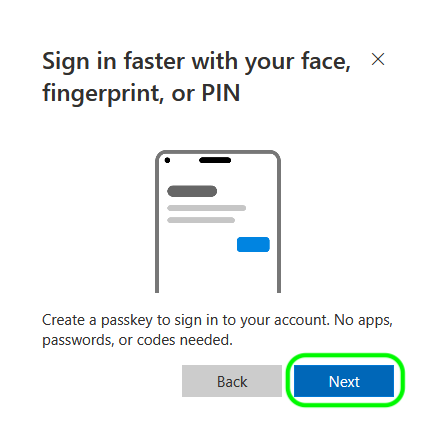
Step 6
Are you using Google Chrome?
- Yes: Continue to Step 7.
- No: Skip to Step 9.
Step 7

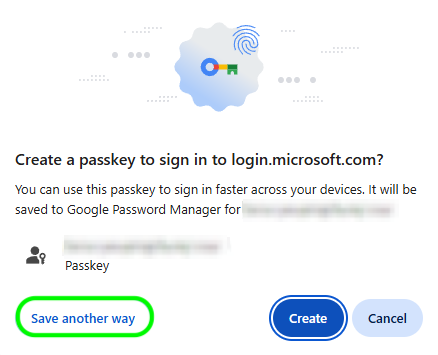
Step 8
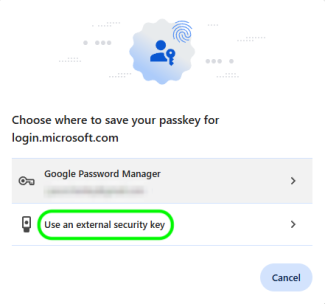
Step 9

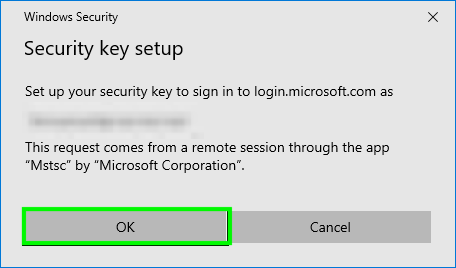
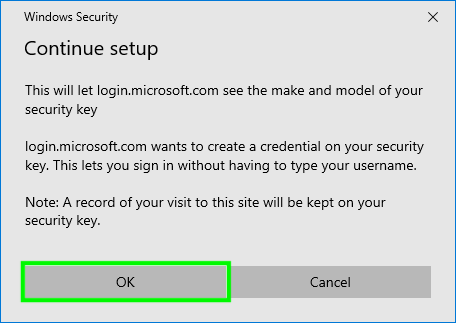
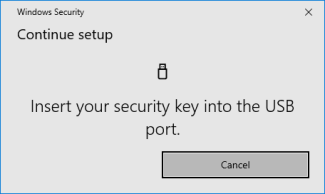
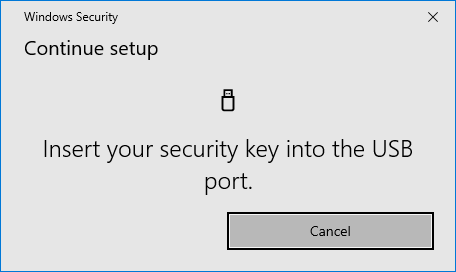
Step 12

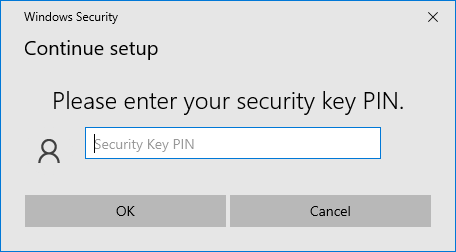

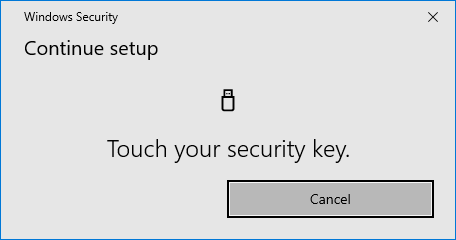
Step 14

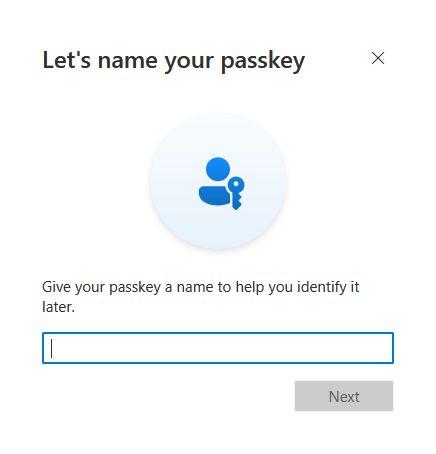
Troubleshooting
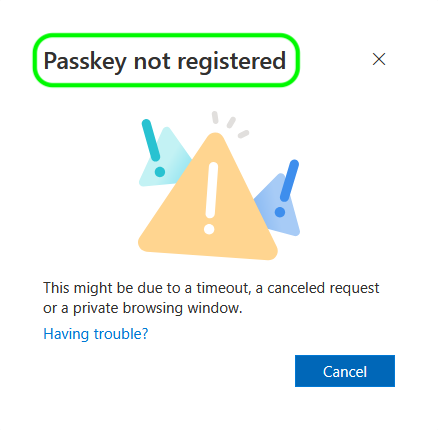
Errors are not uncommon when attempting to set up a YubiKey. If you end up seeing a message entitled "Passkey not registered," here are some helpful tricks that can resolve the problem.
Step 1
Remove your YubiKey from your computer's USB port.
Step 2
Close all browser windows, then re-launch your browser.
Step 3
Navigate back to https://myaccount.microsoft.com in the new browser, and only insert your YubiKey when prompted on step 5 of the regular instructions above.
Step 4
If that still fails, remove your YubiKey from your computer's USB port and try again using a different browser. For example, if you normally use Google Chrome, try Firefox or Microsoft Edge.