Microsoft 365 Multi-Factor Authentication - Set up and Use TOTP in iOS Passwords App

Use these instructions to set up and authenticate using TOTP (Time-Based One-Time Password) using the iOS Passwords app.

Layout:
one column
two columns

Step 1

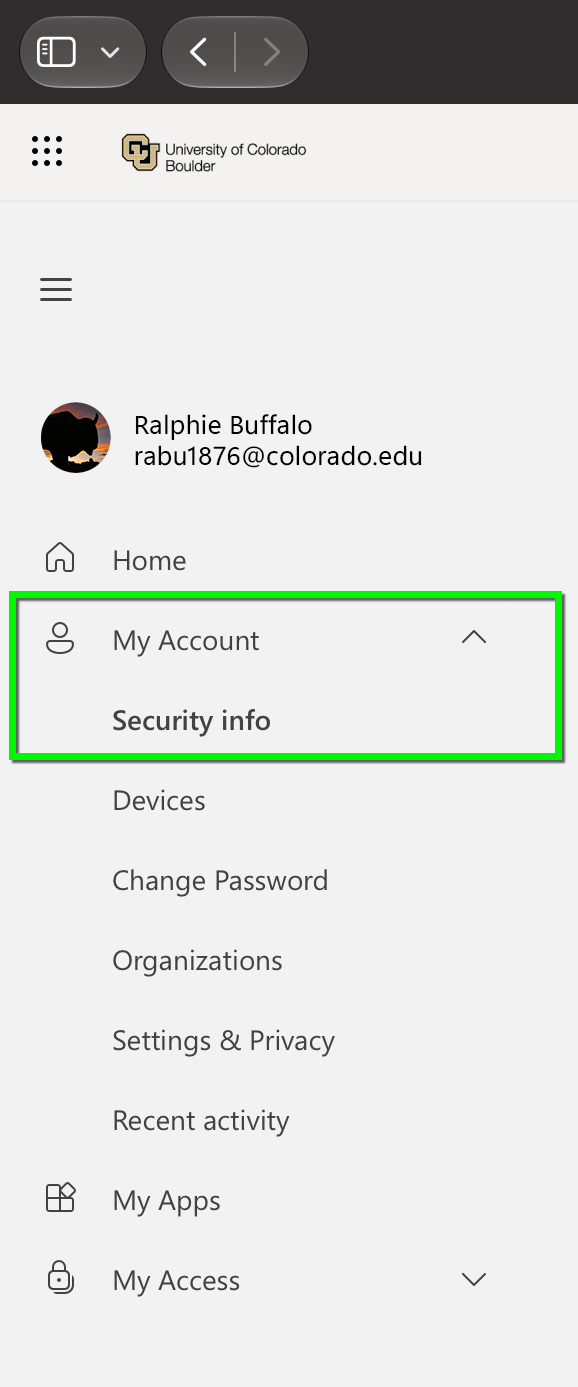
Log in to the Microsoft 365 My Account page. Expand the My Account section and select Security Info. You will be prompted to authenticate with MFA.

Step 2

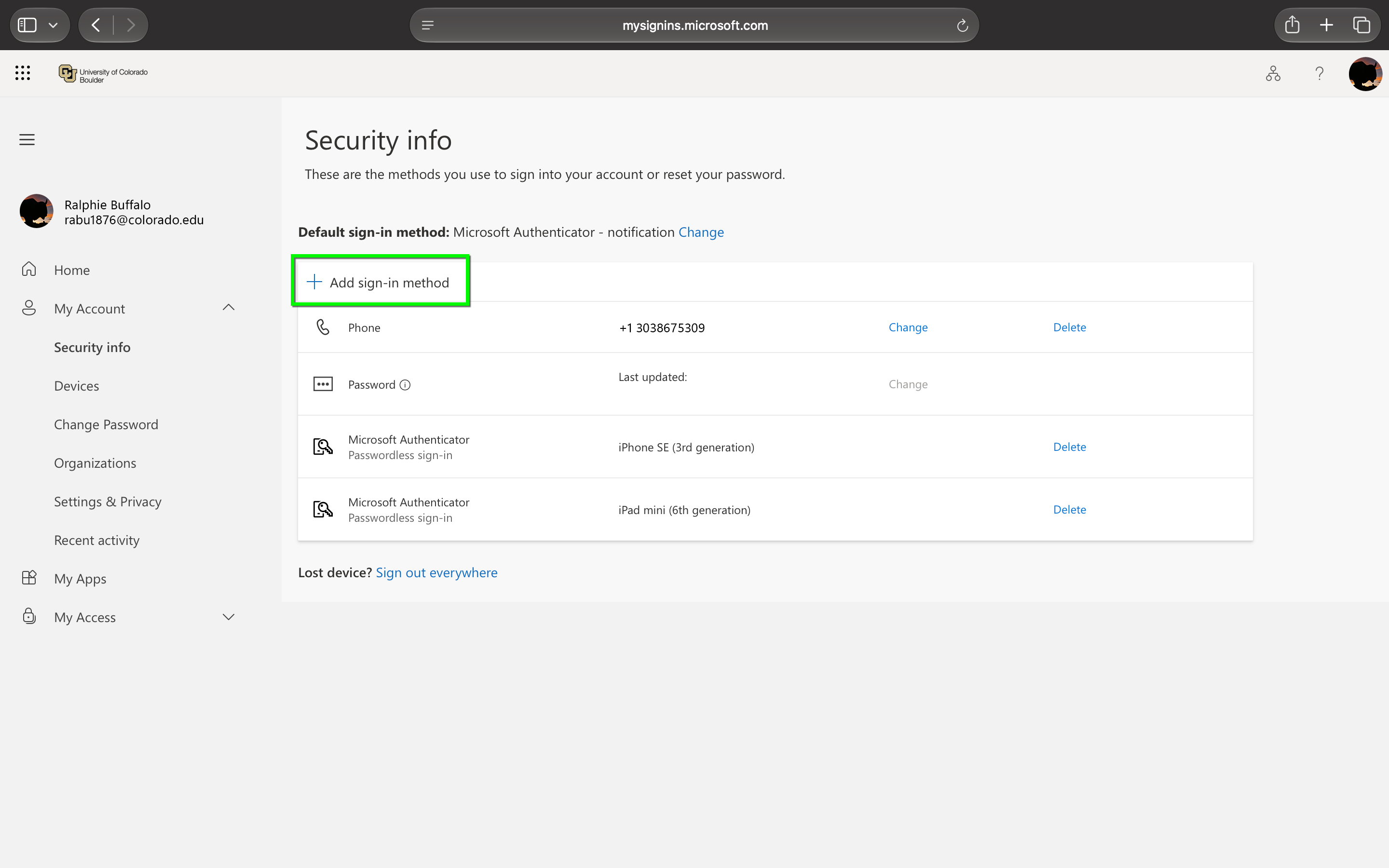
The security info screen will show your Default sign-in method at the top of the page and list all authentication methods currently connected to your account.

Select Add sign-in method to register a new passkey.

Step 3

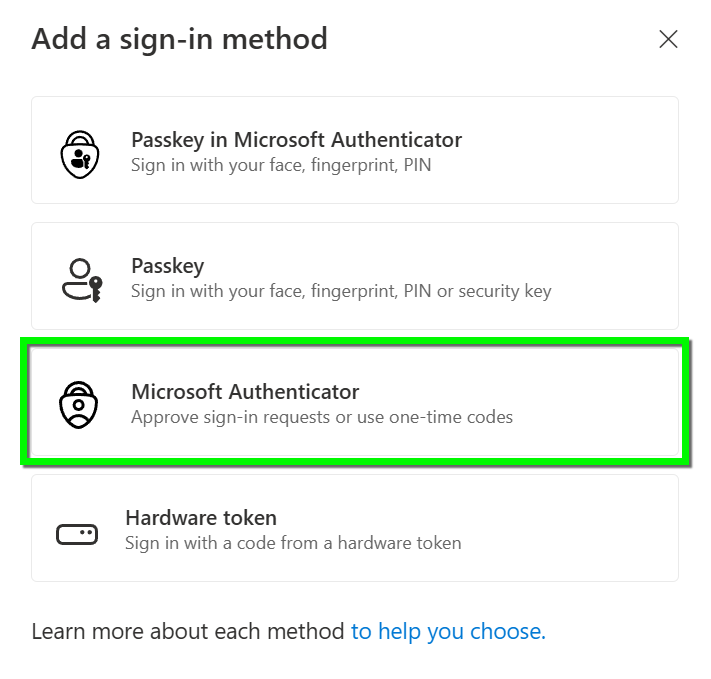
Select Microsoft Authenticator. 

Step 4

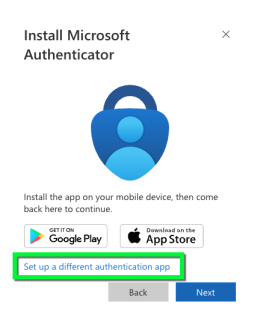
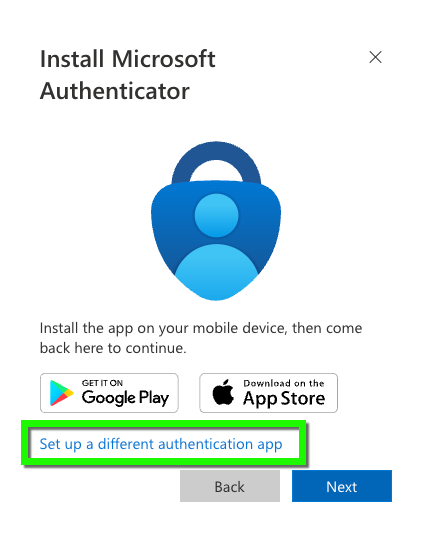
Select Set up a different authentication app. 

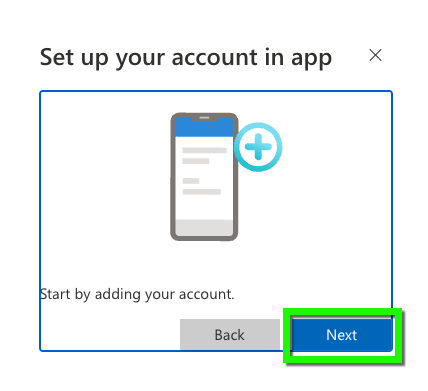
Step 5

Click Next. 

Step 6

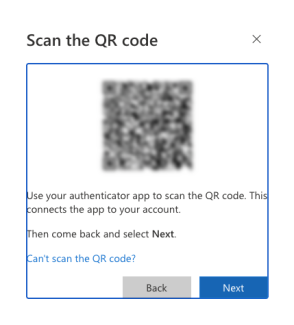
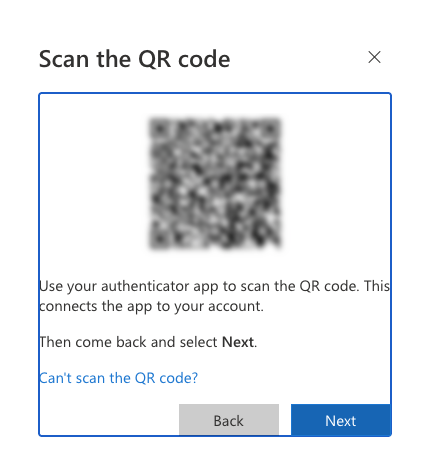
A QR code will be populated that you need to scan using the Passwords app on your iPhone. 

Step 7

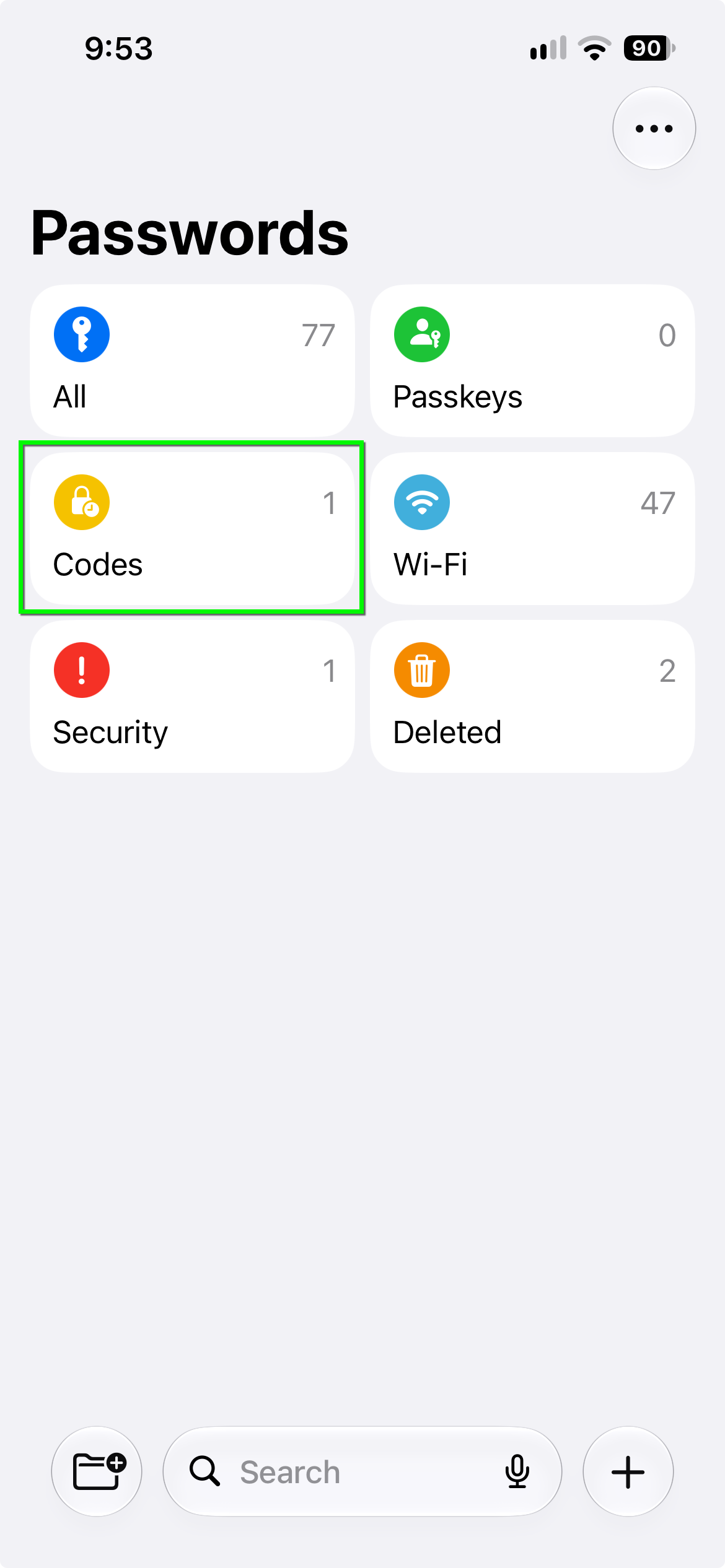
Open the Passwords app and select Codes.

Step 8

Click the plus sign to add a new item to your Passwords app and choose Scan QR Code with Camera. 

Step 9

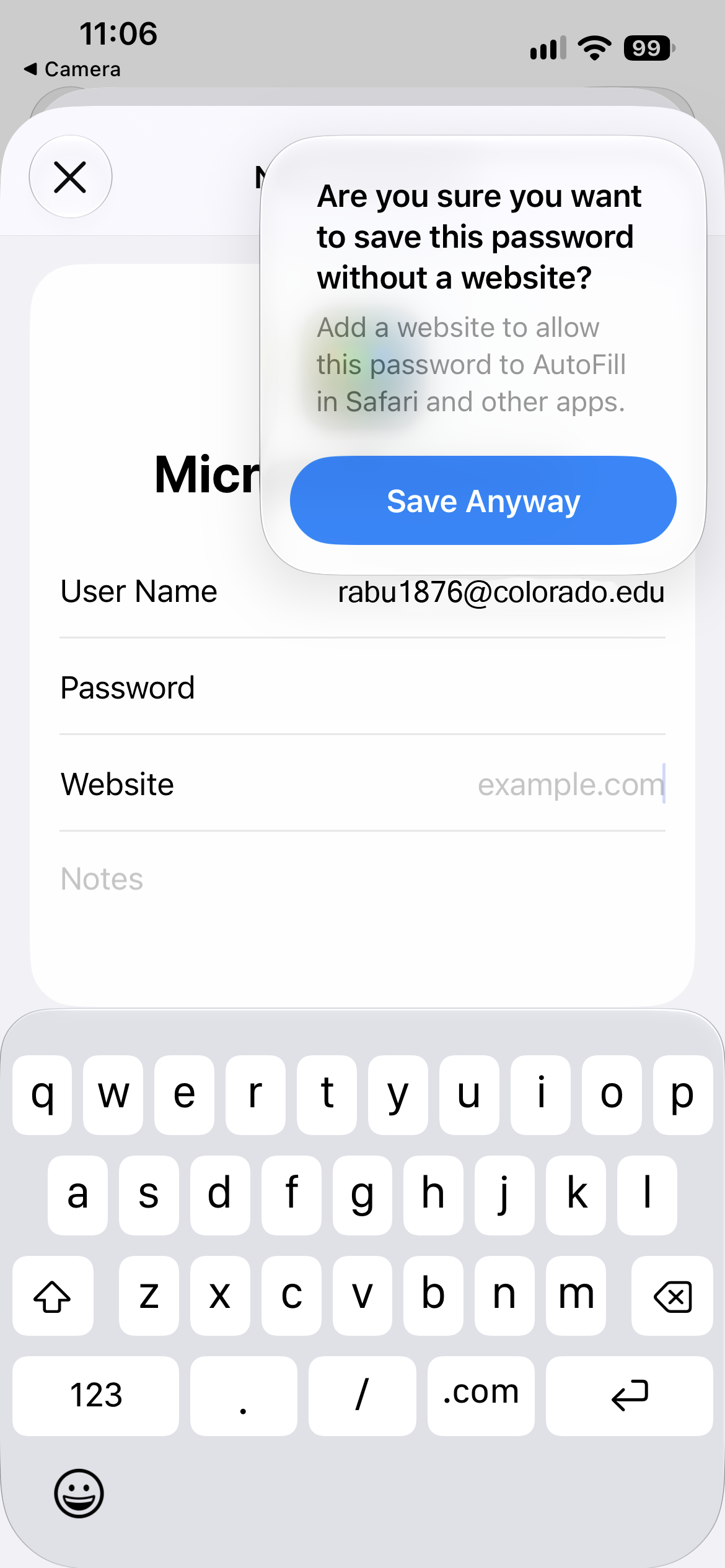
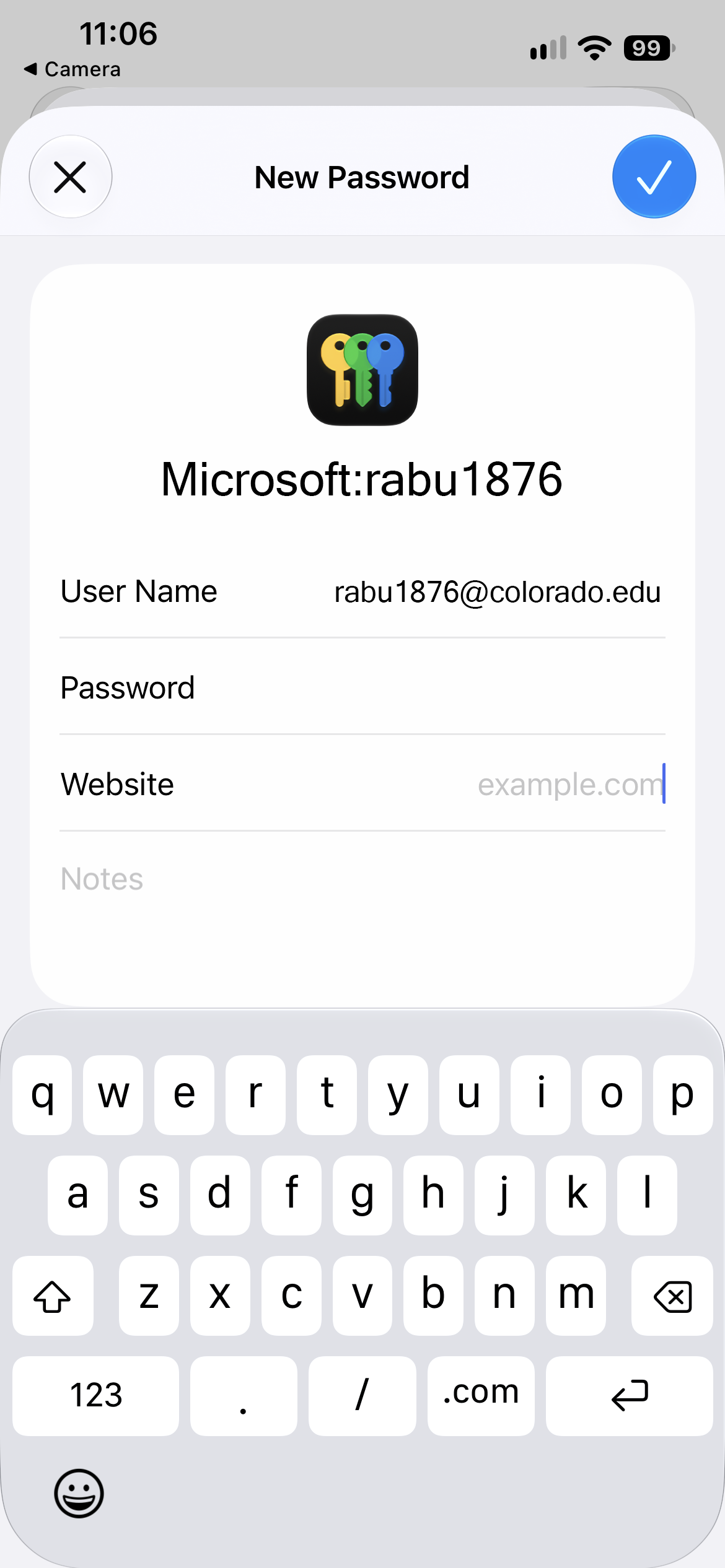
Add a name for the TOTP item, fill in your username in identikey@colorado.edu format. Leave the password as is - it should fill in automatically from when you scan the QR Code. Leave the website field blank.

Step 10

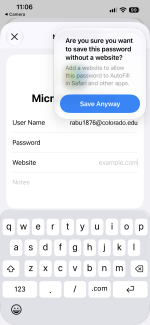
Confirm that you want to save without a website.

Step 11

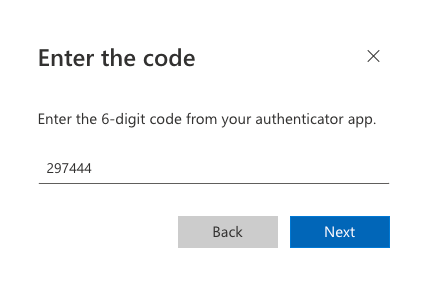
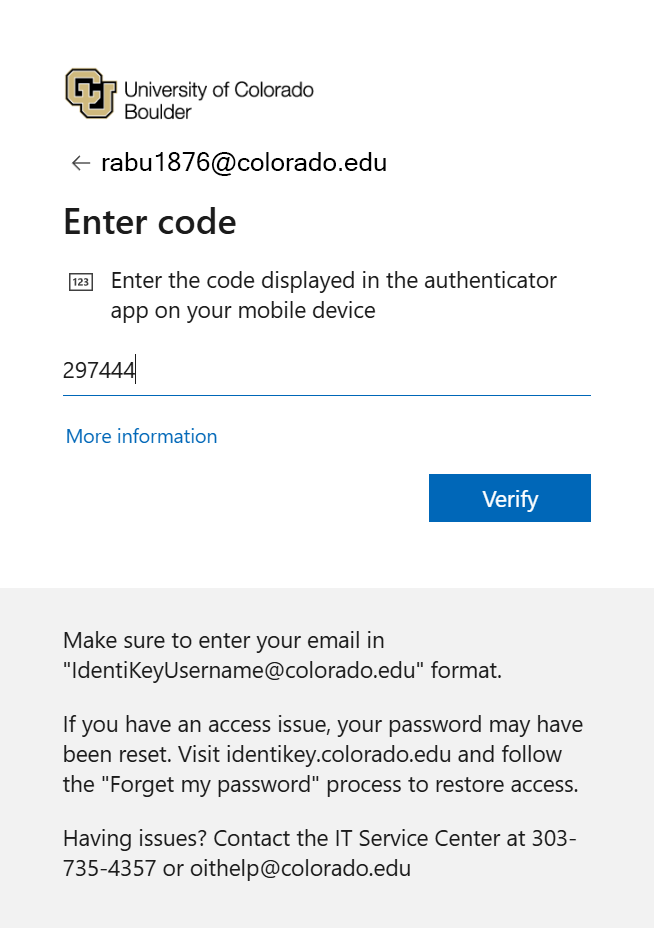
Back in your web browser, enter the TOTP code displayed in your Password app. 

Please note: You may need to go back to the home page, select Codes then the new item you just set up to see the code. 

Step 12

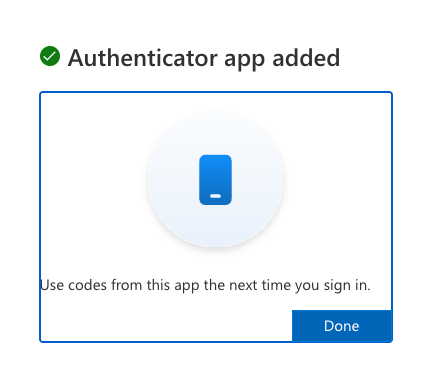
You will get a confirmation that this method has been connected to your account. 

Step 13

Using TOTP to authenticate and log in

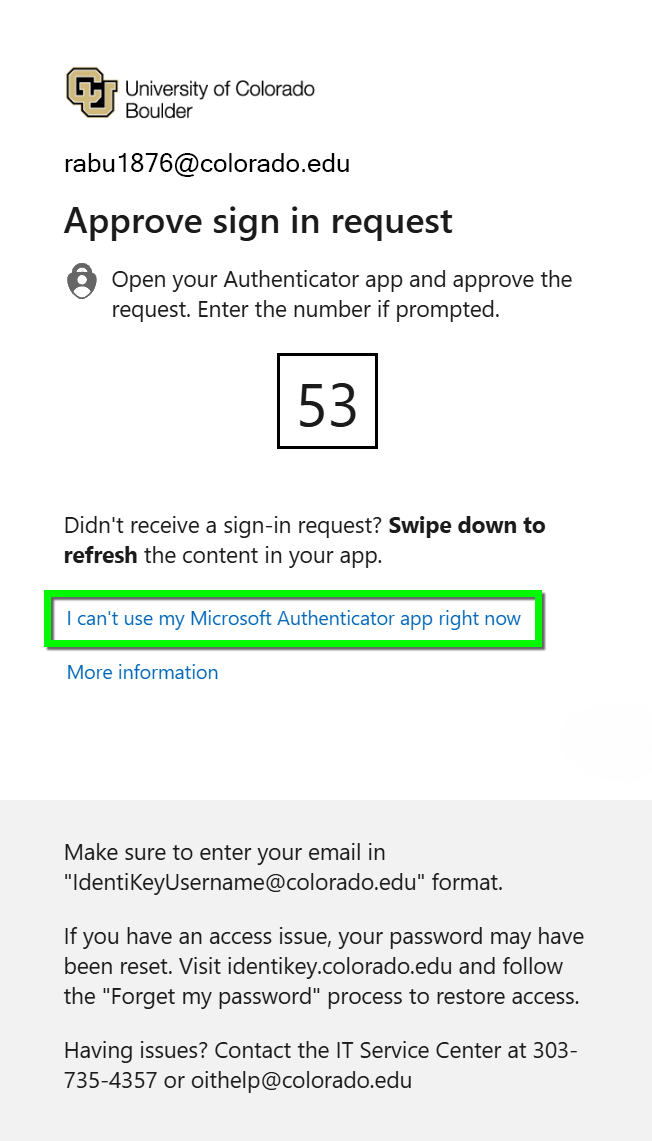
After your TOTP is set up, when you're prompted to authenticate, select I can't use my Authenticator app right now for other options. 

Step 14

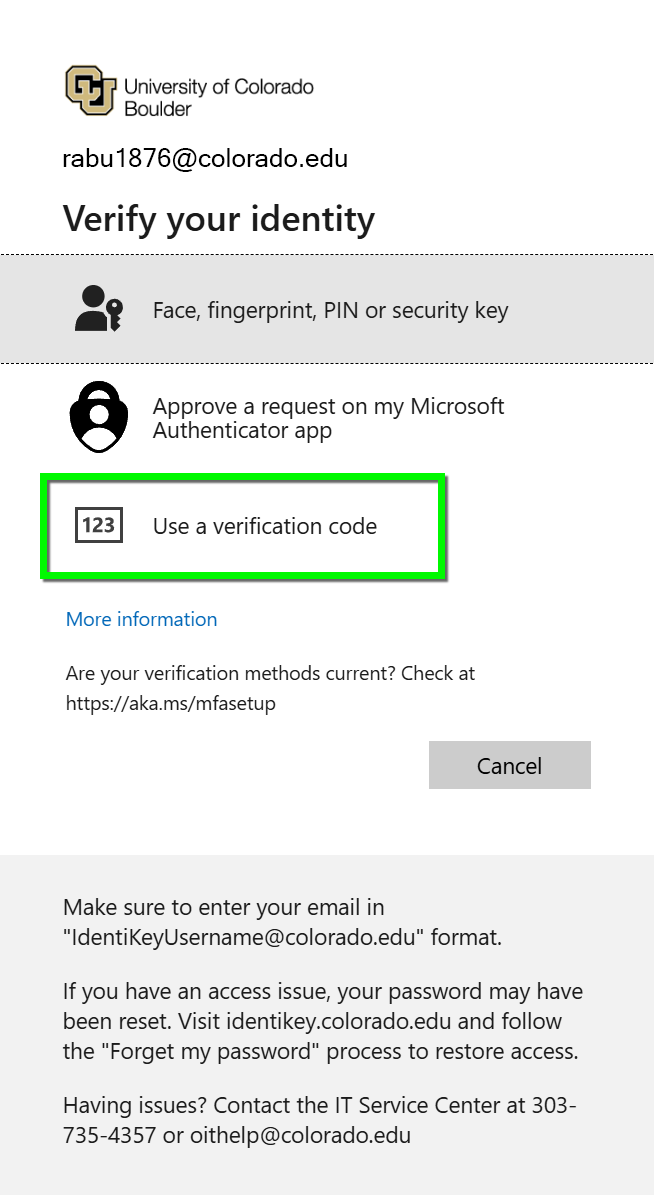
Your available methods will appear. Select Use a verification code. 

Step 15

Open your Passwords app, select Codes and find your CU Boulder Authenticator entry. 

Enter the code shown to complete authentication.