
iPhone & iPad Instructions
Step 1
Is your device connected to the internet?
- Yes: Continue to Step 2.
- No: Temporarily connect to an available Wi-Fi network (e.g., eduroam, CU Guest) or use a wired connection.
Step 2
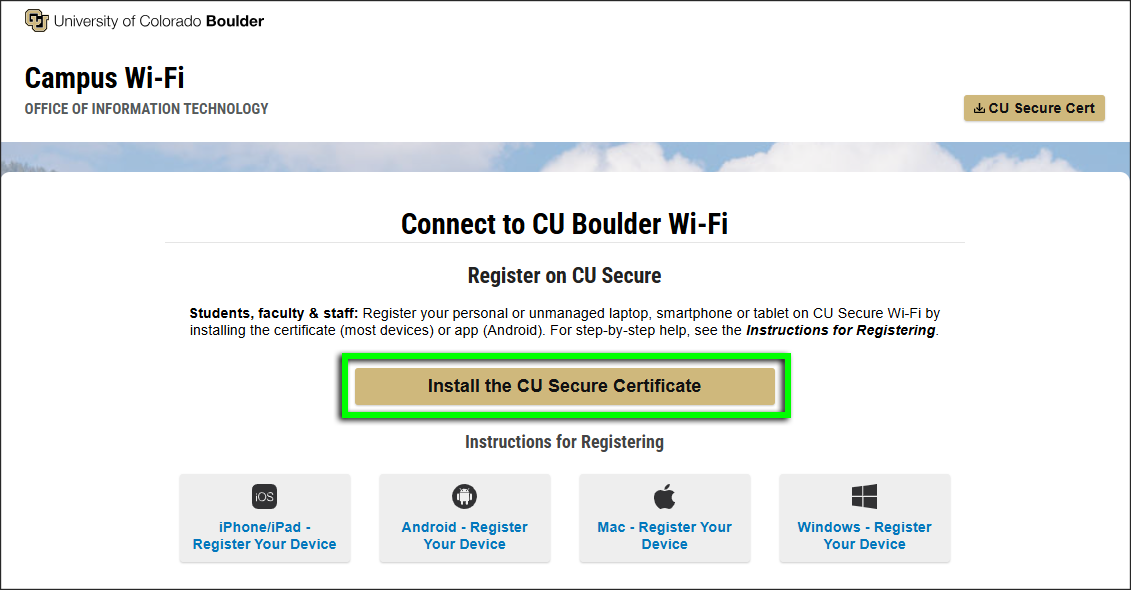
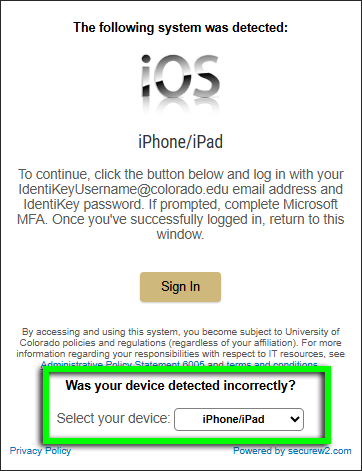
Using Safari,* go to wifi.colorado.edu, then click the Install the CU Secure Certificate button.
*If your device's default browser is not currently set to Safari, you'll need to change it for the duration of this process. Visit Apple's Make Safari Your Default Browser page for instructions.

Step 3


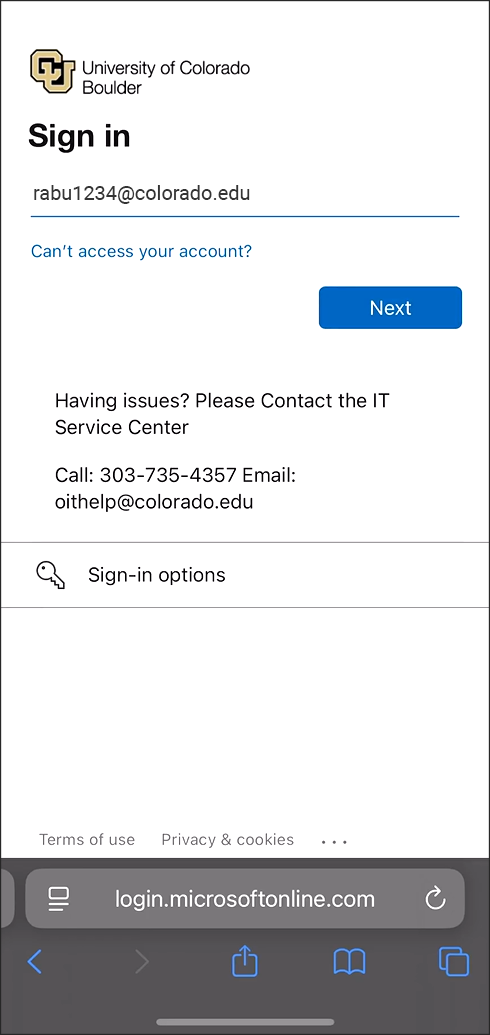
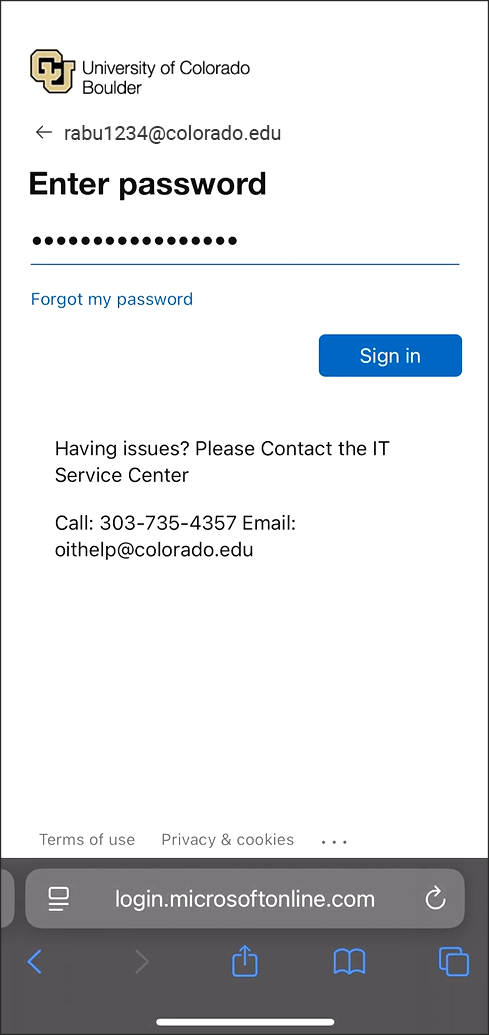
Step 7
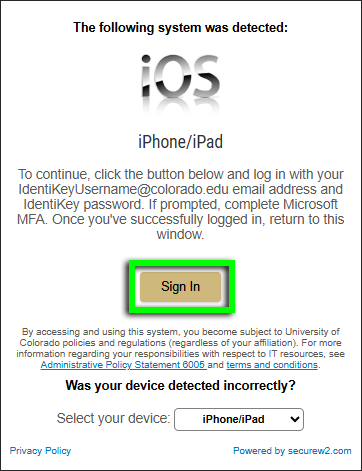
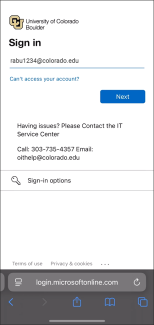
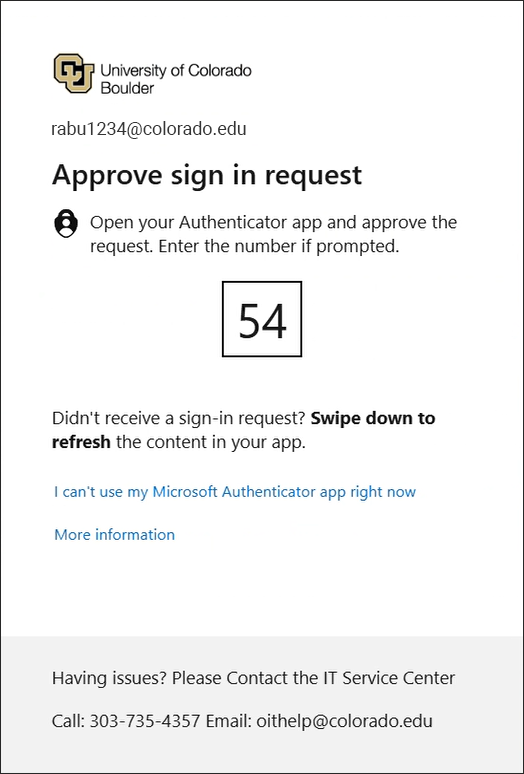
If prompted, complete Microsoft multi-factor authentication.
If you receive an error message, see our troubleshooting page for next steps.
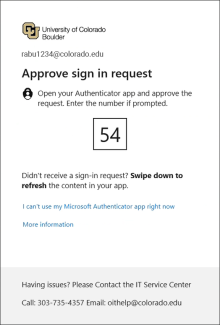
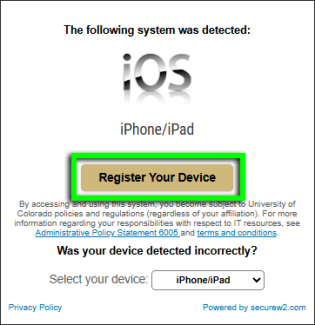
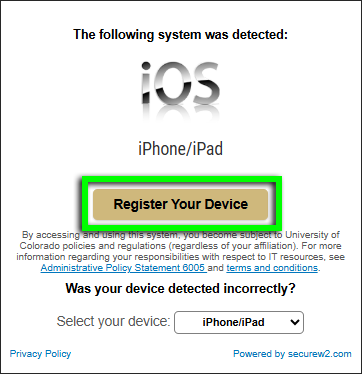
Step 9
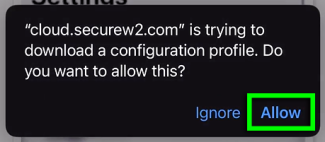
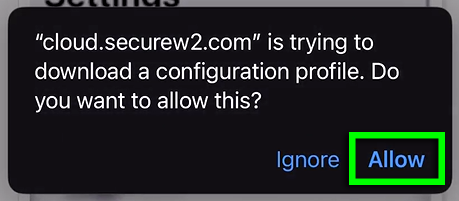
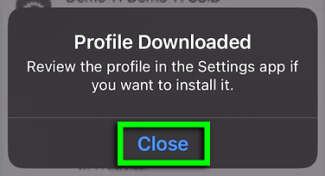
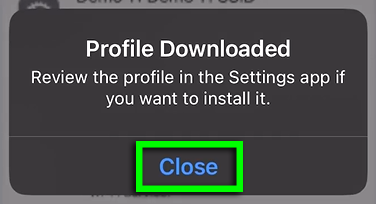
Step 11
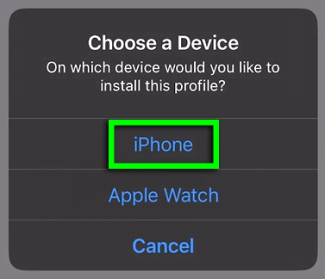
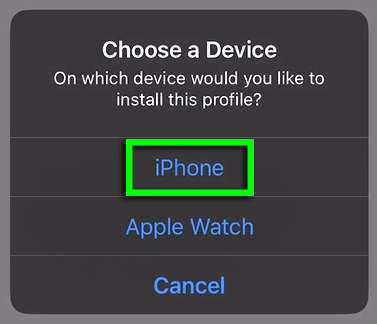
If asked which device to install the profile on, select iPhone.
Note: To set up the paired device(s), finish registering your iPhone, then follow the Apple device instructions below.
Step 12
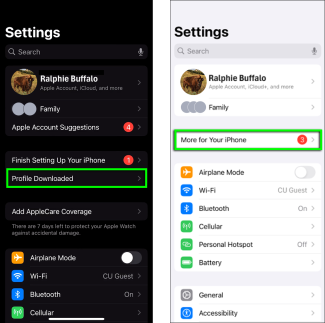
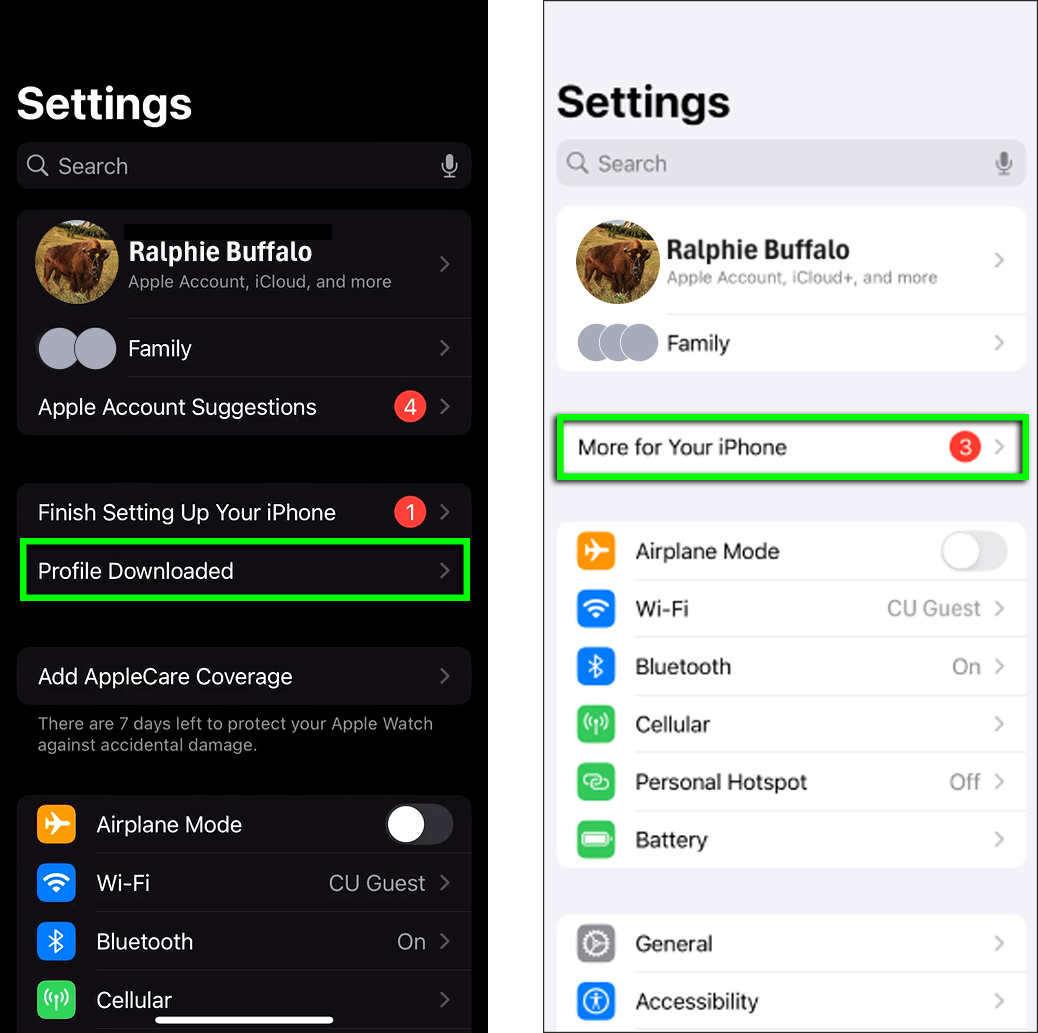
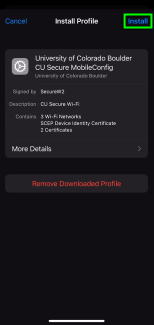
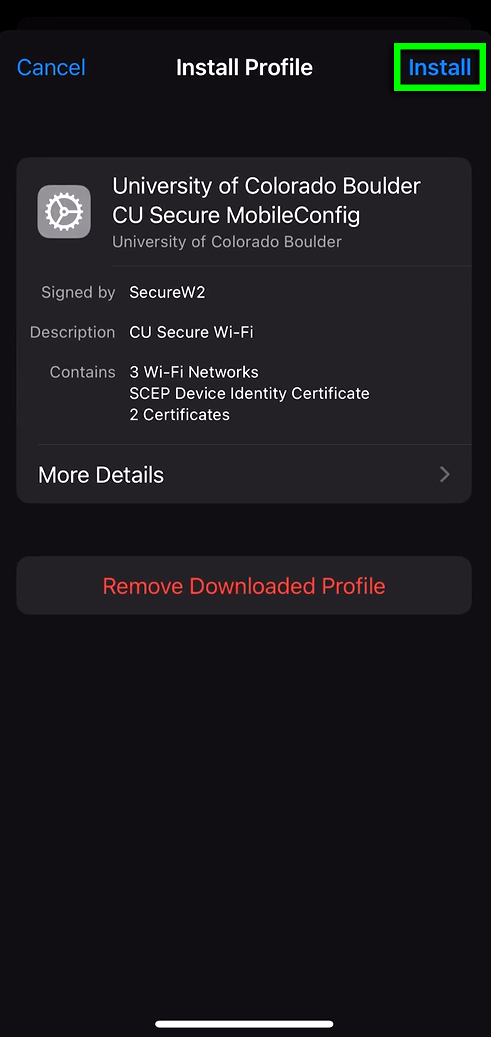

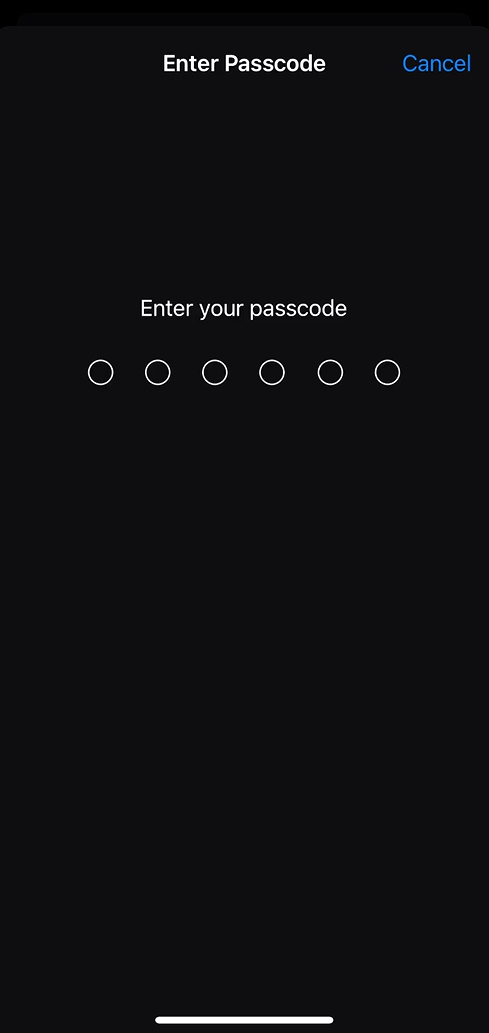
Step 15
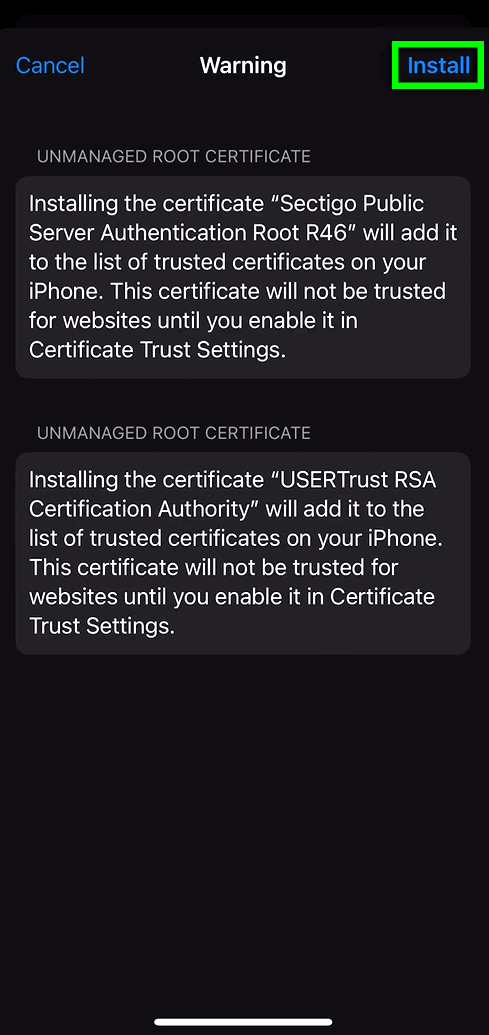
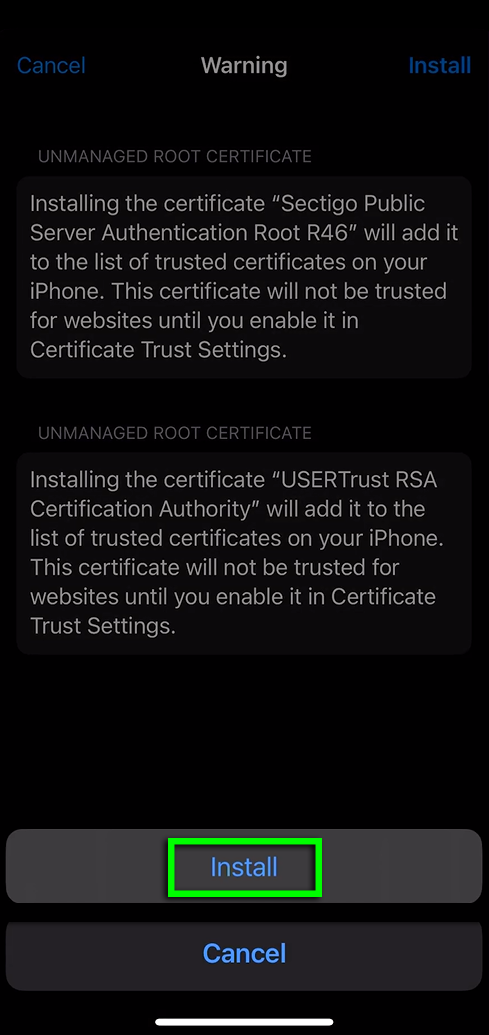
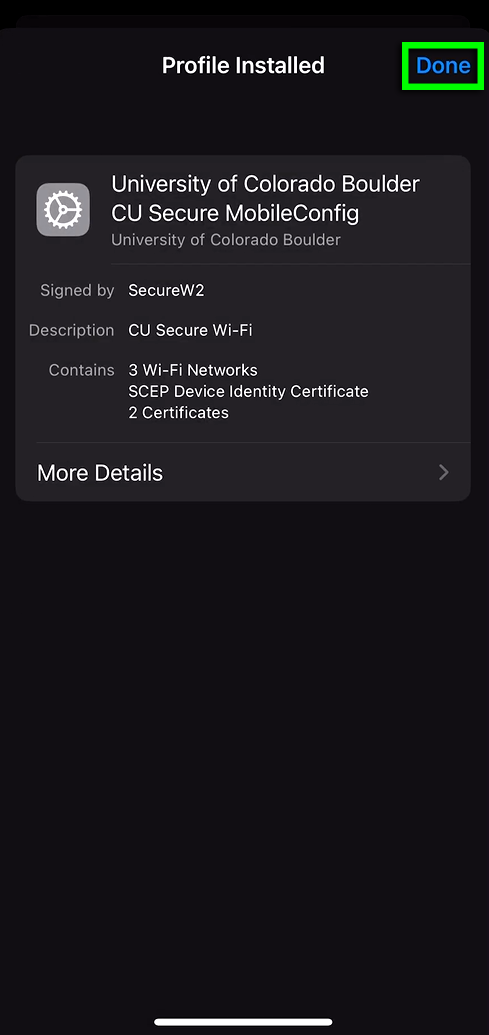
Step 18
CU Secure should now appear in your device's known Wi-Fi networks.
Apple Device Instructions
If you were asked which device you wanted to install the CU Secure profile on (Step 11), then your Apple Watch or other paired device(s) should be capable of connecting to CU Secure as well.
Once you've registered your iPhone on CU Secure:
- On your iPhone, restart the registration process from Step 2.
- When you get to Step 11, select the paired device.
Your iPhone will extend the CU Secure Wi-Fi configuration to that device, allowing both of them to connect to CU Secure automatically.
Repeat this process to connect additional paired devices.



