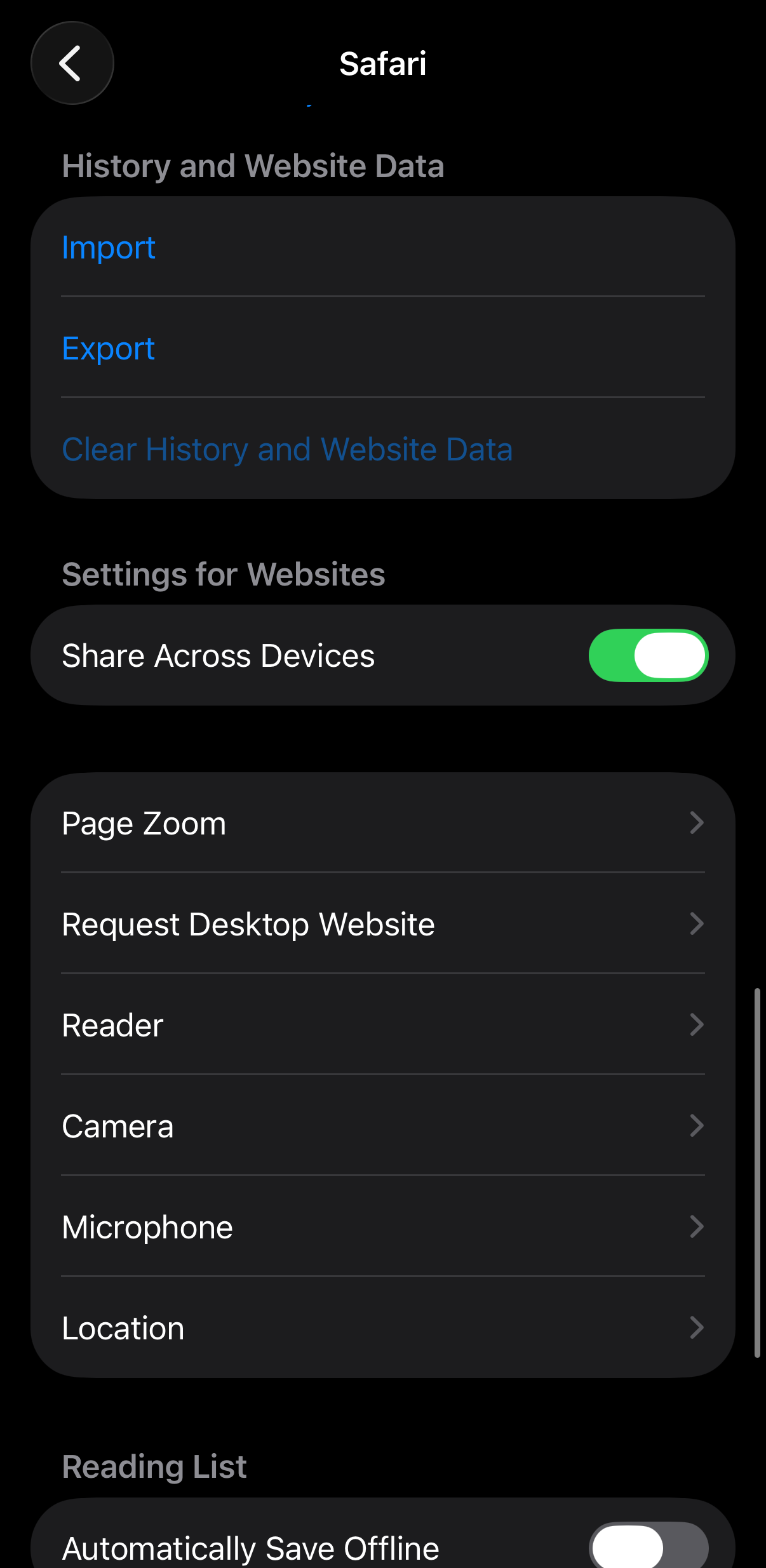
Clear the Mobile Web Browser Cache - Safari
Clearing a web browser’s cache can correct problems you may have using a web browser while on the CU Boulder network or using an OIT web based program, like Canvas, Buff Portal or others. OIT recommends that you perform this simple step before you start to surf the Web for the first time on the campus network. In every browser, completely close or quit the browser for changes to take effect.
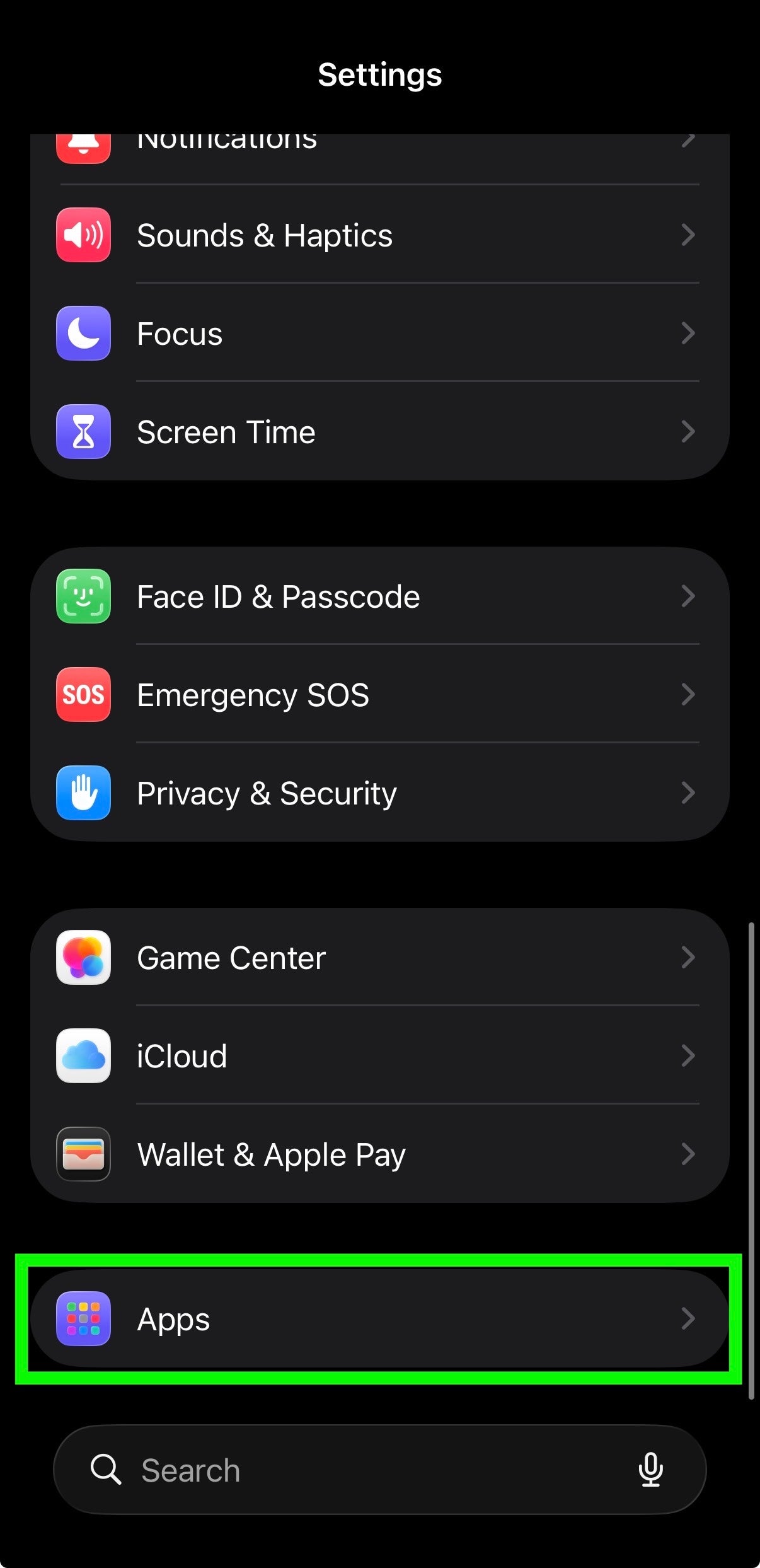
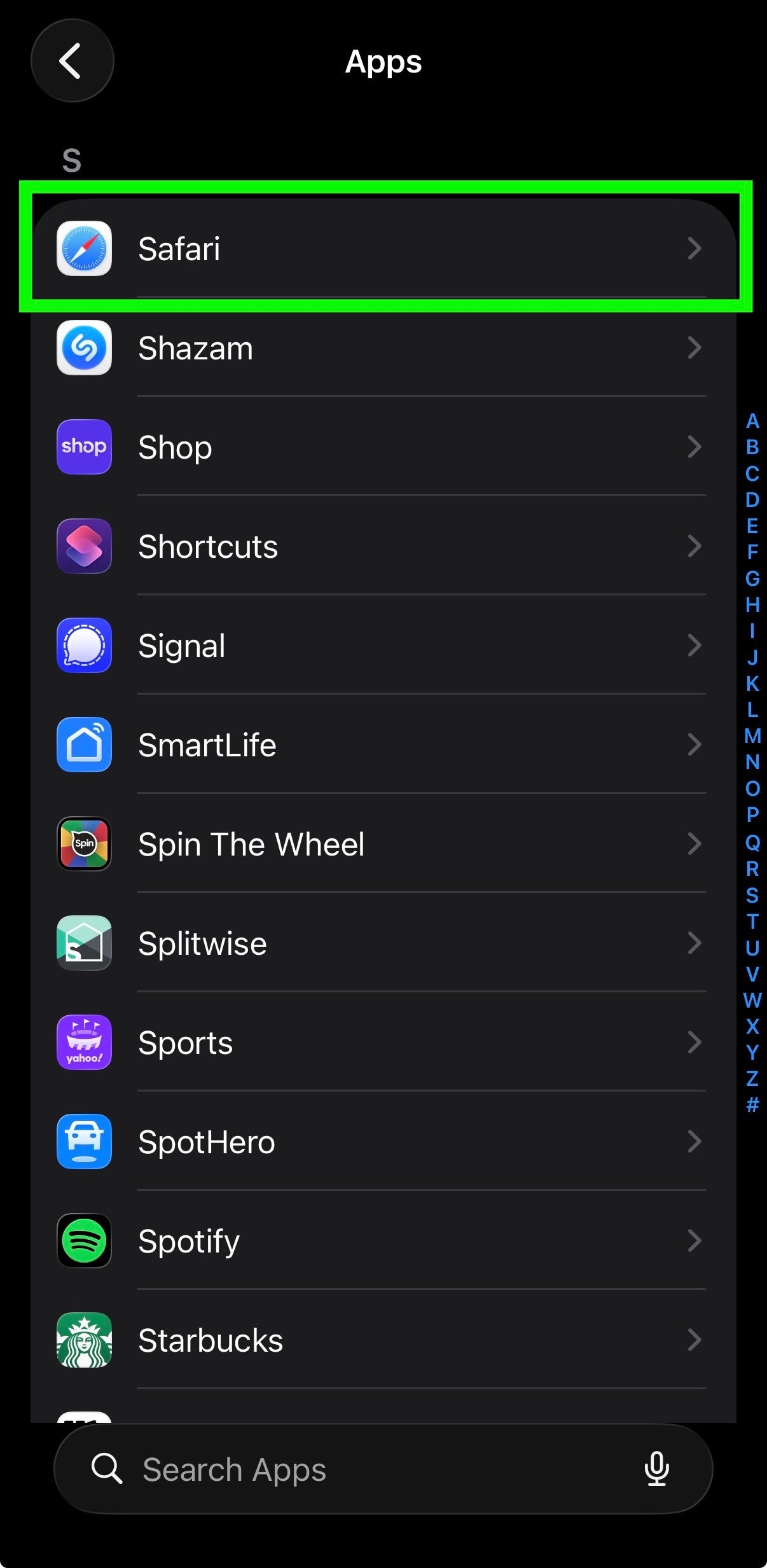
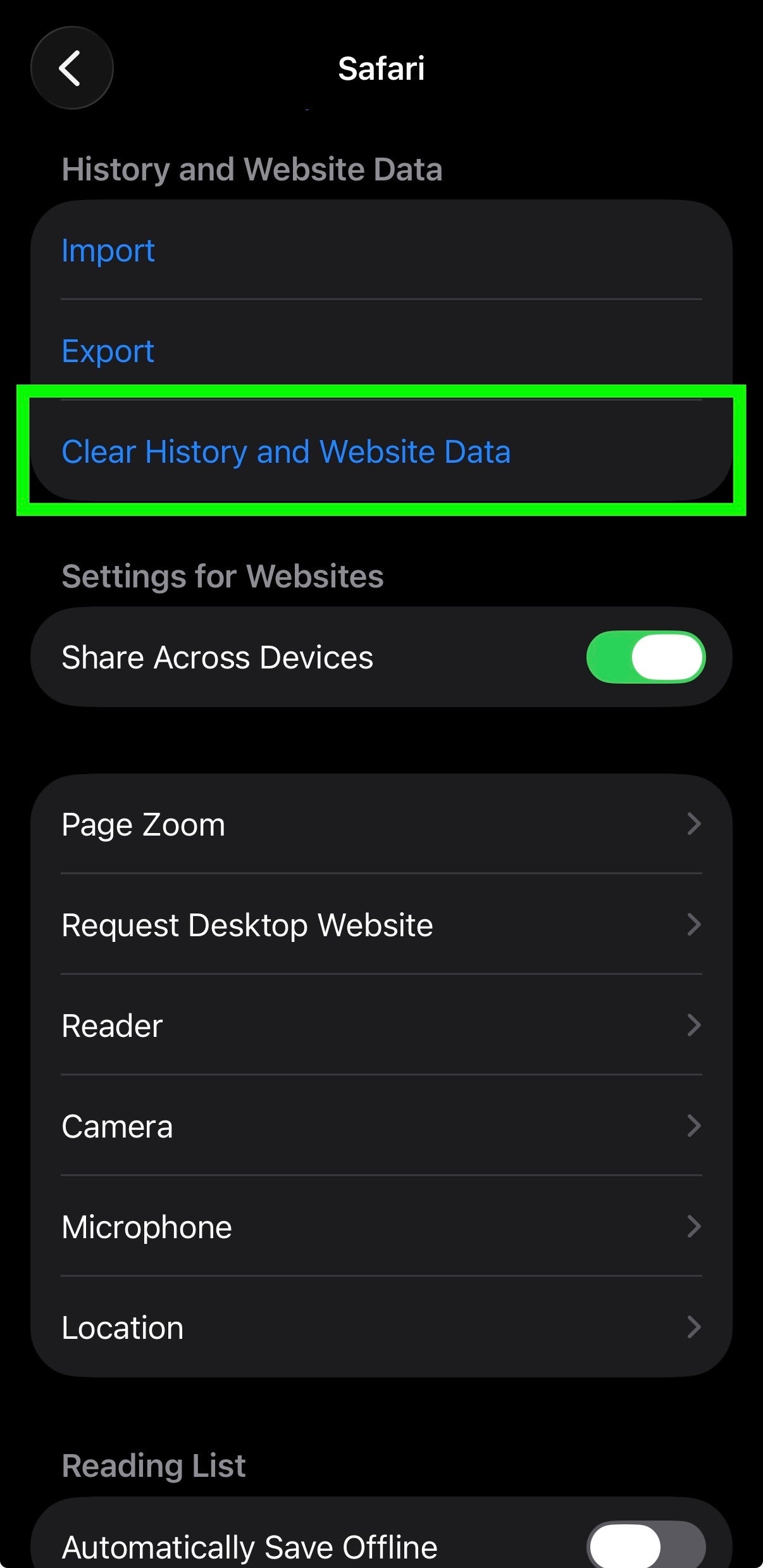
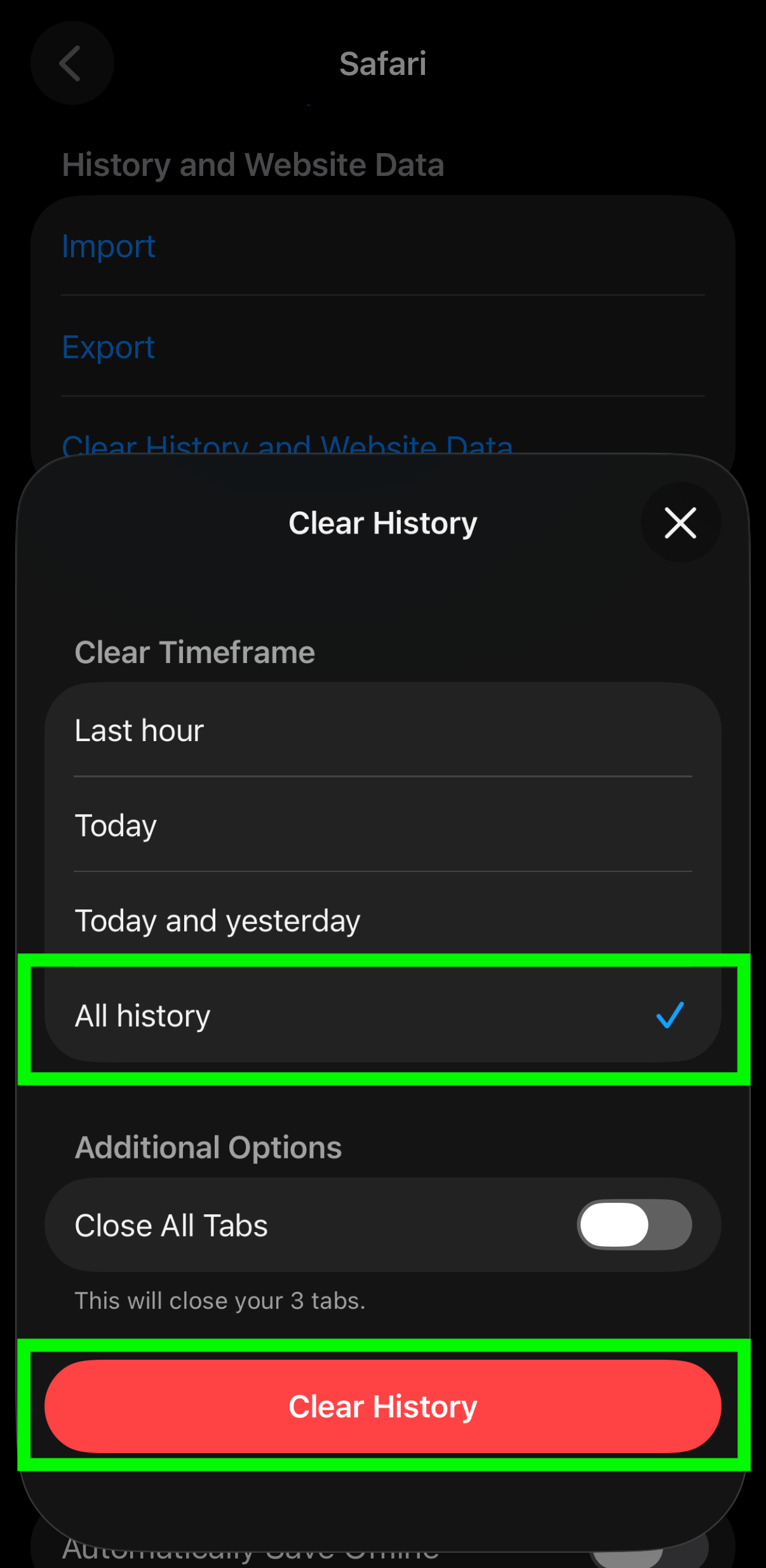
The instructions below demonstrate how to clear the cache for the Safari browser on a mobile device.
OS:
- Layout: