CU Secure Wi-Fi - Register Your Windows Device


 This new Wi-Fi network is now live in select early-access buildings and cannot be accessed from any other location.


Follow these instructions to register your personal or non-Secure Computing* Windows device on the CU Secure Wi-Fi network. Once installed, the certificate will allow the device to automatically connect to CU Secure when in range.

*Note: Devices enrolled in CU Boulder's Secure Computing framework are automatically configured to connect to CU Secure Wi-Fi and don't require manual registration.

Tips

  • Prefer a video? Visit OIT's YouTube channel for a step-by-step screen recording.
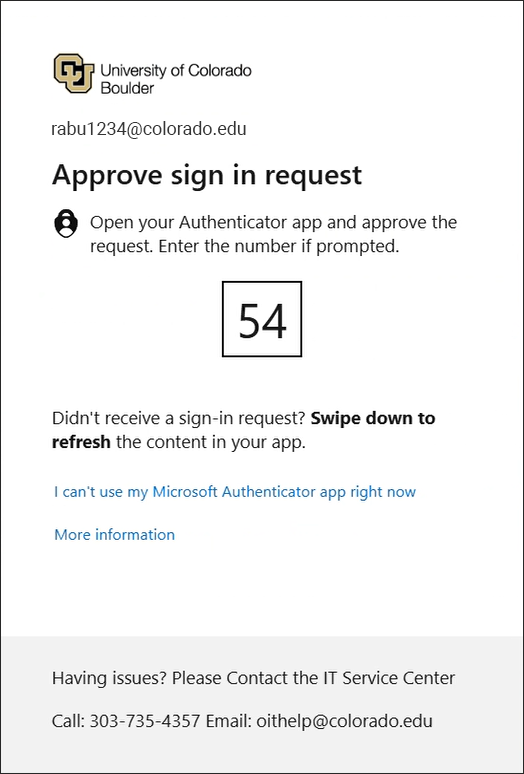
  • Missing MFA? To download and install the certificate, you'll need to log in with your IdentiKey credentials and likely authenticate with Microsoft MFA.
  • Images too small? Click or tap the screenshot to open a larger, crisper image.
  • Got stuck? Visit OIT's CU Secure troubleshooting page for solutions to common problems.

OS:
Layout:
one column
two columns

Step 1

  • If your device is connected to the internet: Continue to Step 2.
     
  • If your device isn't connected to the internet: Use eduroam, CU Guest or a wired connection to complete this process.

Step 2

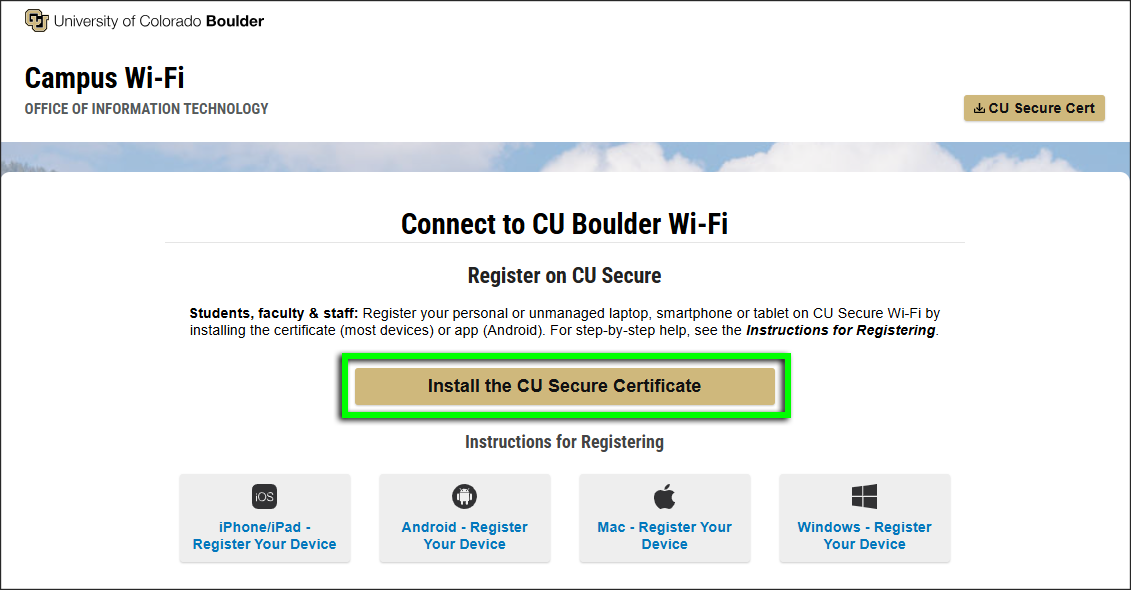
Go to wifi.colorado.edu, then click the Install the CU Secure Certificate button.

Step 3

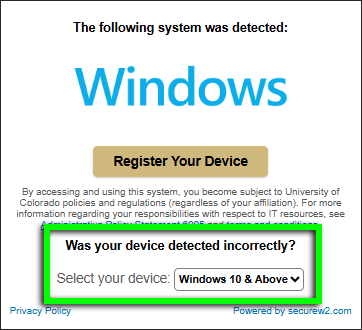
Confirm that your operating system was identified correctly. If it wasn't, use the Select your device drop-down to change it.

Step 4

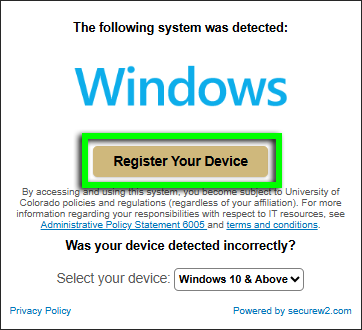
Click the Register Your Device button to download the SecureW2 JoinNow onboarding client.

Step 5

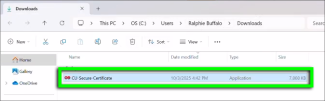
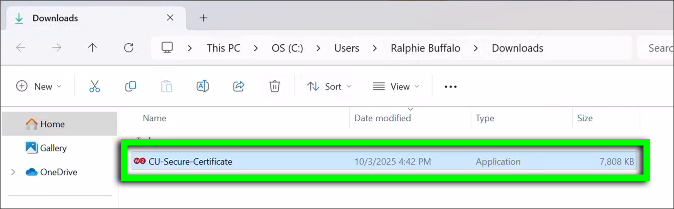
Once the download is complete, open CU-Secure-Certificate.exe from your browser's download queue or your Downloads folder.

Step 6

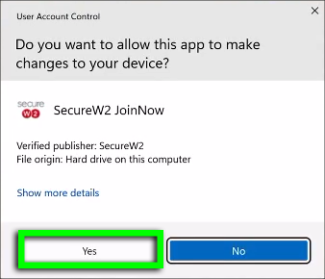
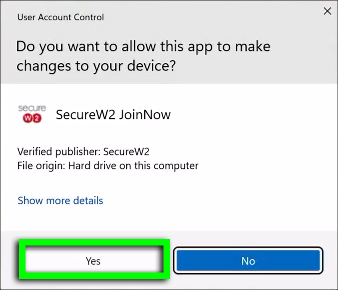
If asked whether to allow SecureW2 JoinNow to make changes, click Yes.

Step 7

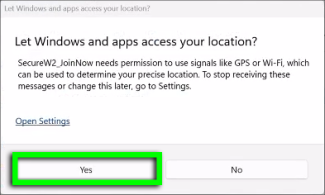
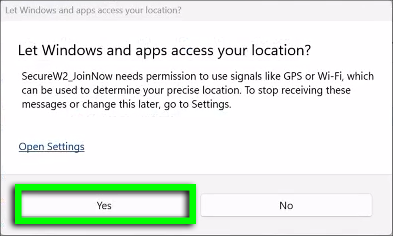
If asked whether to allow SecureW2_JoinNow to access your location, click Yes.

Step 8

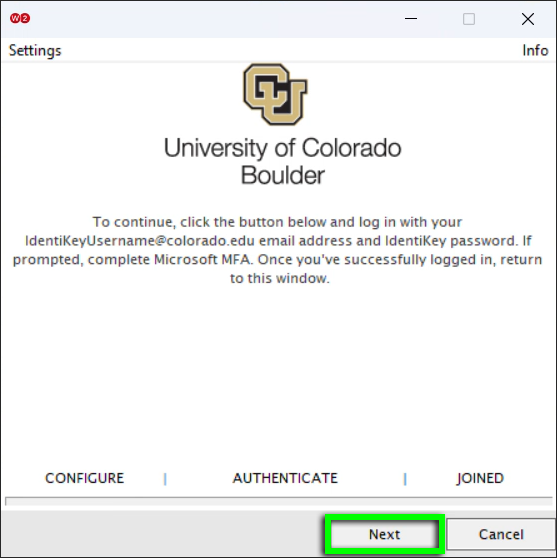
The onboarding client will instruct you to log in through your browser. Click Next.

Step 9

If you're already logged in to your campus Microsoft 365 account in that browser, skip to Step 11.

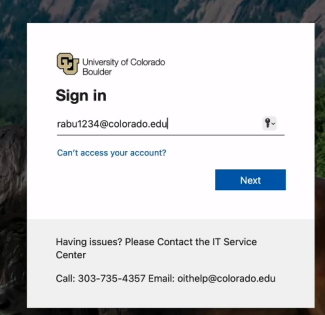
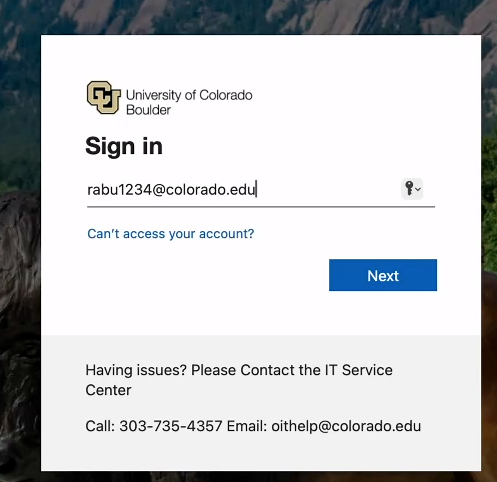
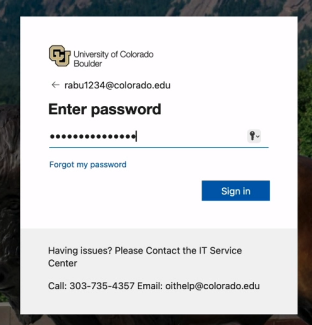
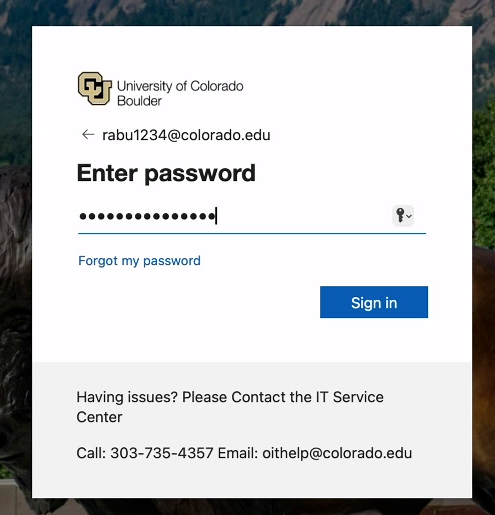
If you're not logged in, you'll be directed to a Microsoft login page. Enter your IdentiKeyUsername​@colorado.edu, then click Next.

Step 10

Enter your IdentiKey password, then click Sign in.

Step 11

Step 12

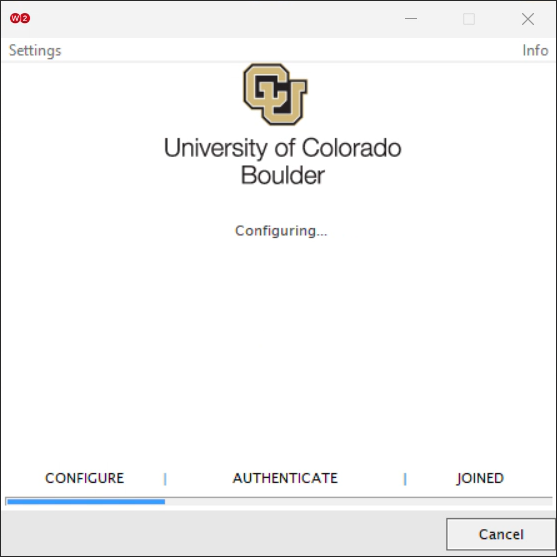
The onboarding client will display various status messages as it enrolls and issues the certificate, configures your device, connects to the network and authenticates.

Step 13

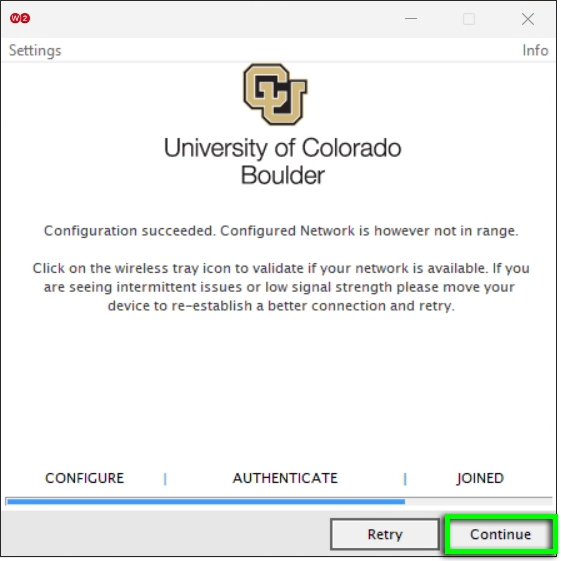
If you're not in range of CU Secure Wi-Fi, the onboarding client will indicate that configuration succeeded, but you're not in range. Click Continue.

Note: If you're using a Wi-Fi network to complete this process, take a moment to ensure you're still online.

Step 14

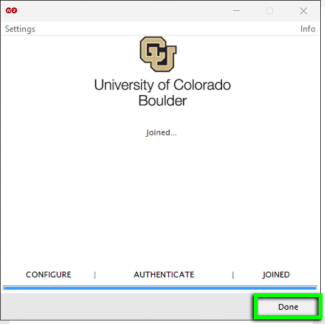
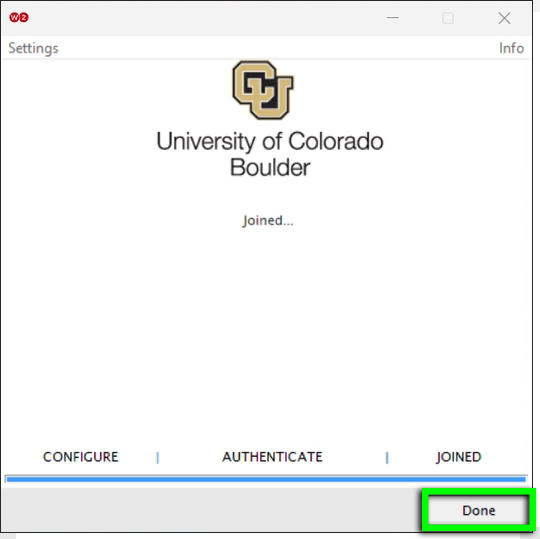
Your device is now registered on CU Secure Wi-Fi. Click Done.

Step 15

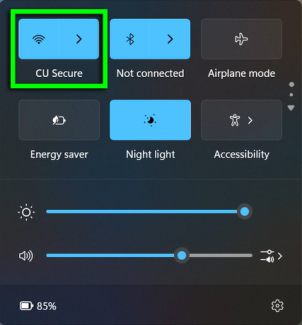
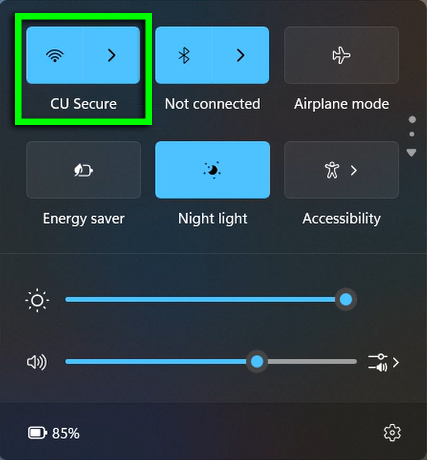
CU Secure will appear in your device's known Wi-Fi networks under Settings > Network & internet > Wi-Fi > Manage known networks.

Your device should connect to CU Secure Wi-Fi automatically when in range.