Step 1
Is your device connected to the internet?
- Yes: Continue to Step 2.
- No: Temporarily connect to an available Wi-Fi network (e.g., eduroam, CU Guest) or use a wired connection.
Step 2
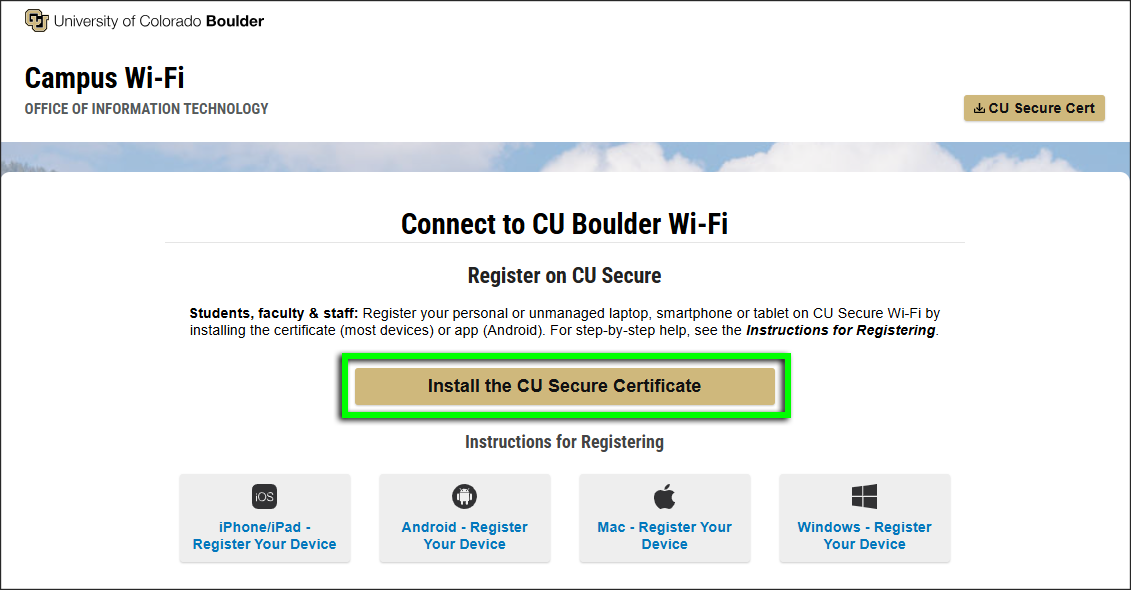
Using Safari,* go to wifi.colorado.edu, then click the Install the CU Secure Certificate button.
*If your device's default browser is not currently set to Safari, you'll need to change it for the duration of this process. Visit Apple's Make Safari Your Default Browser page for instructions.

Step 3




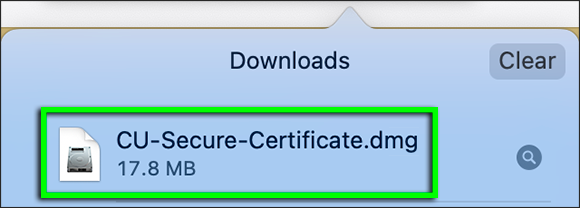
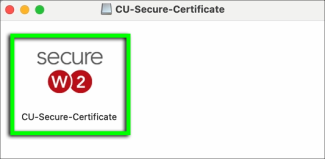
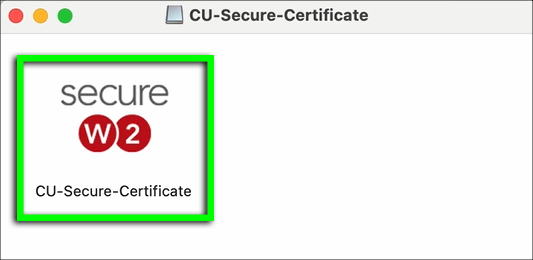

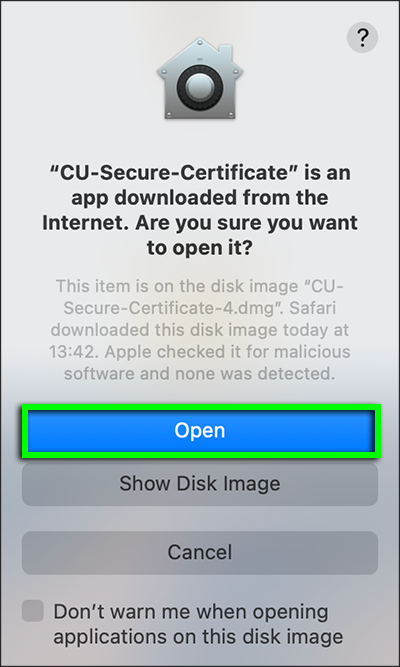
Step 9

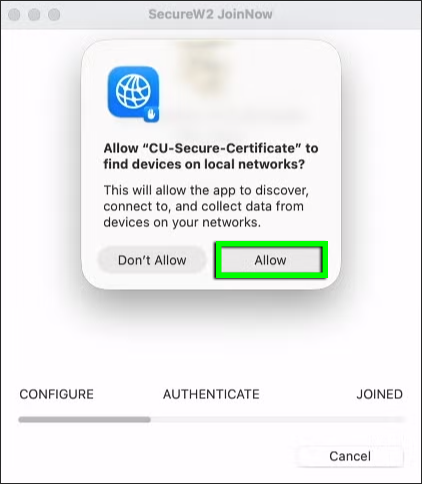
Step 10

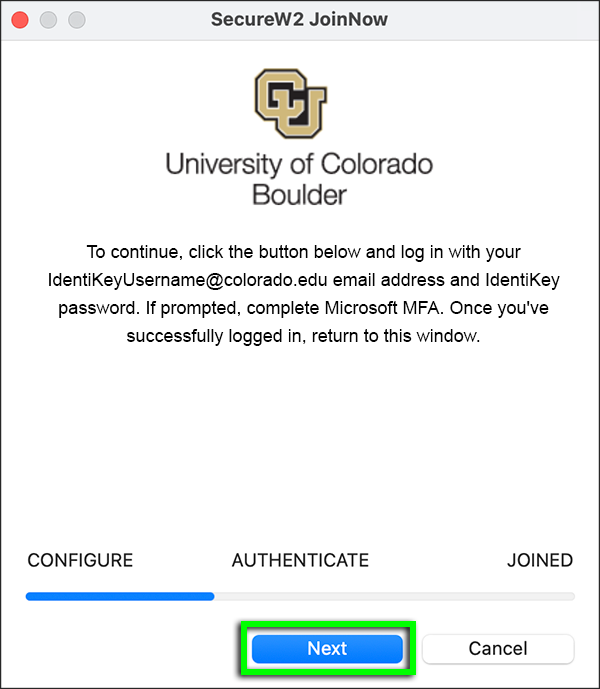
Step 11

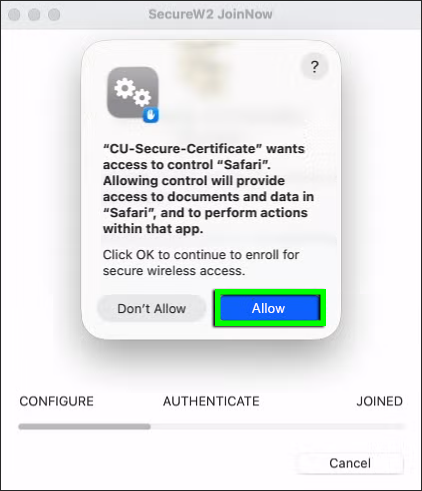
Step 12
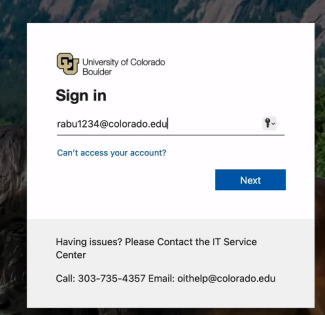
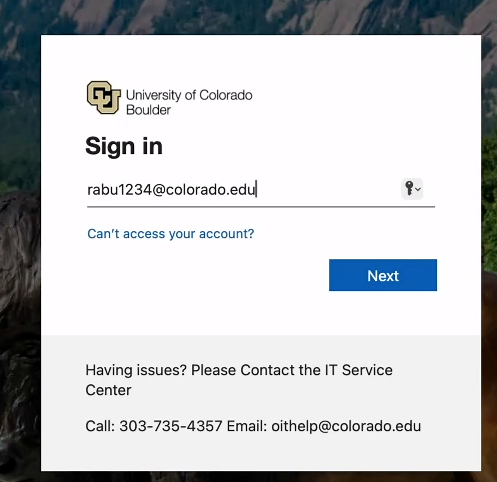
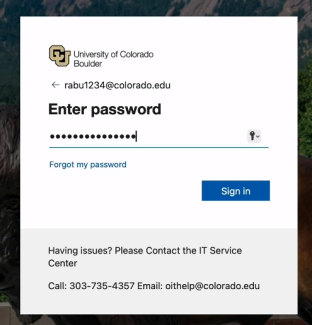
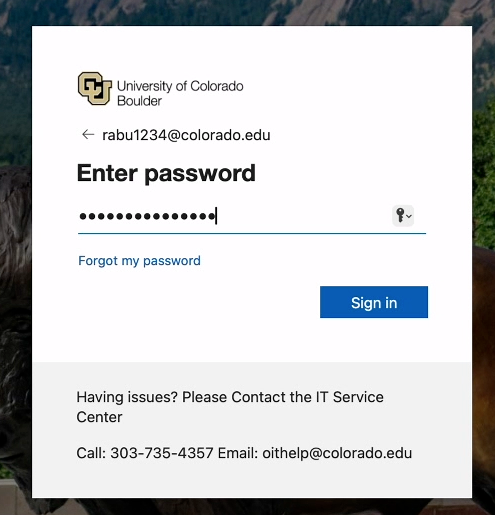
Step 14
If prompted, complete Microsoft multi-factor authentication.
If you receive an error message, see our troubleshooting page for next steps.
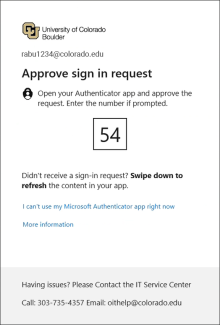
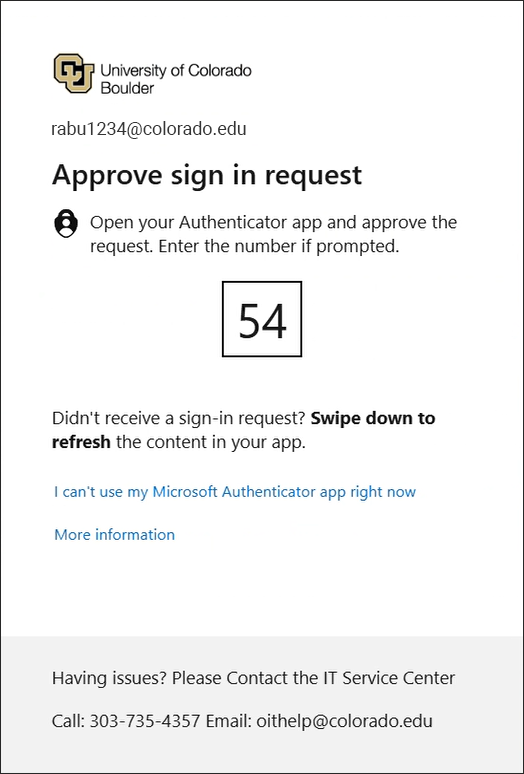
Step 15
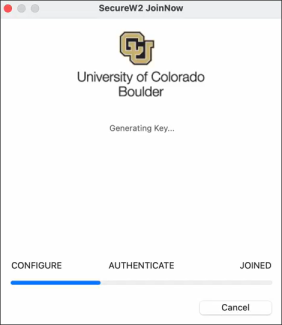
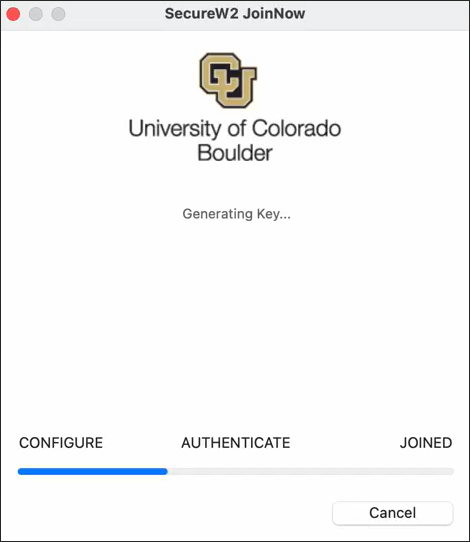

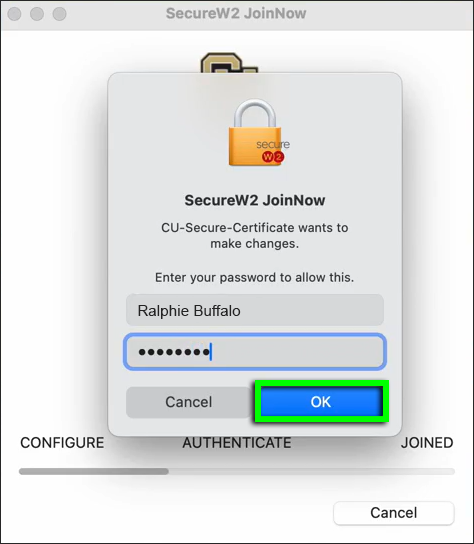
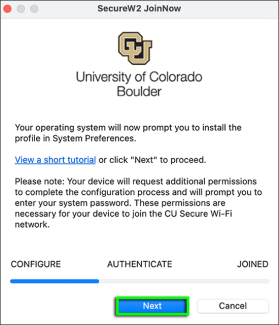
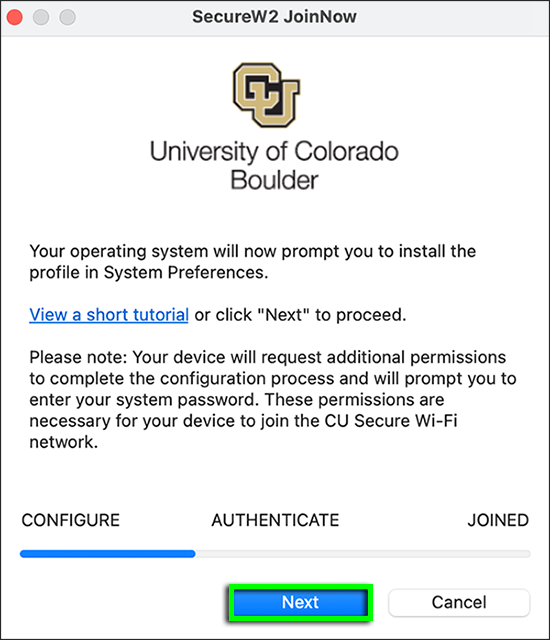
Step 18

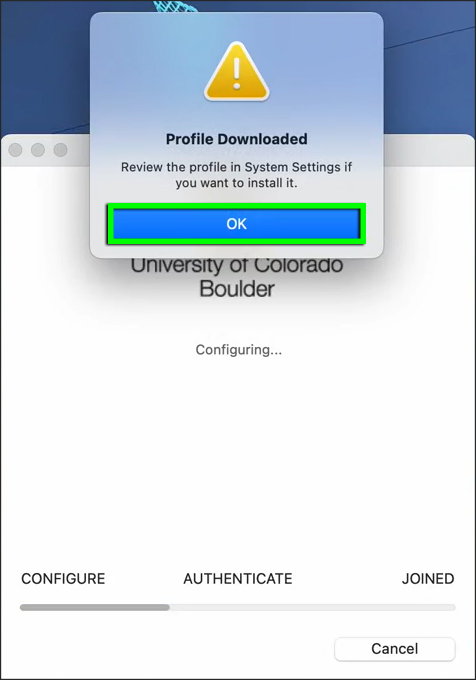
Step 19
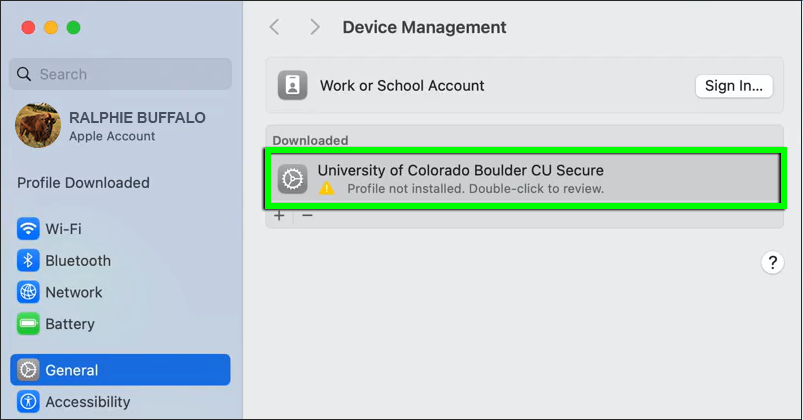
If the Device Management window doesn't open automatically, follow these navigation steps: System Settings > General > Device Management.
Double-click to open the University of Colorado Boulder CU Secure profile.
Please note: For older macOS systems, go to System Settings > Profiles to find the CU Secure profile.


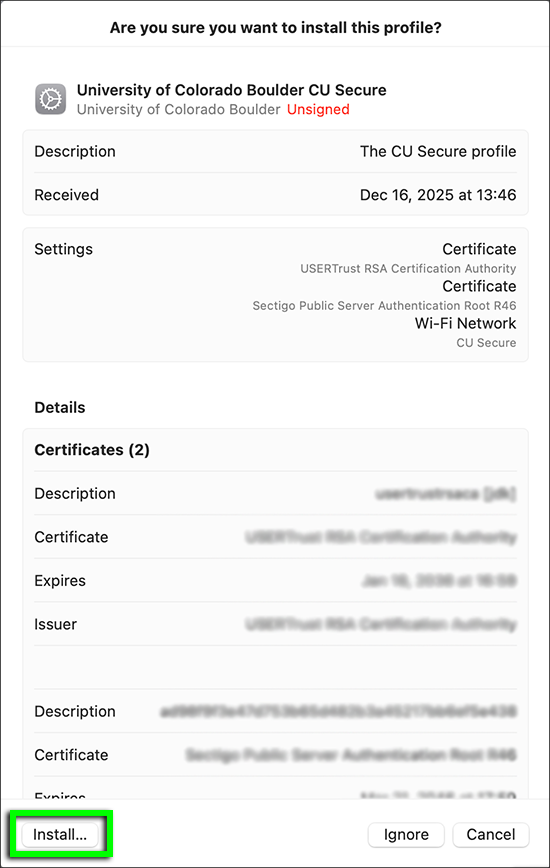

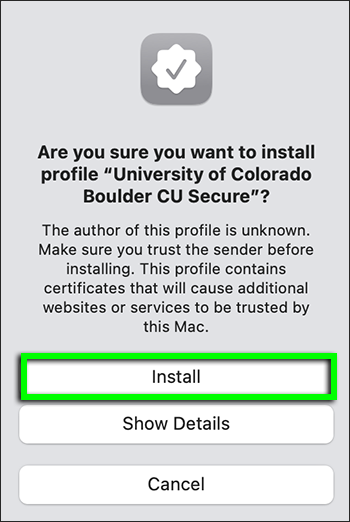

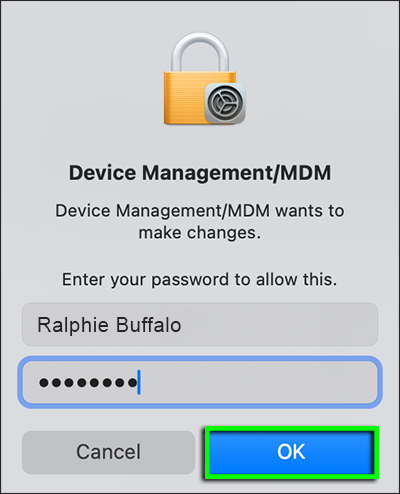

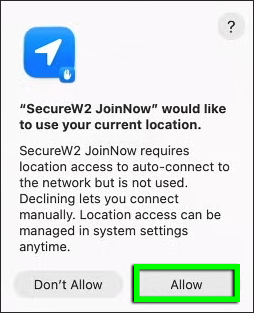
Step 24
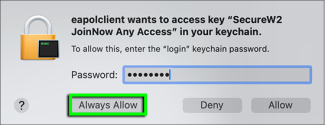
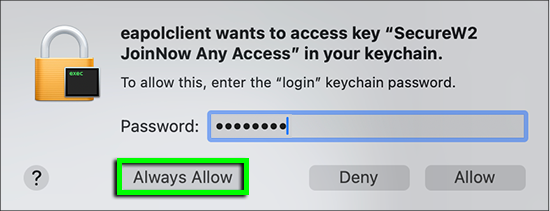
If asked to allow eapolclient to access the "SecureW2 JoinNow Any Access" key in your keychain:
- Enter your laptop's password.
- Click Always Allow. (Learn why this is safe to do: CU Secure Wi-Fi FAQs.)
Note: If you're not currently in range of CU Secure Wi-Fi, you'll likely see this prompt when you first connect to CU Secure.
Step 25
Are you currently on campus?
- Yes: Skip to Step 29.
- No: Continue to Step 26.
Step 27
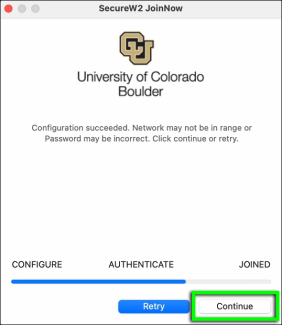
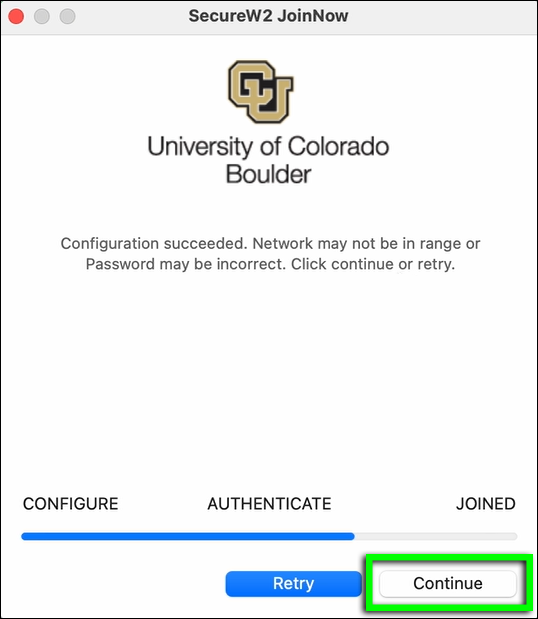
Step 28
Your device is now registered on CU Secure Wi-Fi and should connect automatically once you're in range.
Note: If you're completing this process over Wi-Fi, the previous step may have caused your device to disconnect from the network. Check to make sure you still have internet.
Step 29
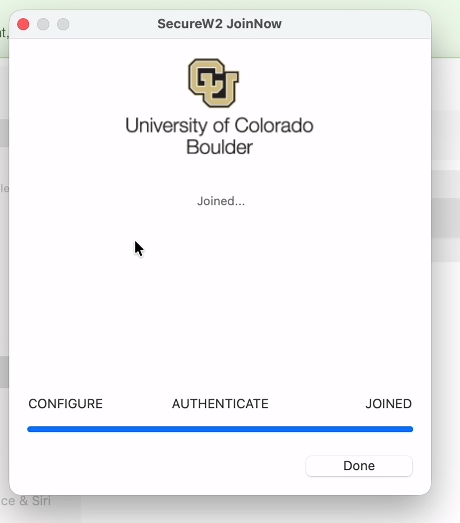
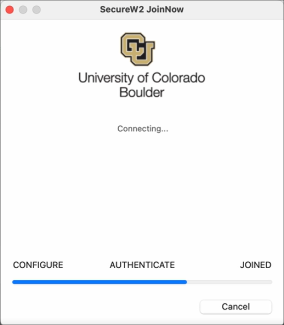
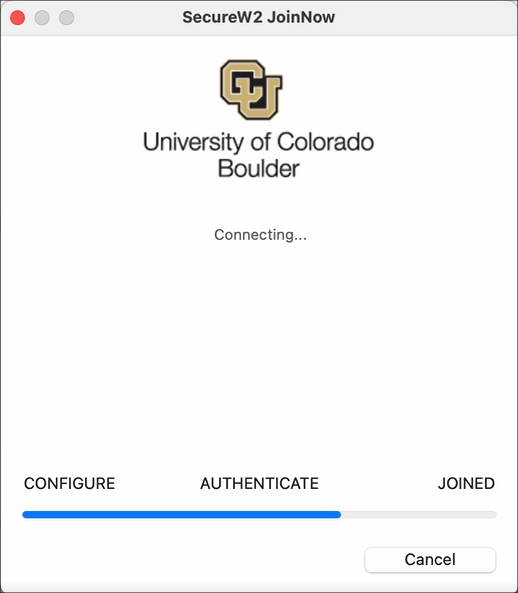
If you're on campus, the onboarding client will indicate that it's authenticating to CU Secure.
Step 30
Once the client has finished authenticating, it should display a "Joined..." message. Click Done.
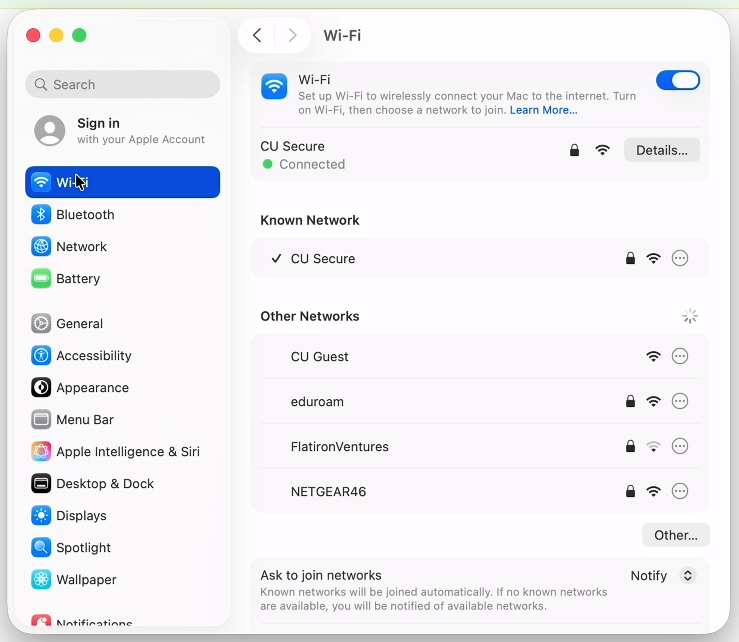
Note: You may be connected to CU Secure even if the client displays a message that suggests otherwise. Check your Wi-Fi connection before attempting to troubleshoot.