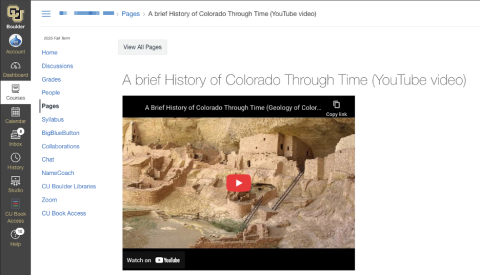
Add YouTube Content to Canvas Studio Library
- Adding YouTube content to Canvas Studio is OIT's recommendation for adding YouTube content to Canvas courses
- Adding YouTube content directly to Canvas Studio provides the following benefits:
- Auto-converting YouTube content to use Canvas Studio's player
- Preventing ads from displaying when playing content
- Retaining all closed captions from YouTube to be accessible within Canvas
Step 1
Log in to Canvas Studio.


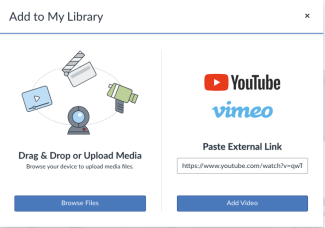
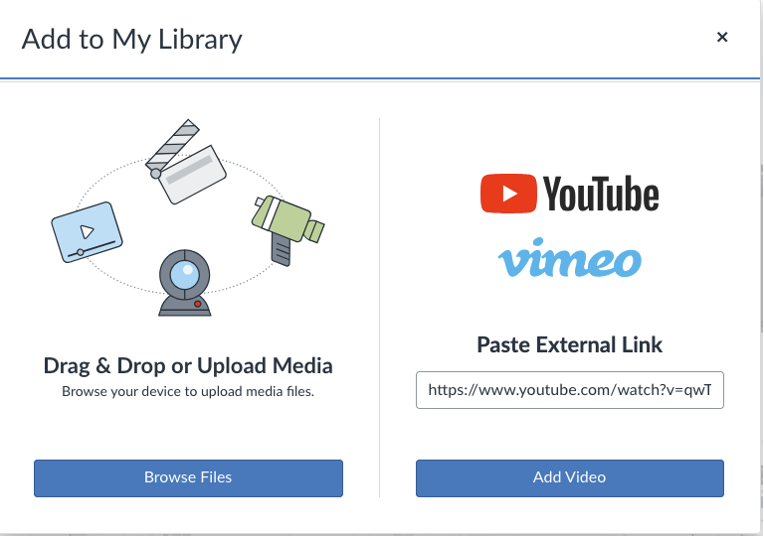
Step 4
The YouTube content has now been added to your Canvas Studio Library and will use the Canvas Studio player within all of Canvas.
For steps on how to embed Canvas Studio content into a Canvas course. Please see the Embed a Canvas Studio Video tutorial.
Please note: Creating a public link for YouTube content added to Canvas Studio will redirect to the YouTube player instead of the Canvas Studio player.
How to convert an embedded YouTube video in a Canvas course to Canvas Studio
Starting Sept. 23, 2025, we encourage converting previously or newly embedded YouTube content to Canvas Studio. The following steps will guide you through the process.
Please note: You will need to do this for every course that has embedded YouTube content.
Step 1
Sign in to Canvas and navigate to your course.
Step 2
Select Settings from the navigation bar on the left.
Step 3
Select the Feature Options tab from above.


Step 5
Select the Navigation tab from above.
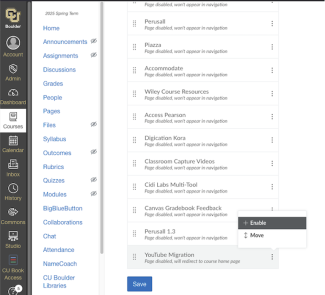
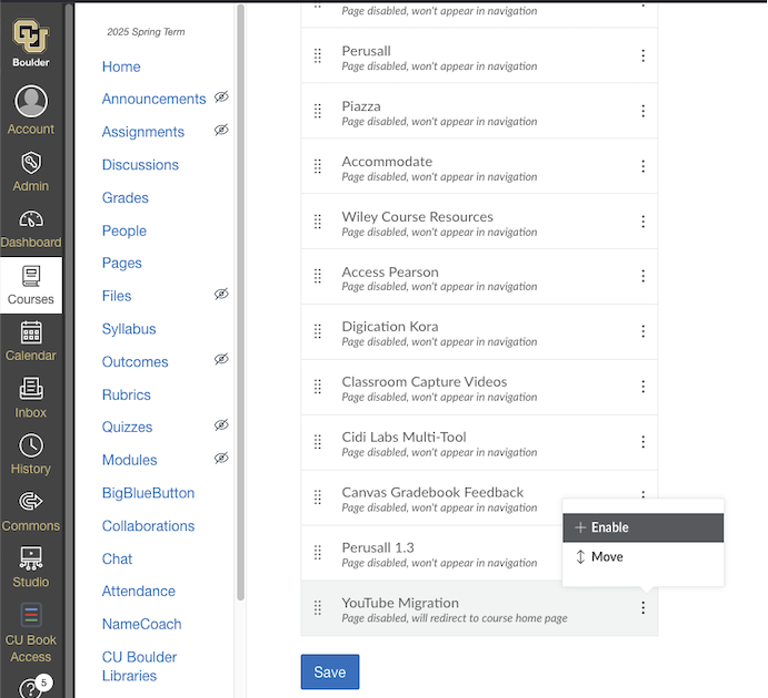
Step 7
Once enabled, scroll down and select Save.
Step 8
Select YouTube Migration from the navigation bar on the left.


Step 10
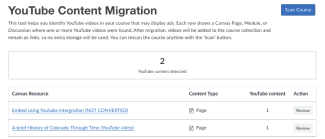
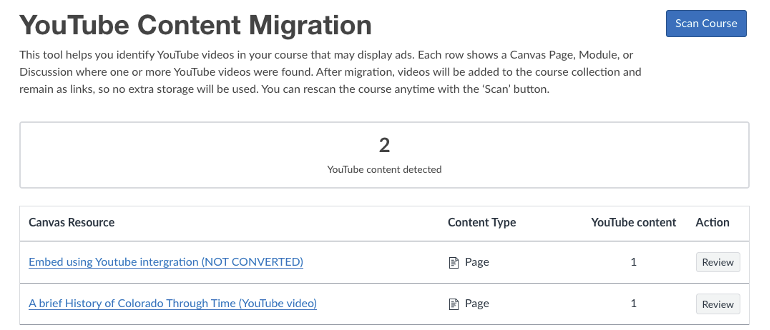
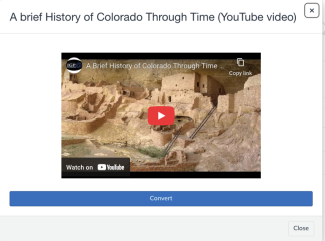
Once the scan finishes, it will display all YouTube content that has been embedded in the course. Select Review and Convert to convert the content to the Canvas Studio player.
Please note: This scan only searches for embedded YouTube content; it will not detect YouTube links that have been pasted into the course.
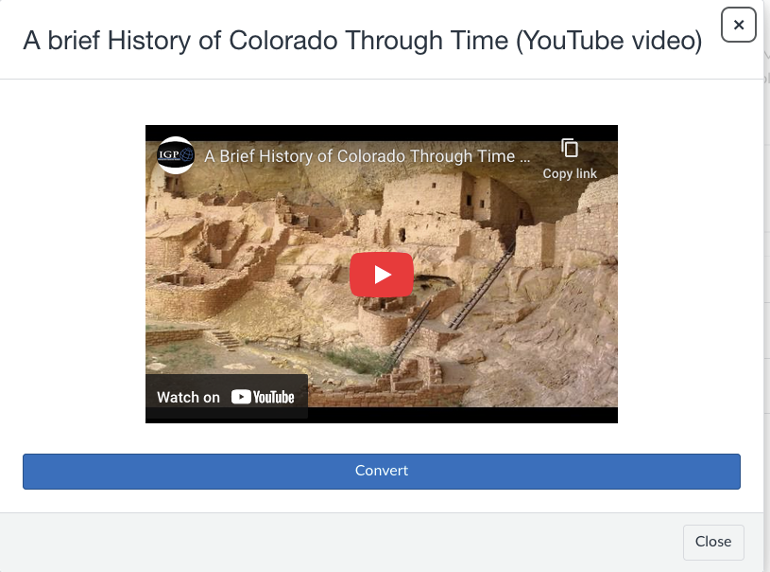
Step 12
The content has now been successfully converted to Canvas Studio.
- Students will not have access to the YouTube Migration tool from the Canvas course Navigator.
- To remove the YouTube Migration from the Canvas course Navigator, you must disable the YouTube to Studio content migration feature from step 4.
Comparison
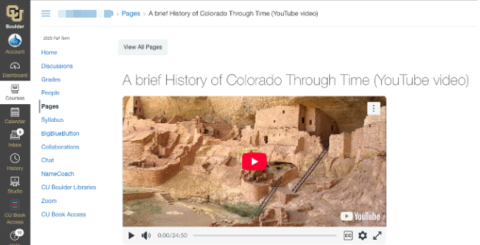
Below is a comparison of how a converted YouTube video looks compared to a non-converted YouTube video within a Canvas course.
Converted (Added to Canvas Studio & Embedded with Canvas Studio)
Converted (Using the YouTube Migration Tool)
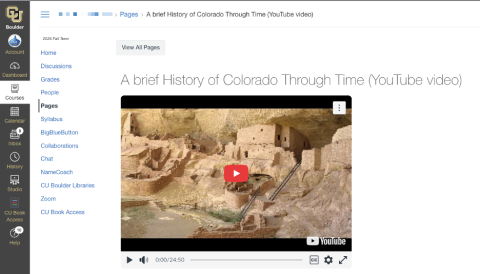
Not Converted (Still Using YouTube Video Player)