Microsoft 365 Multi-Factor Authentication - Add Passkey in iOS

Use these instructions to set up a Passkey on iOS (iPhones). To access and update your current Microsoft MFA settings, use the Find and Update Security Info tutorial. Learn more about Microsoft MFA.

OS:
Layout:

Step 1

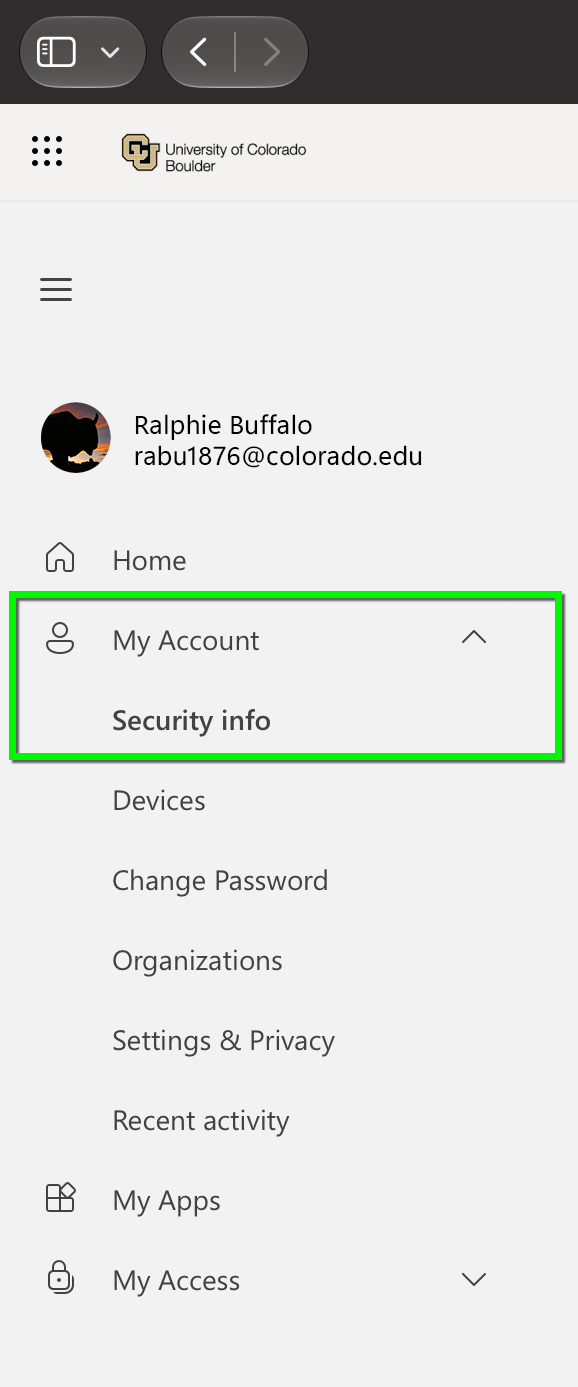
Log in to the Microsoft 365 My Account page. Expand the My Account section and select Security Info. You will be prompted to authenticate with MFA.

Step 2

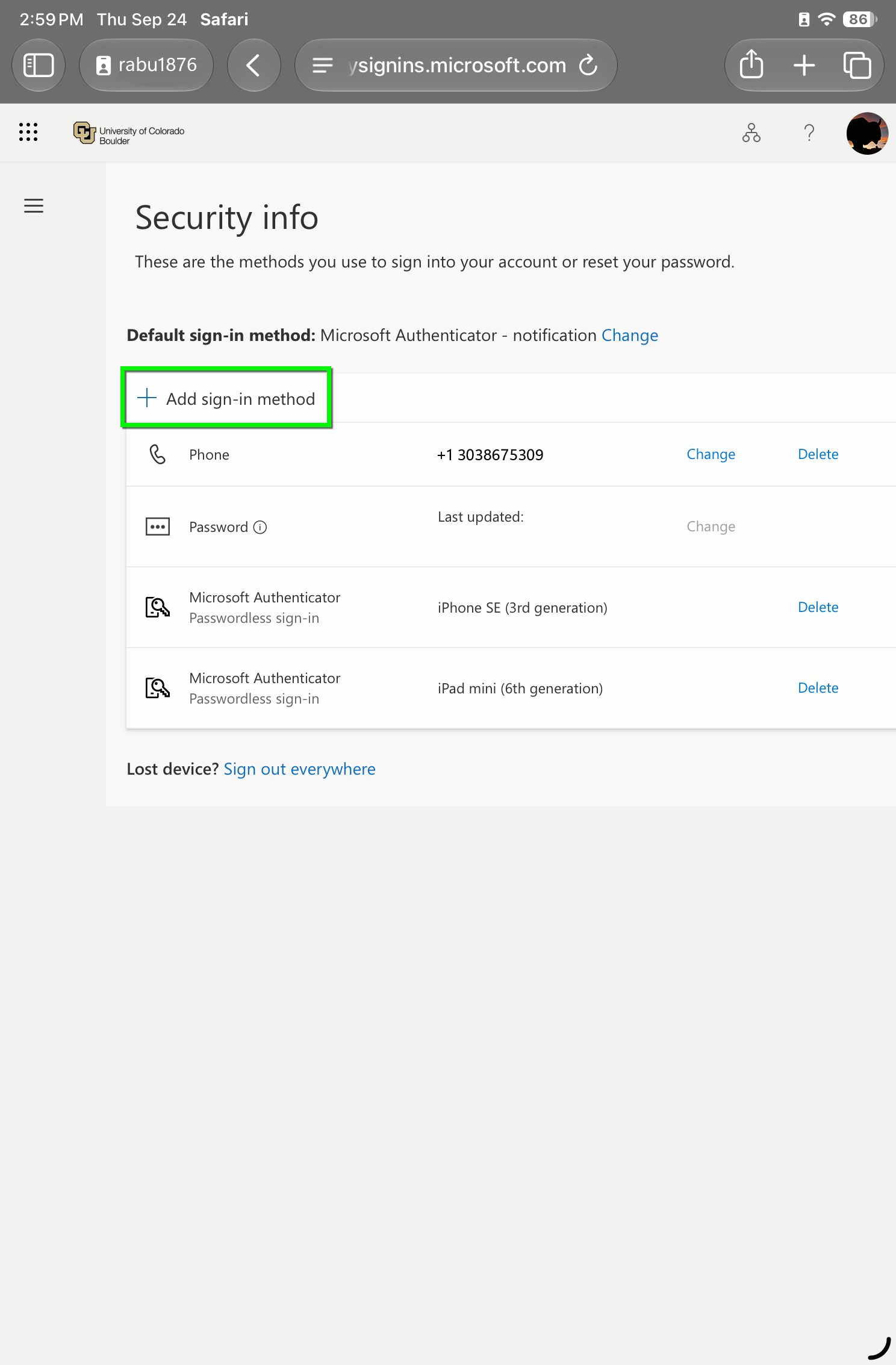
The security info screen will show your Default sign-in method at the top of the page and list all authentication methods currently connected to your account.

Select Add sign-in method to register a new passkey.

Step 3

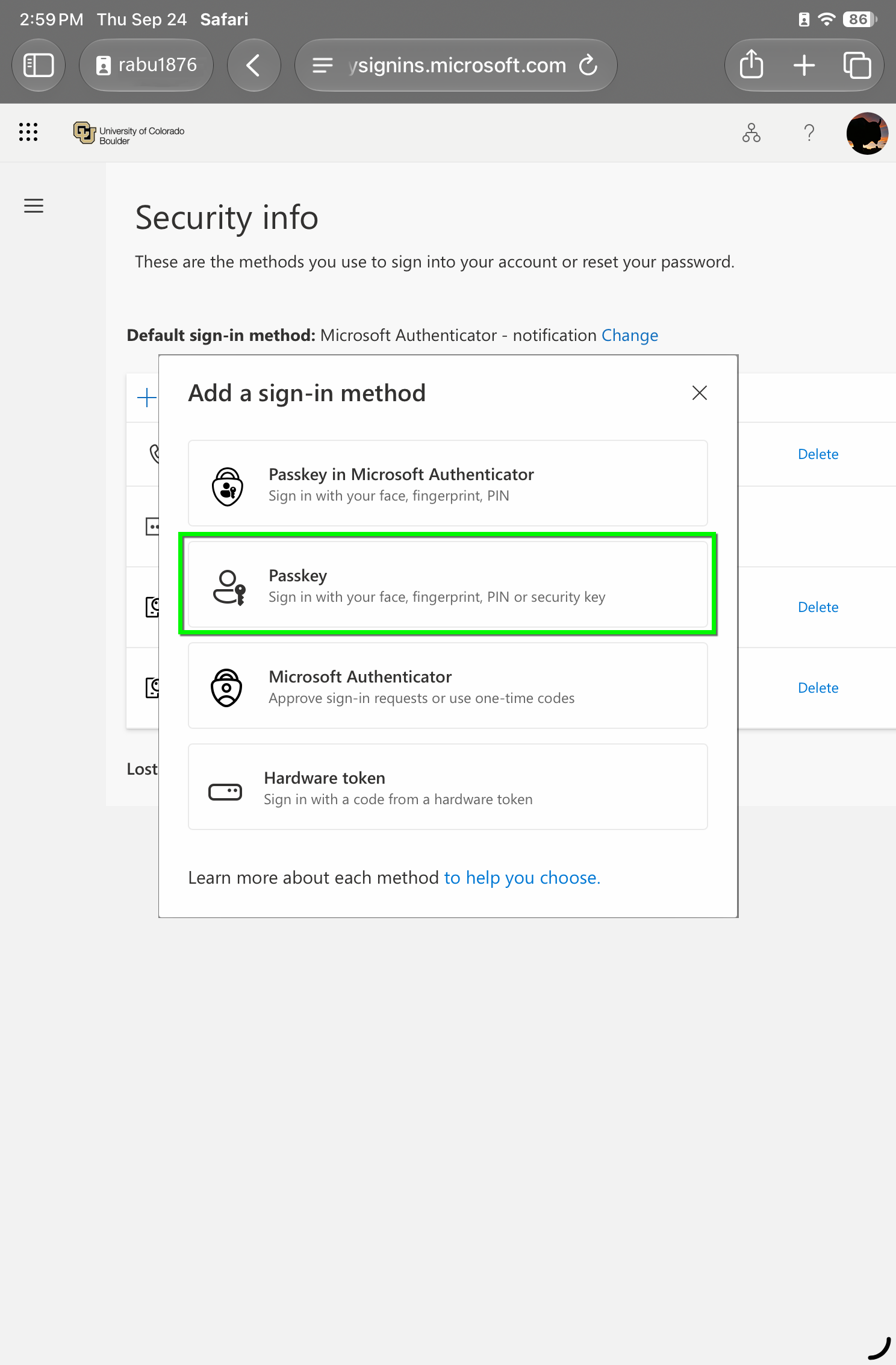
Select Passkey.

Step 4

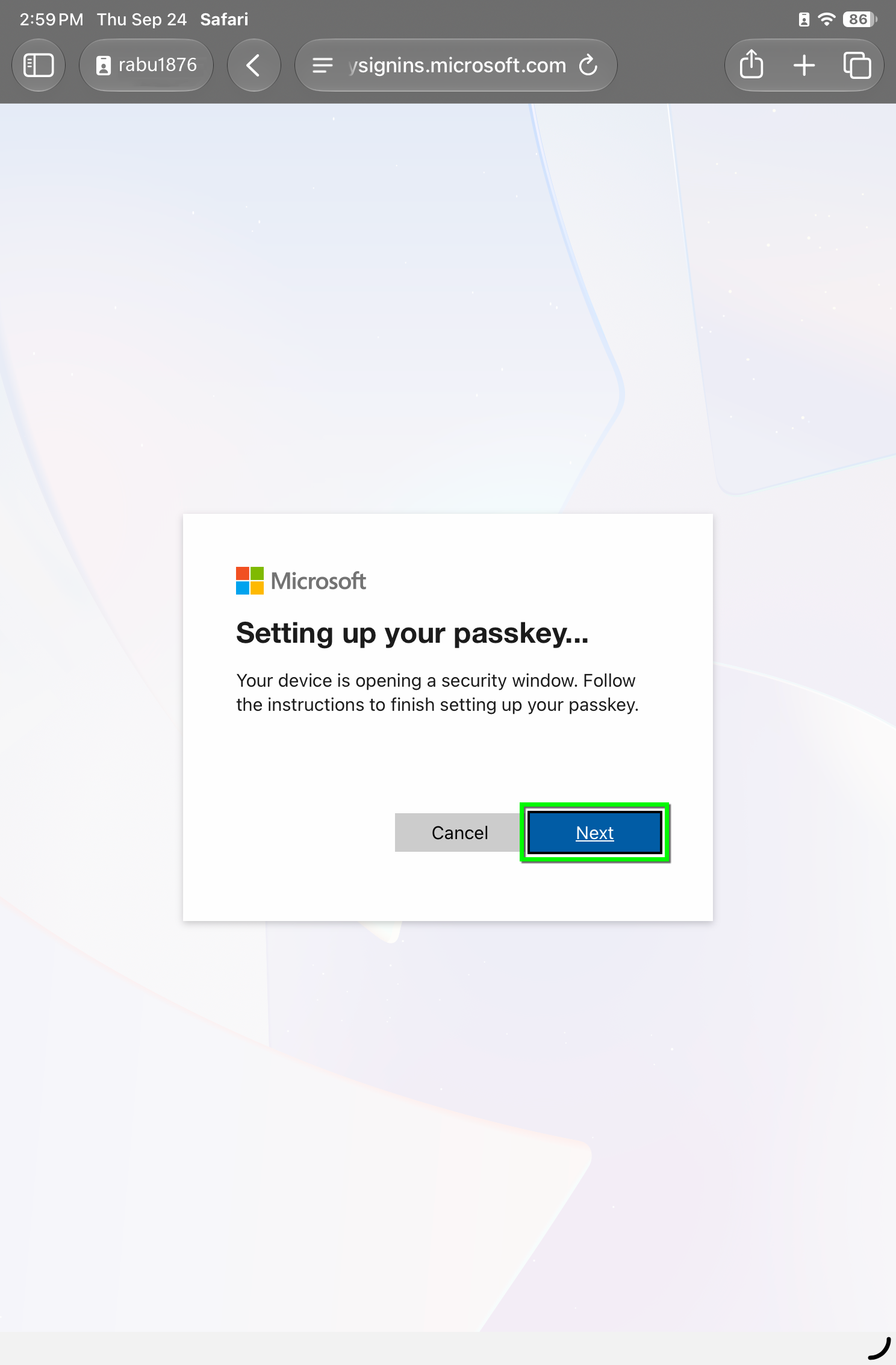
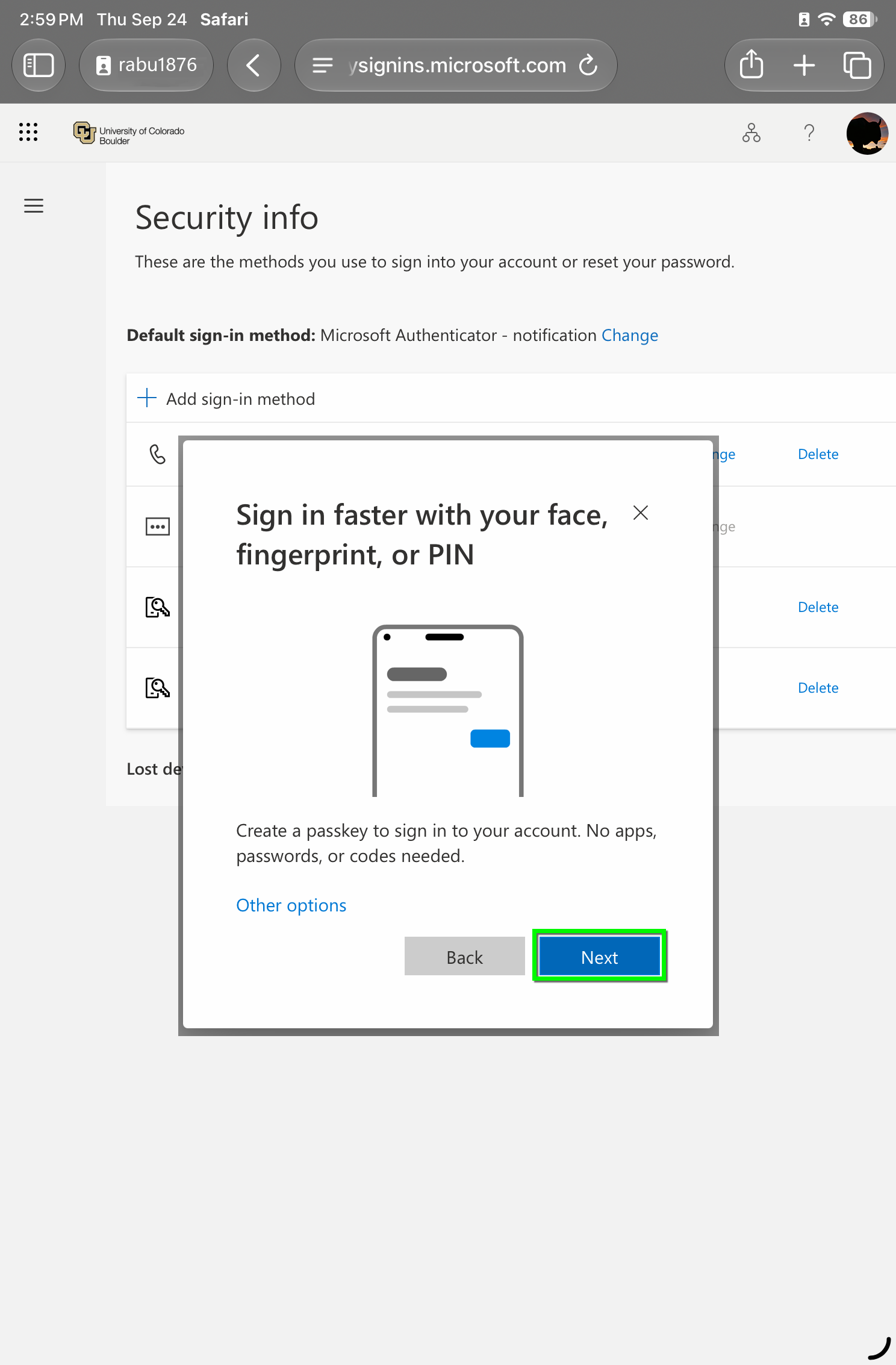
Click Next.

Step 5

Your device will set up the Passkey. Follow any instructions in a new window then click Next.

Step 6

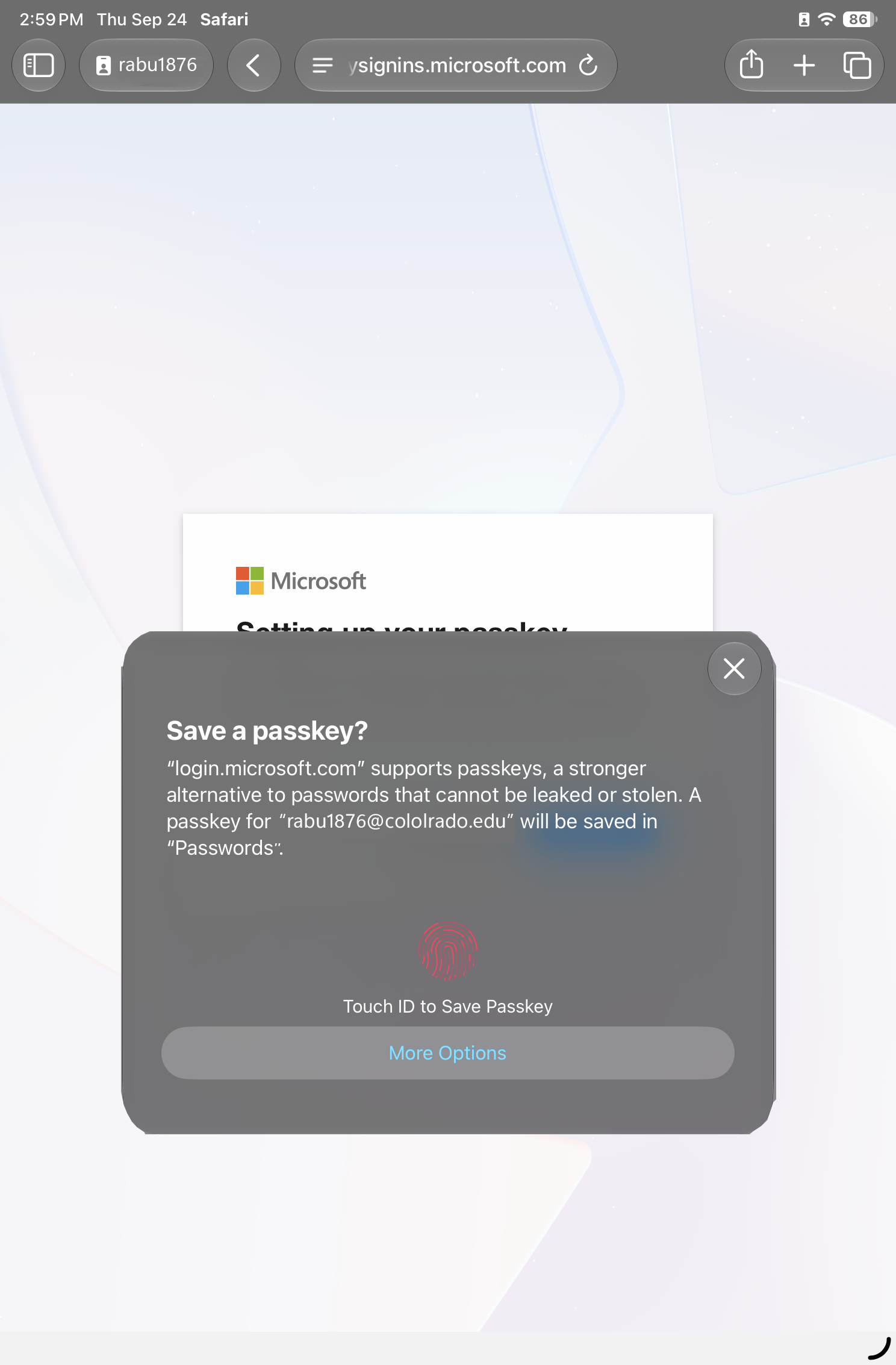
Use TouchID or FaceID to verify your identity and finish setting up the passkey.

Step 7

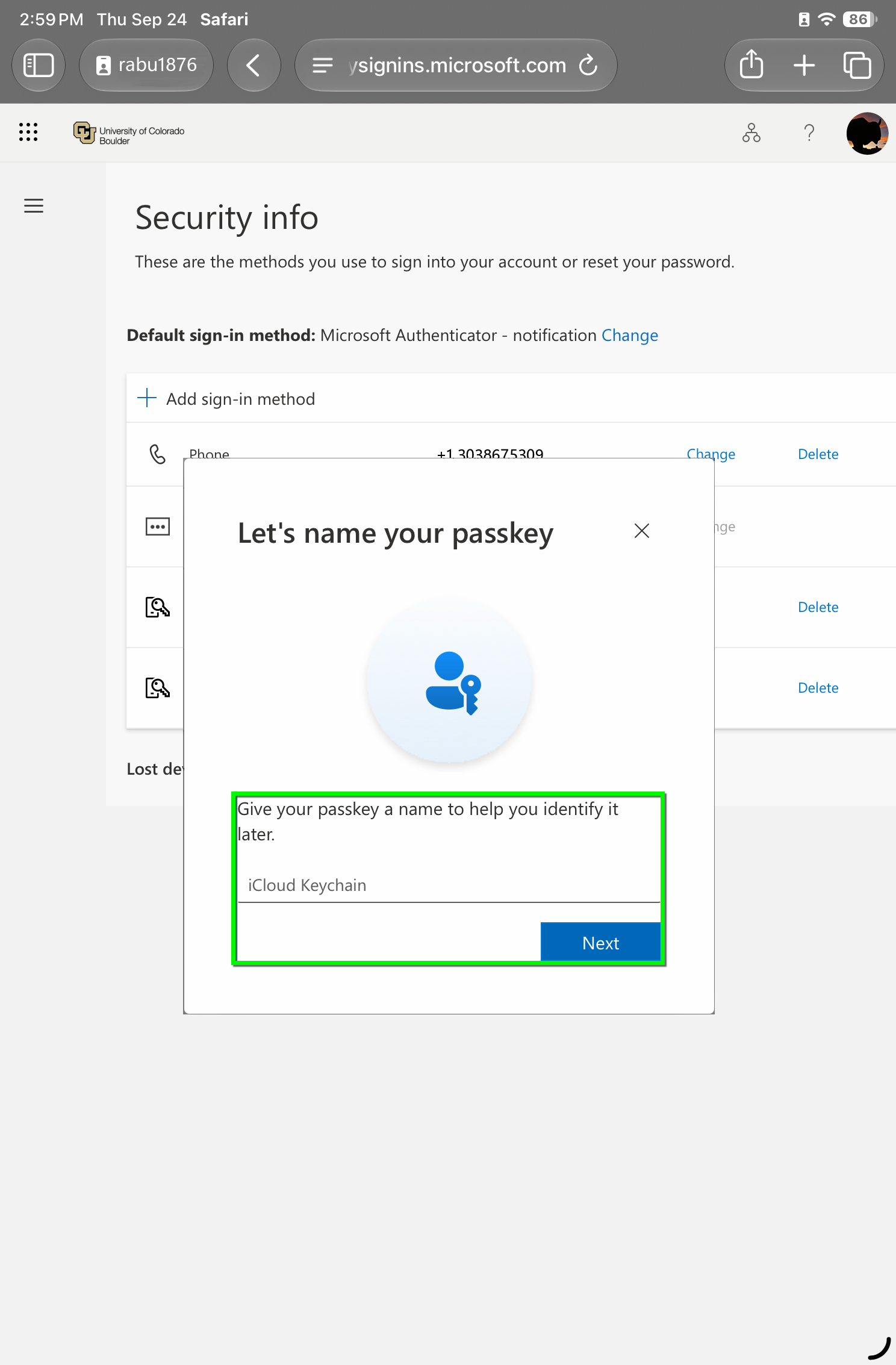
Name your passkey and click Next.

Step 8

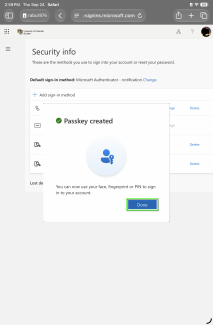
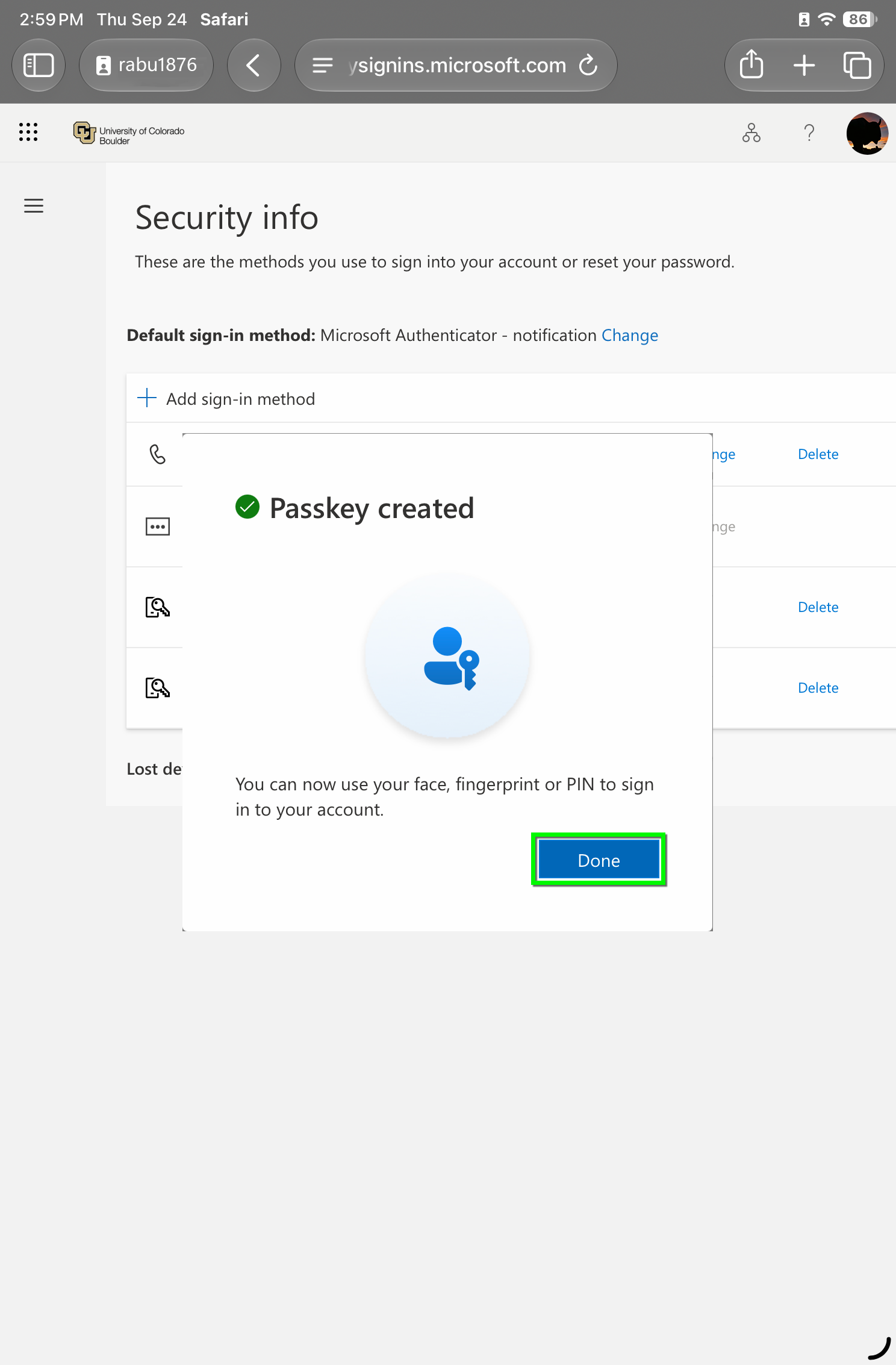
You'll get confirmation that your Passkey has been created. Click Done.

Step 9

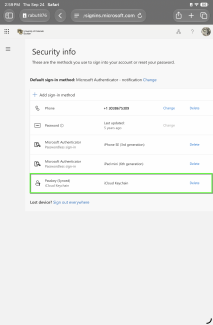
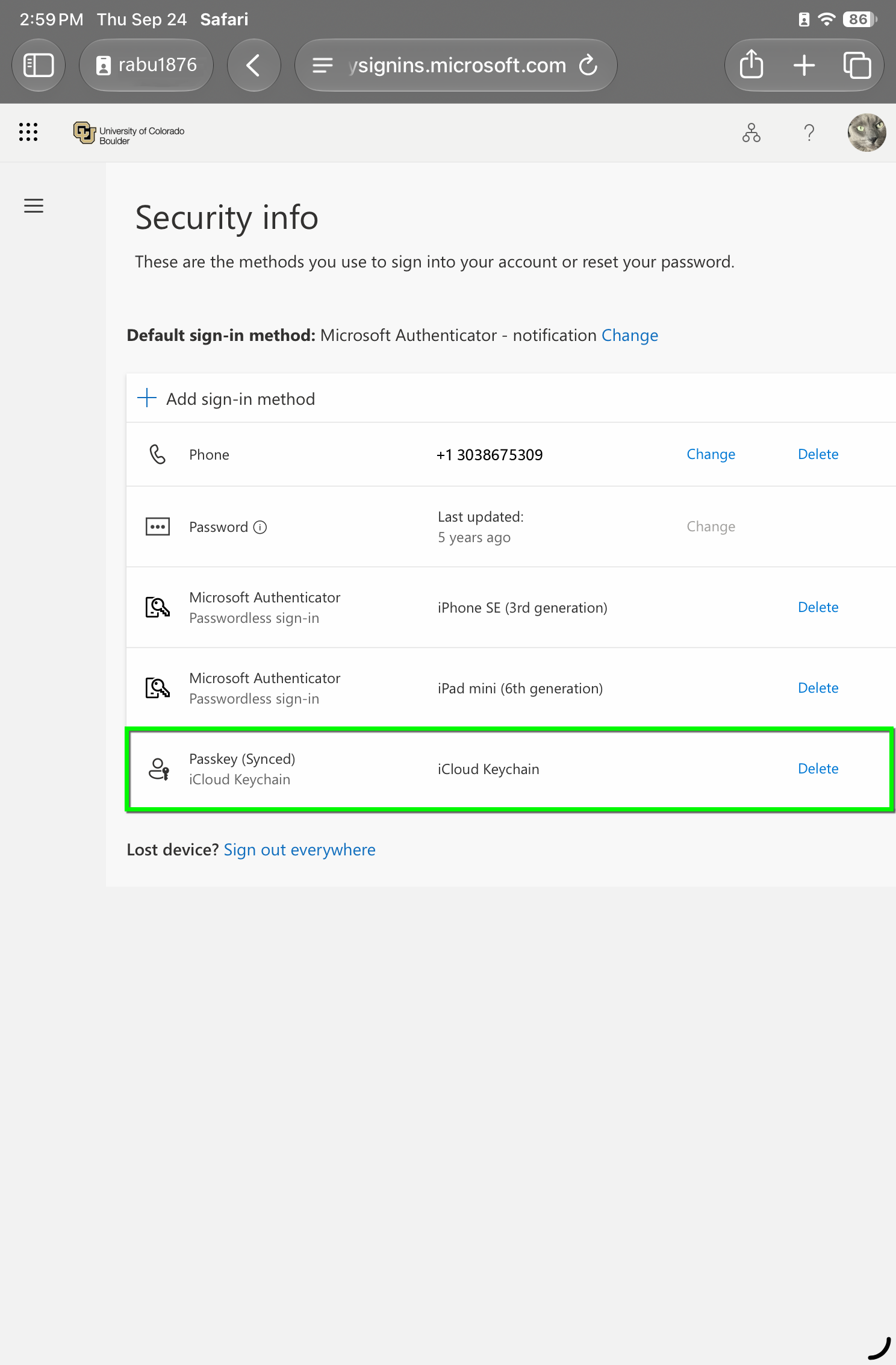
The security info screen will be updated with your new iOS Passkey, which can now be used to authenticate.

Click Change next to Default sign-in method if you'd like to change your default, or follow OIT's Find and Update Your Security Info tutorial.