CU Guest Wi-Fi - Log In Using Guest Wi-Fi Credentials


 This new Wi-Fi network is currently being tested in select campus buildings and cannot be accessed anywhere else.


Follow these instructions to request guest Wi-Fi credentials and log in to the CU Guest Wi-Fi network.

The screenshots below are from a Windows 11 device; however, the process should be similar for other operating systems.


Layout:
one column
two columns

Step 1

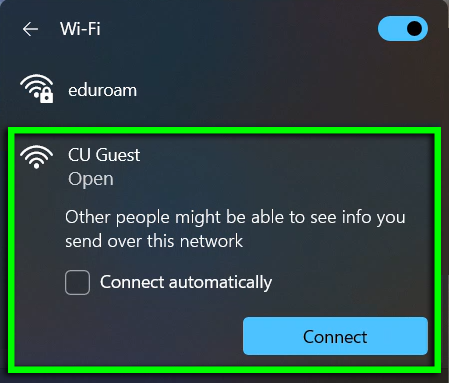
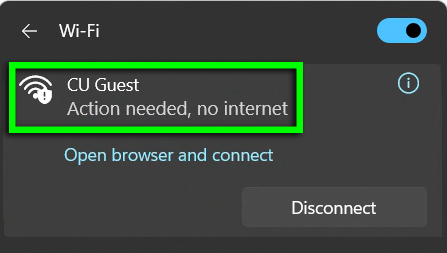
Open your device's available Wi-Fi networks and select CU Guest.

Step 2

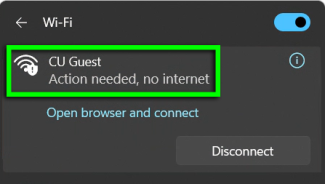
To connect to the internet, you need to log in through the CU Guest portal.

If your device doesn't automatically open the portal in a web browser, click the Wi-Fi network's notification or link text to open it manually.

Step 3

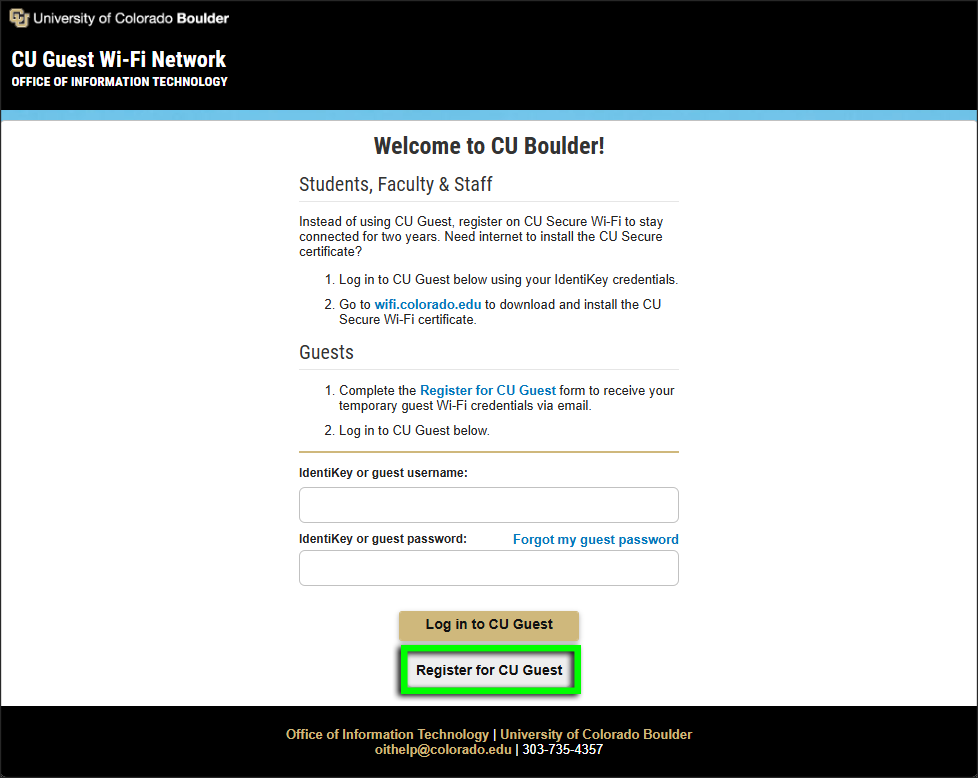
On the CU Guest login page, click the CU Guest registration form link.

Note: If you're attending a campus event and received pre-assigned Wi-Fi credentials, skip to Step 5.

Step 4

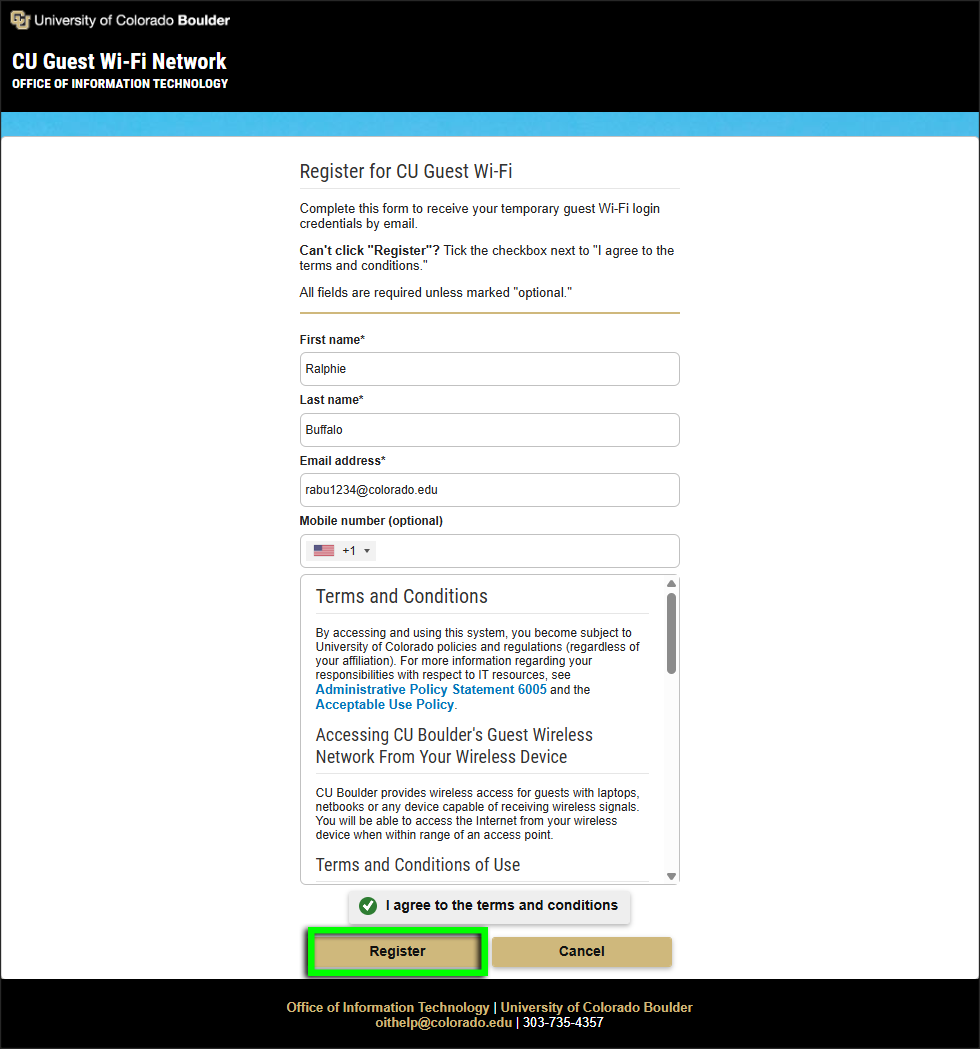
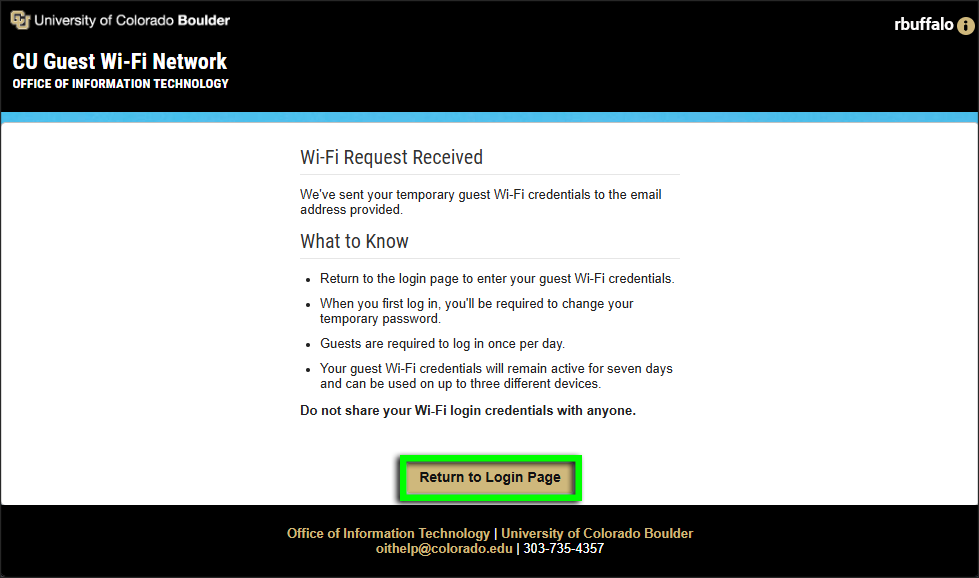
On the registration page, enter your contact information, accept the terms of service, and click Register.

Step 5

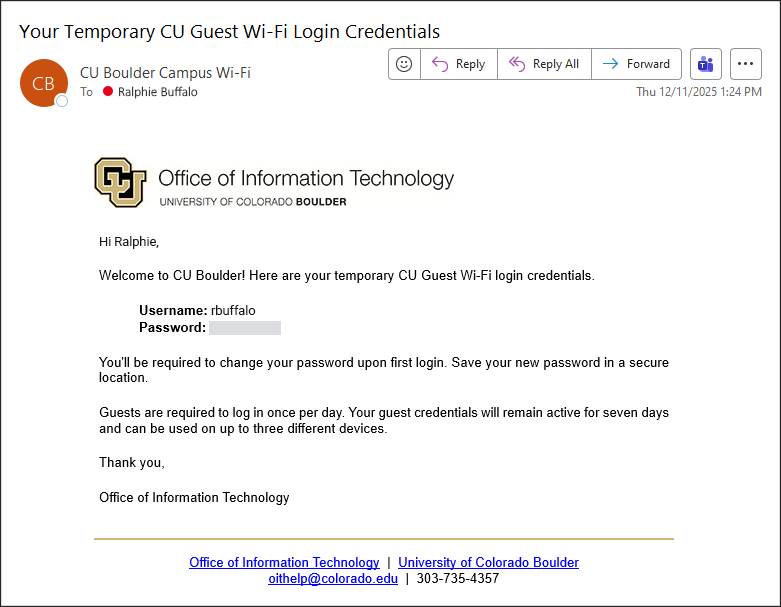
Check your email for a new message with this subject: "Your CU Guest Wi-Fi Login Credentials."

Step 6

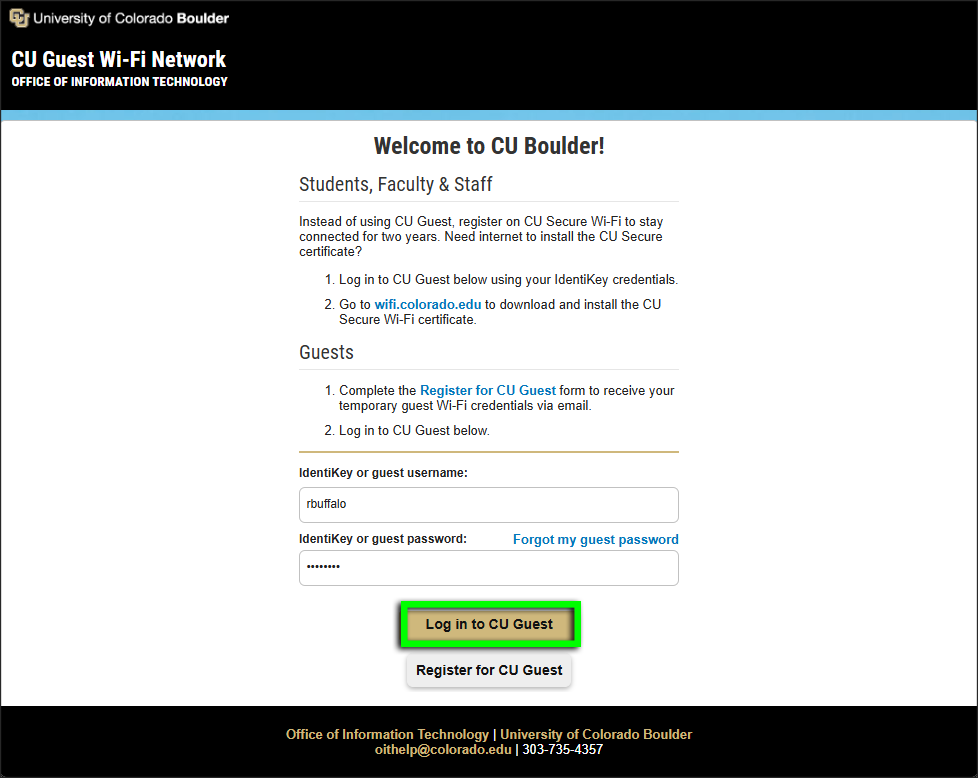
On the CU Guest login page, enter your guest username and temporary password, then click Sign in to CU Guest Wi-Fi.

Step 7

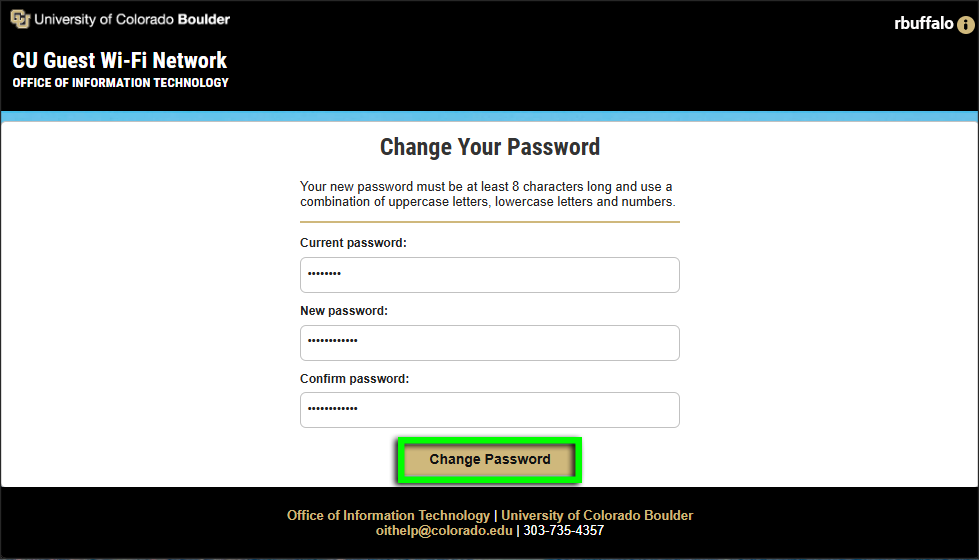
On first login, you're required to change your temporary password for security purposes.

Your new password must be at least eight characters long and use a combination of uppercase letters, lowercase letters and numbers.

Step 8

Record your new password in a secure location, then click Submit.

Step 9

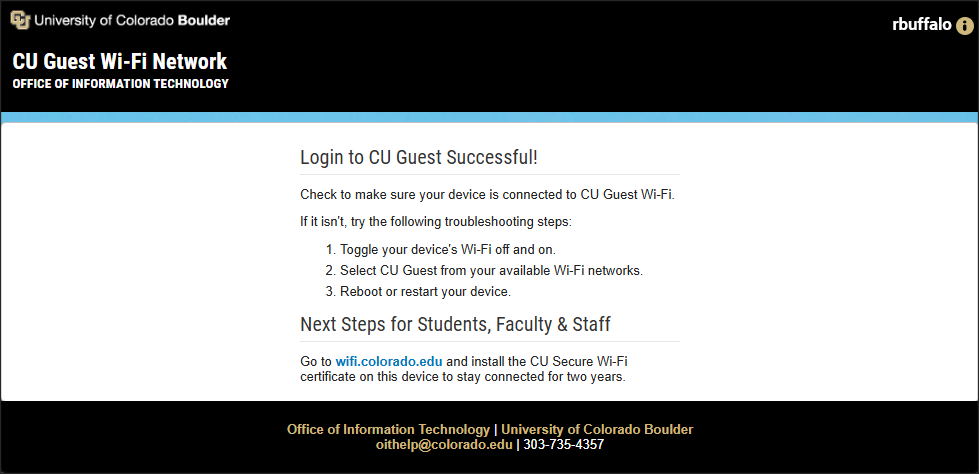
You should now be connected to CU Guest Wi-Fi. If not, please follow the steps in this this troubleshooting FAQ: "I logged in to CU Guest but still don't have internet access."

Your connection will time out daily at 3 a.m. You can log in using the same guest Wi-Fi credentials for the next seven days.