Classroom Capture - Access My Mediasite from Canvas

Instructors of courses using the Classroom Capture service can access their content in My Mediasite directly from the Canvas integration by following the guide below.
Layout:
one column
two columns

Step 1

Log in to Canvas.

Step 2

Select the Canvas course that is using Classroom Capture.

Step 3

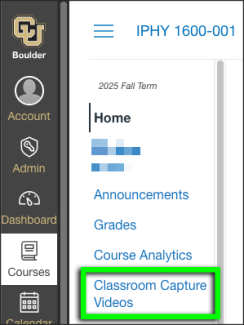
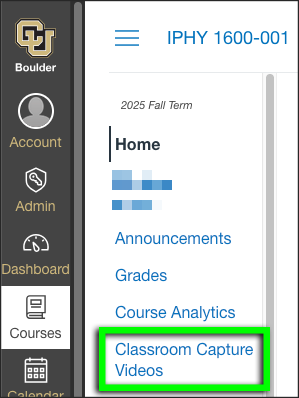
Select Classroom Capture Videos button from the left navigation bar.

In Canvas, the IPHY 1600-001 course is open and its
In Canvas, the IPHY 1600-001 course is open and its "Classroom Capture Videos" menu link is circled.
In Canvas, the IPHY 1600-001 course is open and its

Step 4

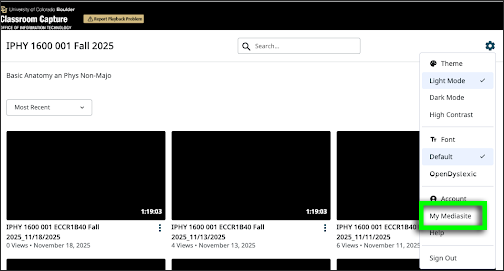
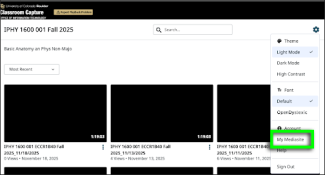
Click on the Gear icon, then select My Mediasite from the drop-down menu.

In Classroom Capture, the Settings drop-down menu for IPHY 1600-001 is open and the
In Classroom Capture, the Settings drop-down menu for IPHY 1600-001 is open and the "My Mediasite" link is circled.
In Classroom Capture, the Settings drop-down menu for IPHY 1600-001 is open and the

Step 5

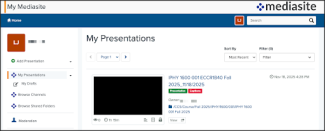
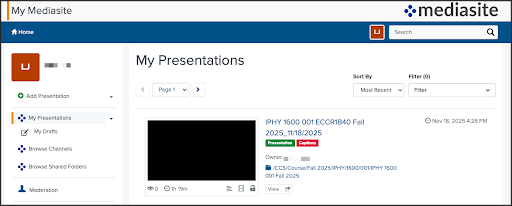
My Mediasite will open in a new web browser window.

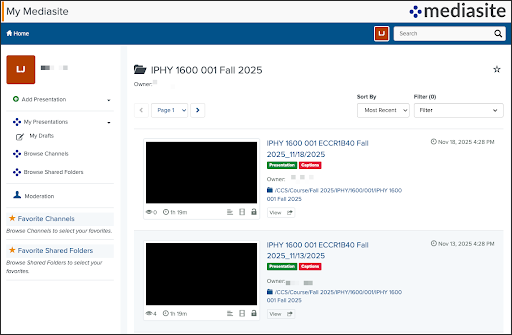
A screenshot of My Mediasite's
A screenshot of My Mediasite's "My Presentations" page.
A screenshot of My Mediasite's

Step 6

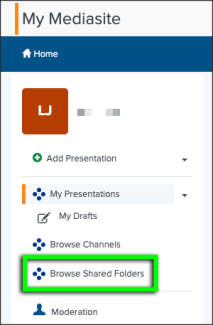
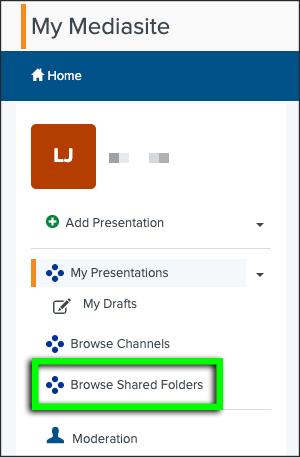
To access Classroom Capture recordings, select Browse Shared Folders from the menu on the left.

In My Mediasite, the main menu's
In My Mediasite, the main menu's "Browse Shared Folders" link is circled.
In My Mediasite, the main menu's

Step 7

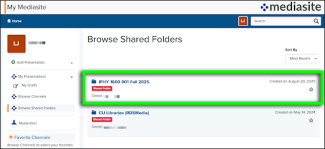
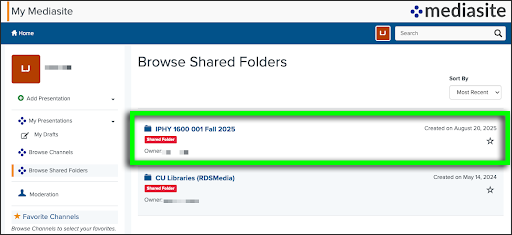
Select the course that is using Classroom Capture.

On the
On the "Browse Shared Folders" page, the IPHY 1600-001 folder is circled.
On the

Step 8

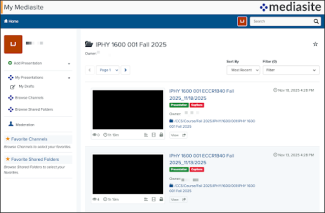
All recorded Classroom Capture videos will be listed.

In My Mediasite, the IPHY 1600-001 folder includes two Classroom Capture videos.