
Licensed Users
Step 1
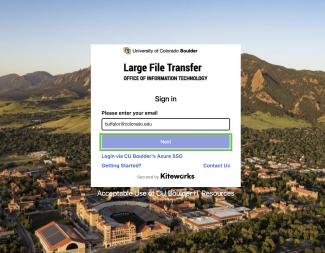
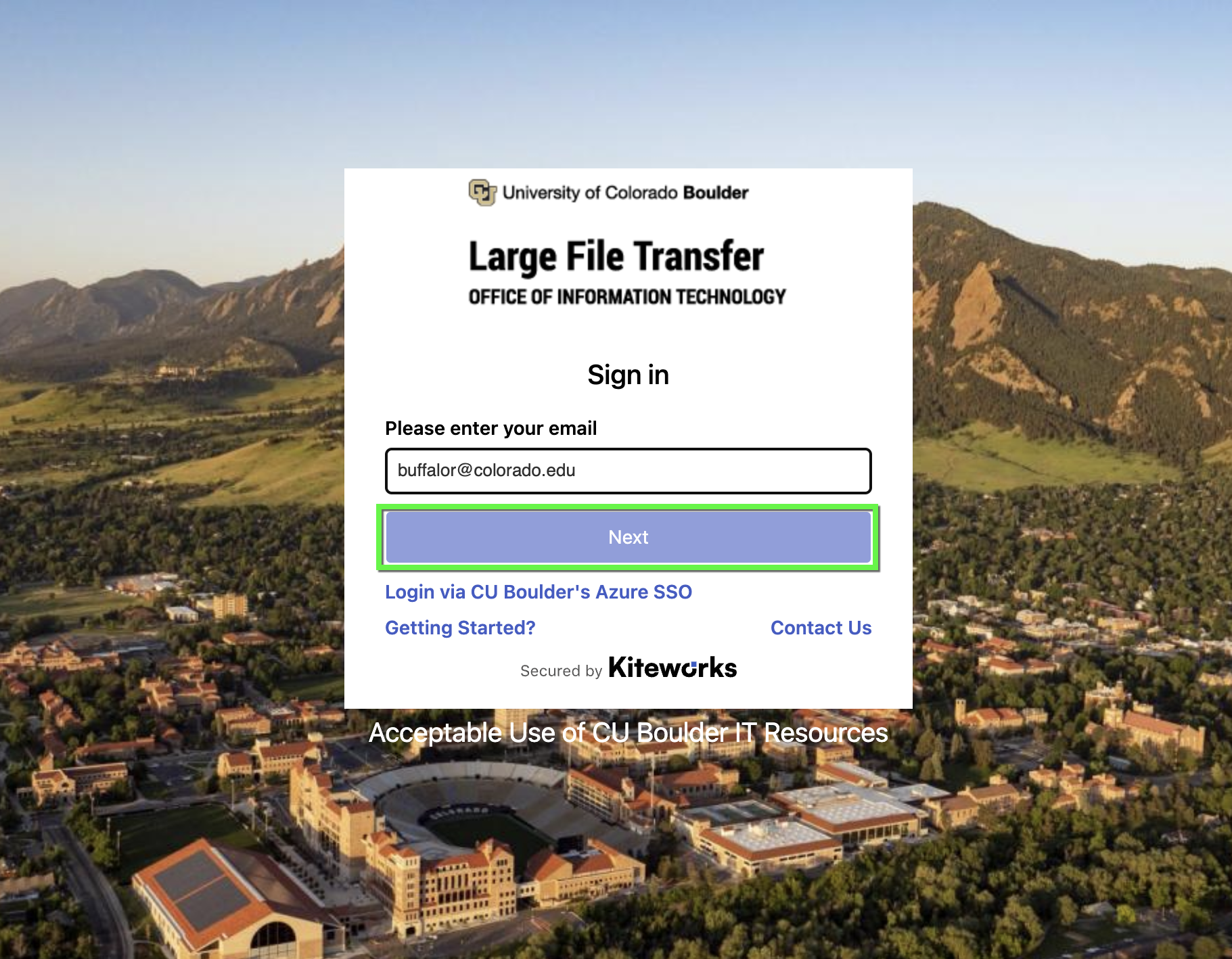
Go to https://securefiletransfer.colorado.edu (available starting 11/10/2026). In the login window, enter your email address, then click Next.
Step 2

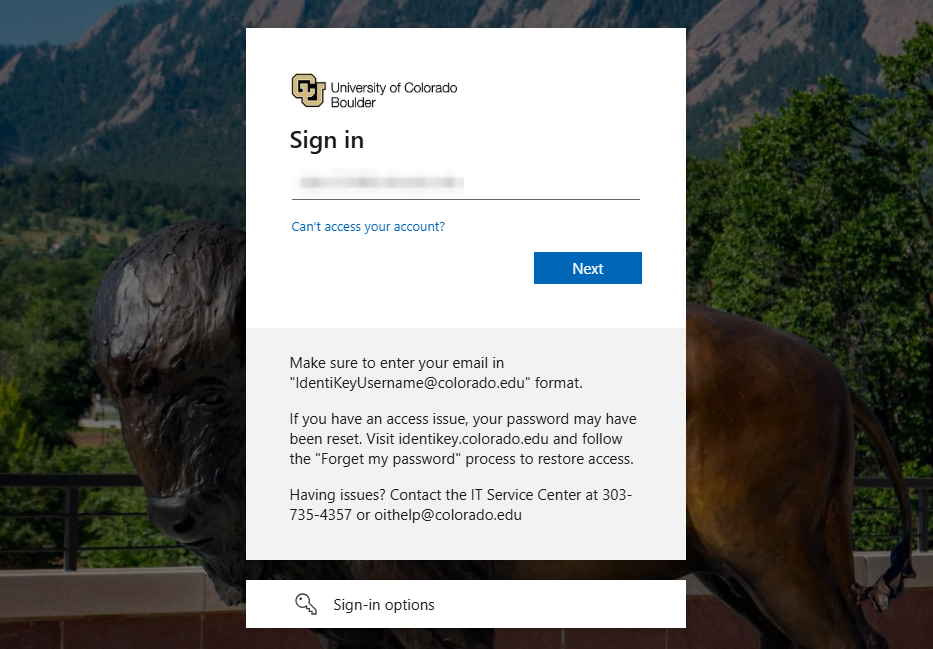

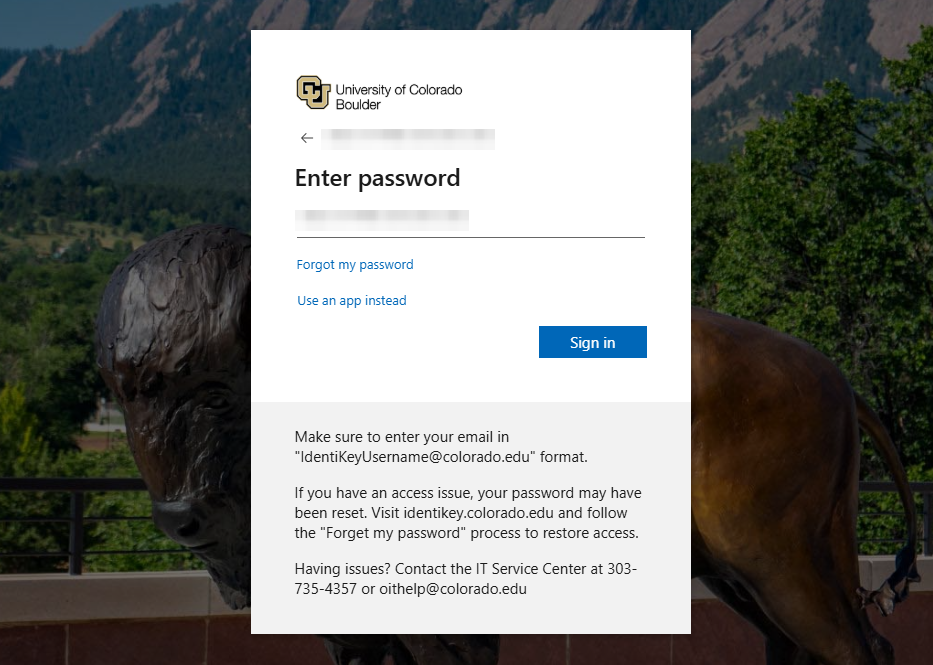
Step 4
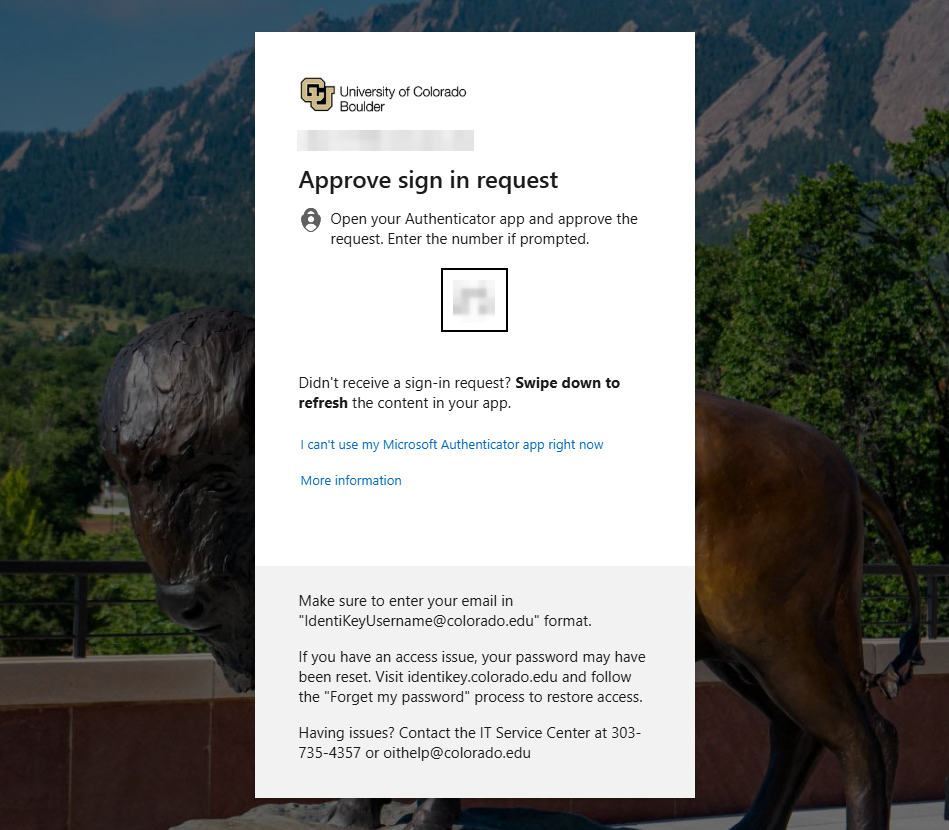
If prompted, complete Microsoft multi-factor authentication.

Step 5
If you entered your credentials correctly and are registered with an account, you should now have access to your Secure File Transfer inbox.
Guest Users
The following instructions apply to internal and external file recipients who created a guest account within the last 30 days. To create a new guest account, see our Receive and Access Files tutorial.
Step 1
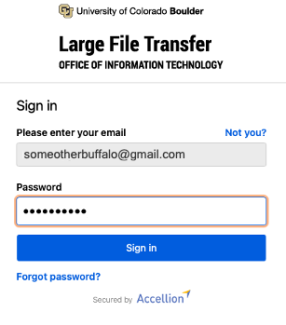
Go to https://securefiletransfer.colorado.edu (coming soon). In the login window, enter your email address, then click Next.
Step 3
If you entered your credentials correctly and your guest account is still active, you should now be logged in to your Secure File Transfer inbox.


