
Step 1
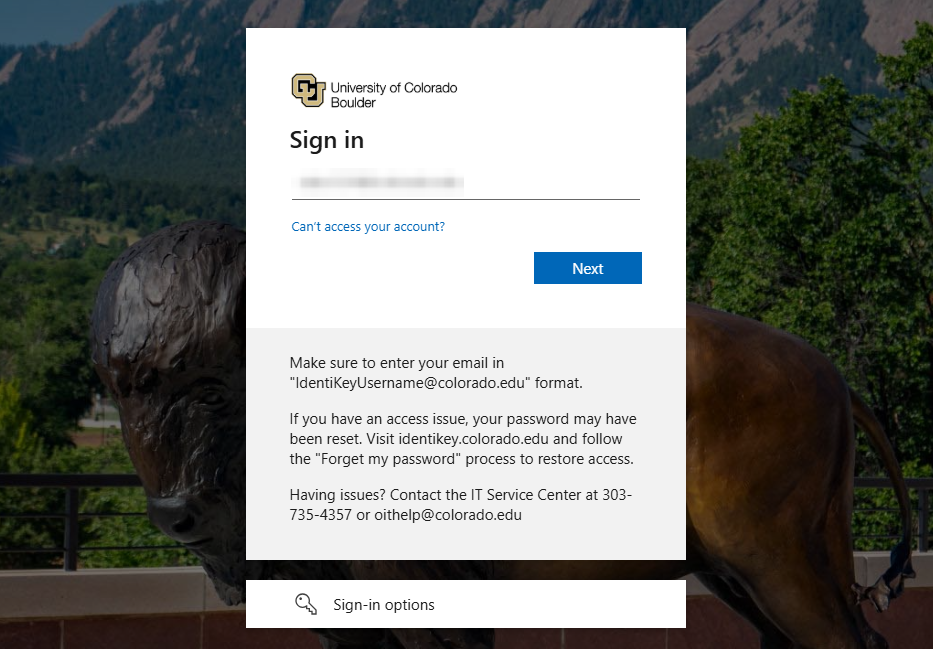
Go to the Secure File Transfer employee license request form. If you're prompted to log in, enter your IdentiKeyUsername@colorado.edu, then click Next.
Note: If you're already logged in to your campus Microsoft 365 account on that browser, you won't be prompted again. Skip to Step 4.


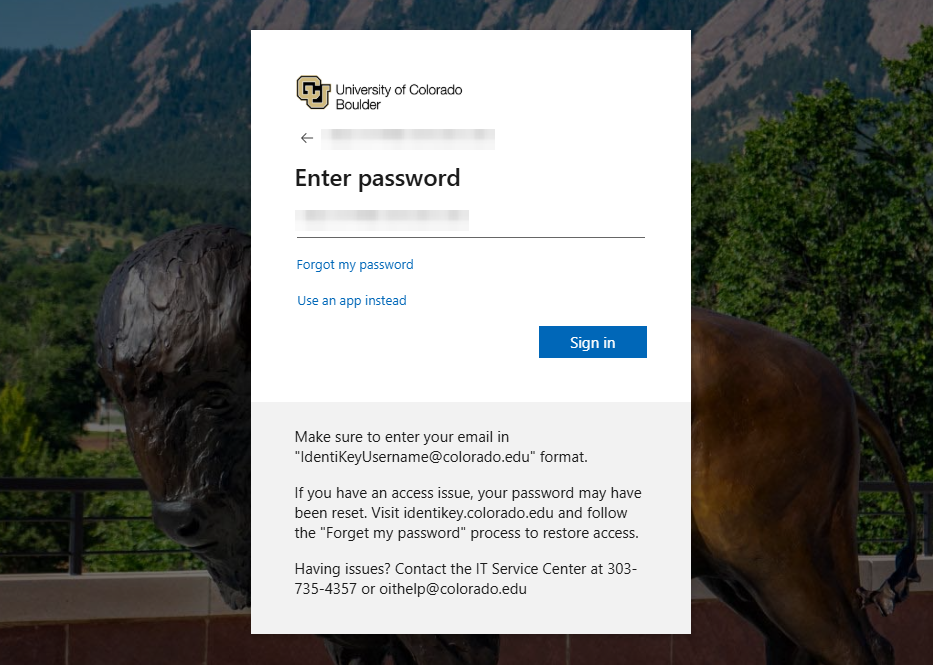
Step 3
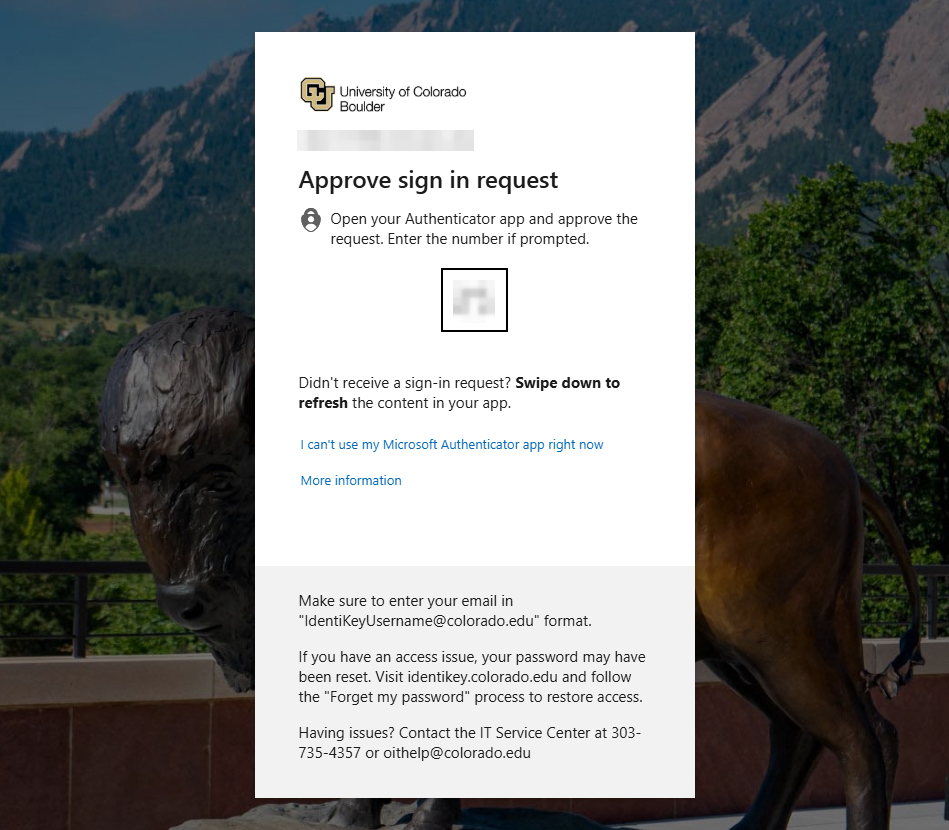
If prompted, complete Microsoft multi-factor authentication.

Step 4
Once logged in, you should see a Microsoft Access Packages webpage and a Secure File Transfer Employee License Request pop-up window.
Step 5
Troubleshooting Tip
If the pop-up window doesn't open automatically, find the entry for Secure File Transfer Employee License Request and click Request.
Step 6
In the pop-up window, click Continue.
Step 7
On the Additional questions page, complete the brief form, then click Submit request.
Step 8
A green progress dialog will indicate that you're being added to the service.
Step 9
Once you've been assigned the necessary permissions, you'll receive an email confirmation and return to the Microsoft Access Packages webpage. You can now log out and/or close the tab.


