OneDrive - Sync a SharePoint or Teams Folder

Use this tutorial to sync your Microsoft SharePoint and Teams files to a folder on your computer. This will allow you to access files when offline and sync any changes to SharePoint or Teams once you're back online. To learn more, see Microsoft's "Sync SharePoint and Teams files with your computer" article.

If you don't need to access your files offline, consider adding shortcuts to shared folders in OneDrive (Microsoft Support article) instead.

The screenshots below are from Windows 11. The experience should be similar for Mac.


OS:
Layout:
one column
two columns

Sync SharePoint or Teams Files with Your Computer

Step 1

Navigate to the SharePoint document library or Teams document folder (located in the Files/Shared tab) that contains the files you want to sync.

Step 2

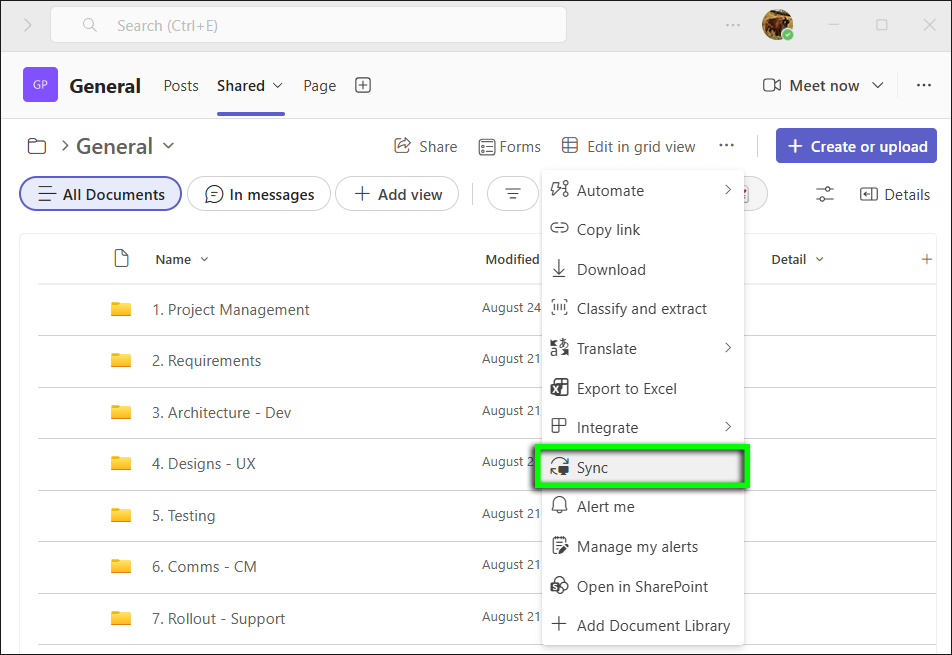
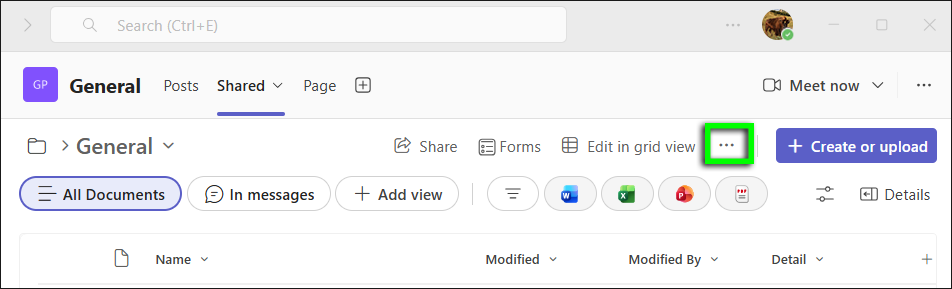
Near the top of the page, click the ellipses icon ("More commands").

Step 3

Select Sync from the submenu.

Step 4

If prompted, click OK to allow the site to open in Microsoft OneDrive.

Step 5

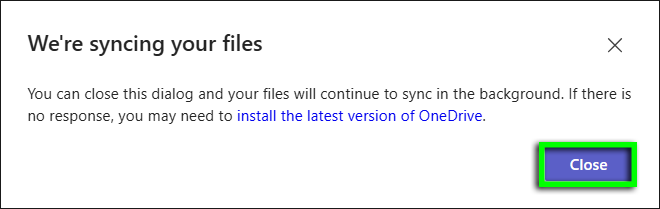
A dialog window will indicate that your files are being synced and that you can close the dialog. To do so, click Close.

Step 6

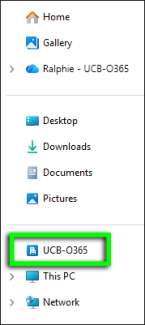
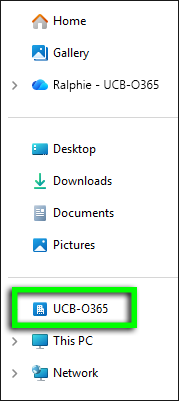
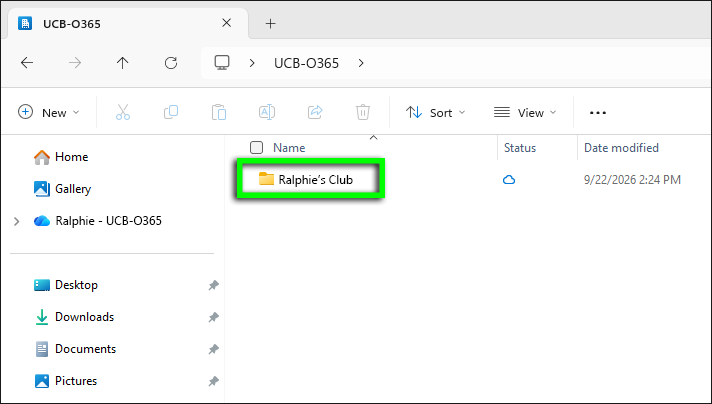
In the left-hand menu in File Explorer (Windows) or Finder (Mac), open the folder that begins with UCB-O365.

Step 7

Inside, you'll find a folder with the same name as the SharePoint or Teams site. It will contain the folders and files you selected above.

Step 8

You can open, save and work with these files just like files stored on your computer. Changes are automatically synchronized with Microsoft 365 when you're connected to the internet.

How to Stop Syncing
Step 1

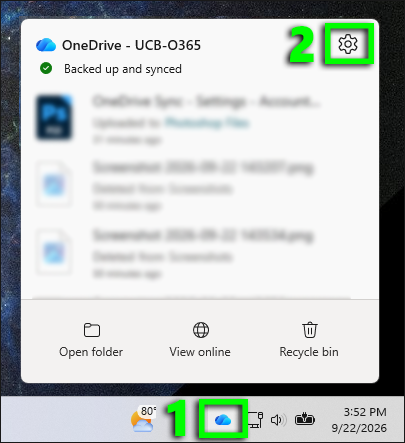
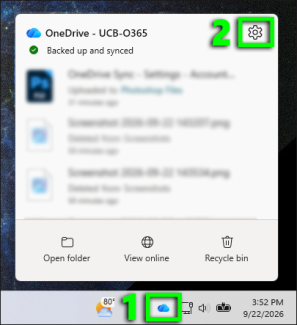
Select the OneDrive cloud icon in your taskbar (Windows) or menu bar (Mac) and click the Settings icon.

Step 2

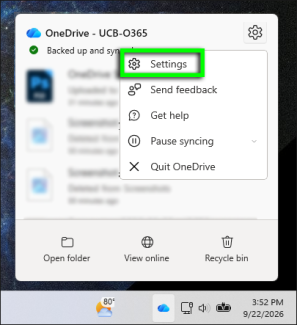
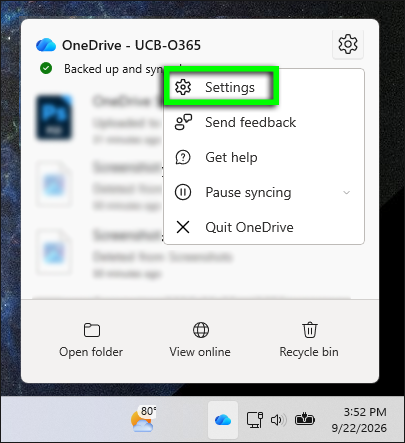
Select Settings from the submenu.

Step 3

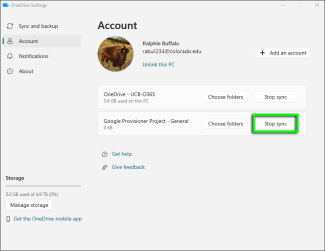
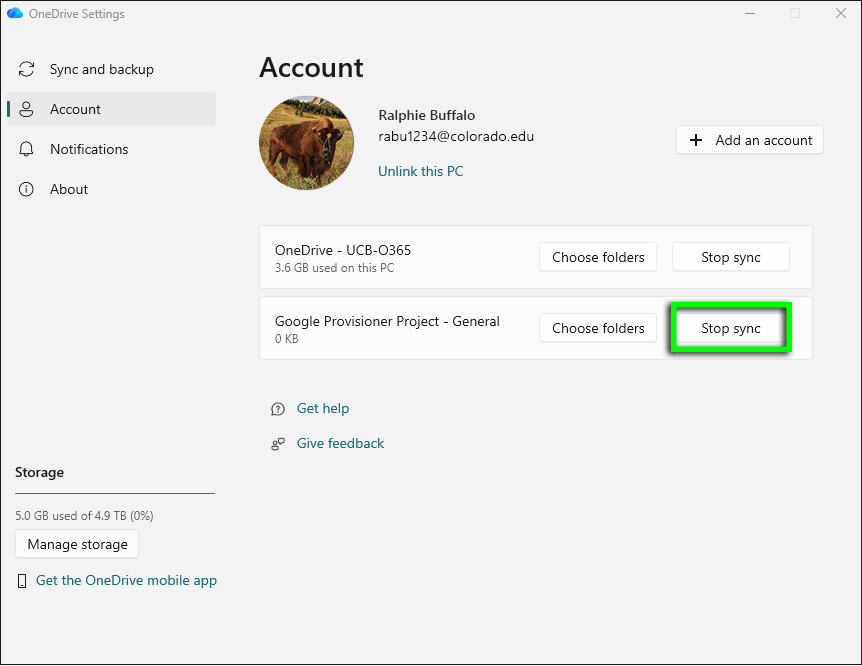
In the OneDrive Settings window, locate the library you'd like to stop syncing. Click Stop sync.

Note: Offline copies of the previously synced files will remain on your computer. You can delete them from your hard drive if desired.