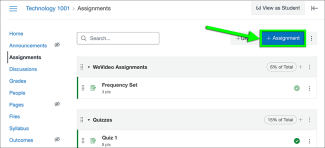
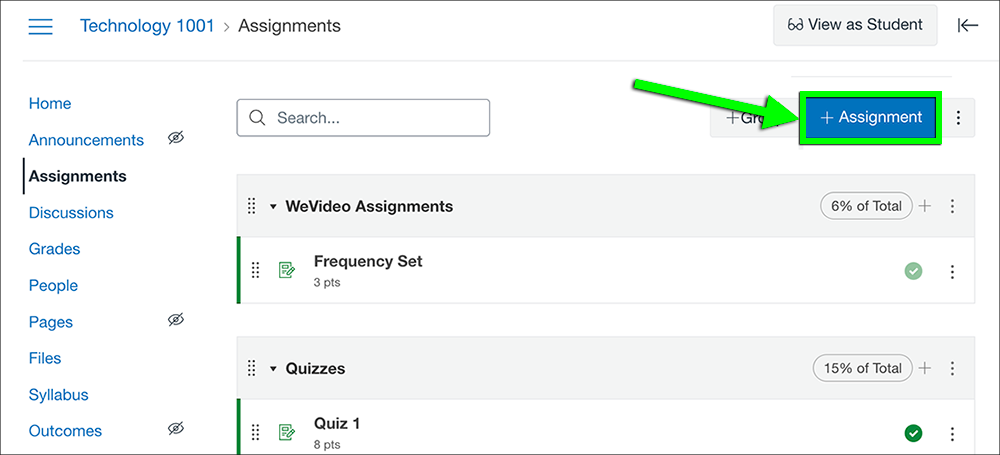
Step 1

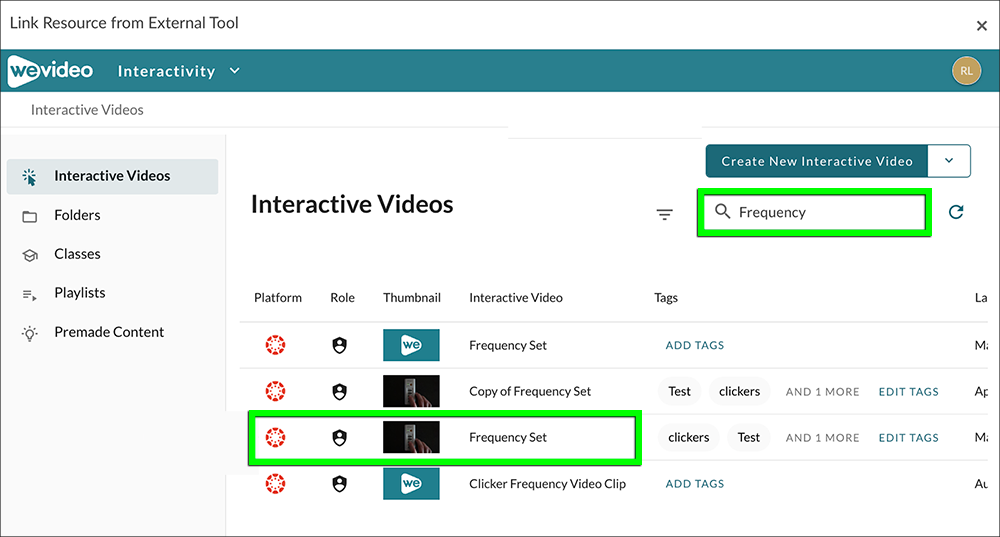
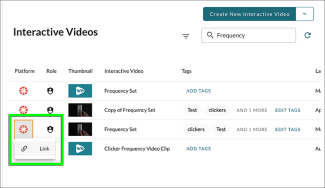
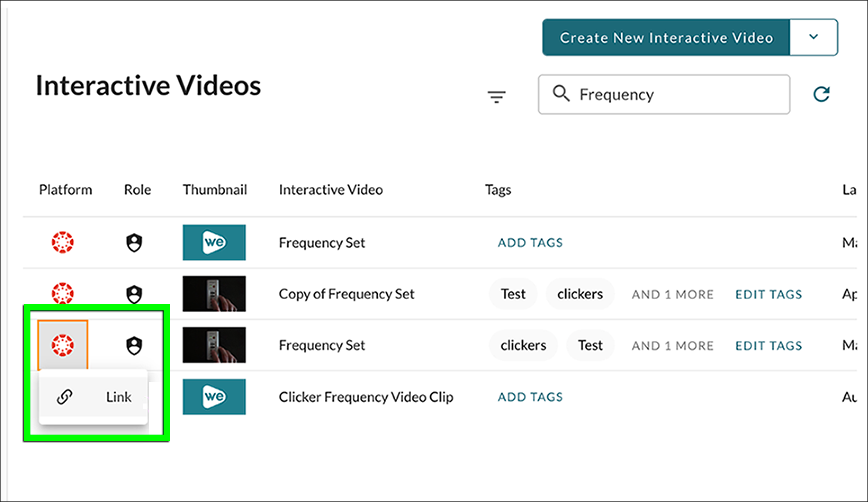
Step 7
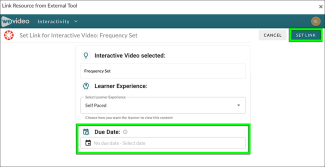
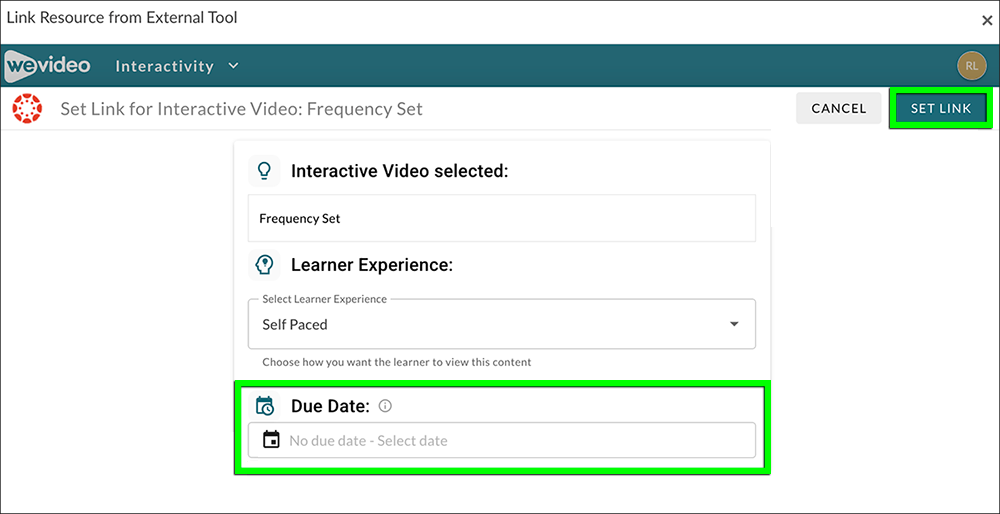
Step 8
You will be returned to Canvas where you can set the due date in Canvas, edit the assignment title, set the due date and point value, and the number of permitted attempts.
Don't forget to save and publish your assignment.

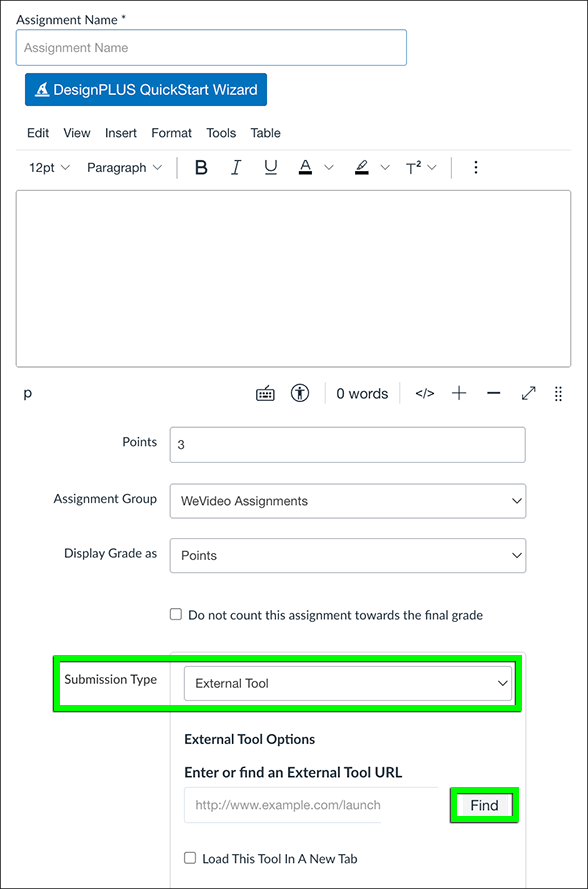
This tutorial assumes you have already created an interactive video in WeVideo. If you haven't done so already, please review WeVideo's "Create an Interactive Video" tutorial.
You will be returned to Canvas where you can set the due date in Canvas, edit the assignment title, set the due date and point value, and the number of permitted attempts.
Don't forget to save and publish your assignment.



