Step 1
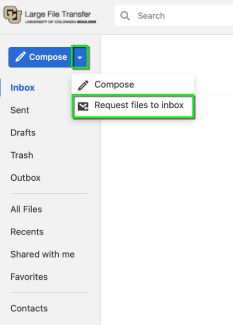
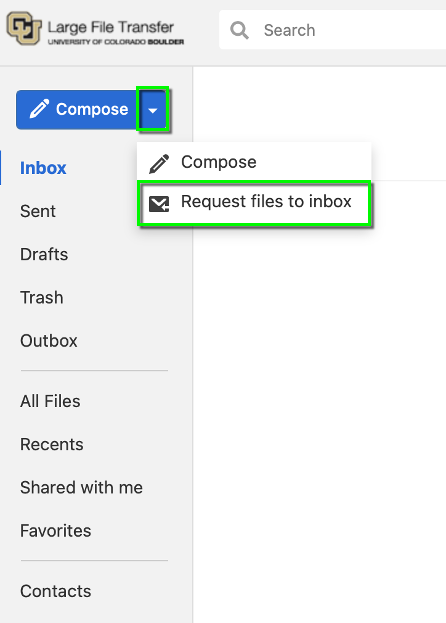
Log in to https://securefiletransfer.colorado.edu (available starting 11/10/2026), then click the arrow next to the Compose button on the upper left. In the drop-down menu that appears, select Request files to inbox.
Step 2
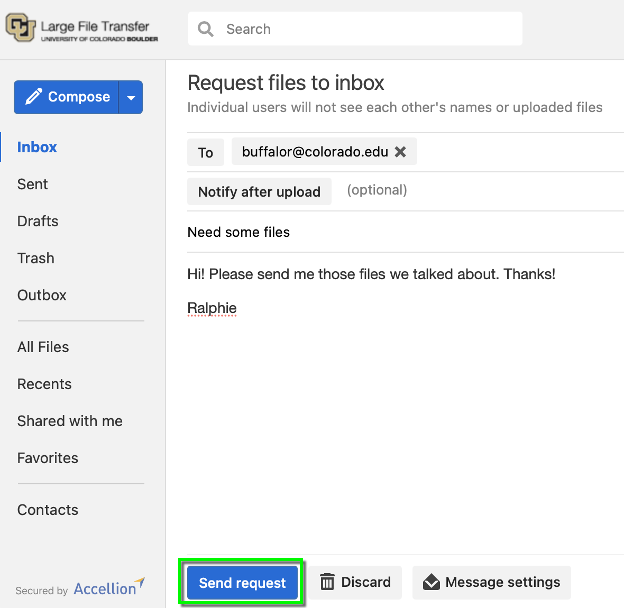
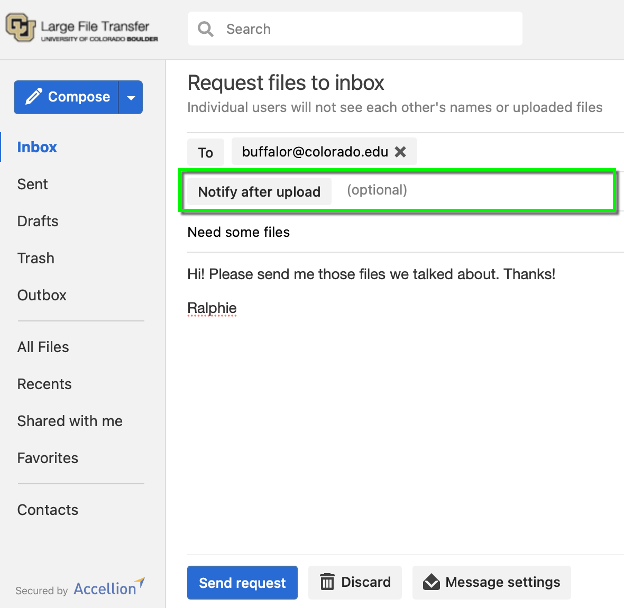
Enter the recipient(s)'s email address(es) in the To field, provide an email subject, then compose the message body.
Optional: If you want to receive a notification when the recipient uploads their file(s), click Notify after upload, then enter the email address(es) to which the notification should be sent.

Step 3
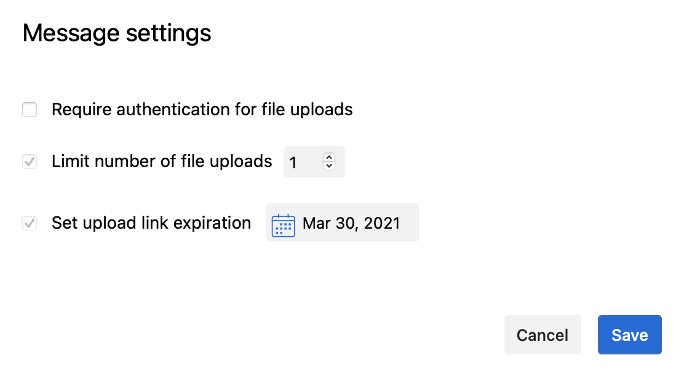
There are some optional settings available to apply to your request before sending. You can access them by clicking Message settings.
- Require authentication for file uploads: This option will require the recipient(s) to sign into the Secure File Transfer service to upload files. If they don’t already have an account on the server, they will be prompted to create one.
- Limit number of file uploads: You can specify the number of files each recipient can upload.
- Set upload link expiration: Links expire on the specified date at 23:59:59 (11:59:59 PM) UTC time.