
Step 1
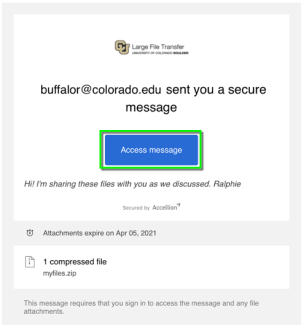
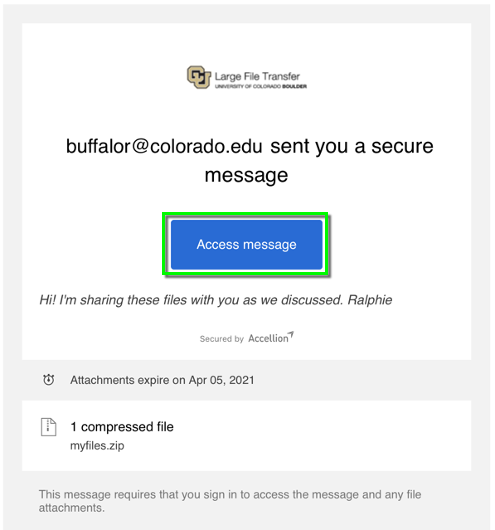
Step 2
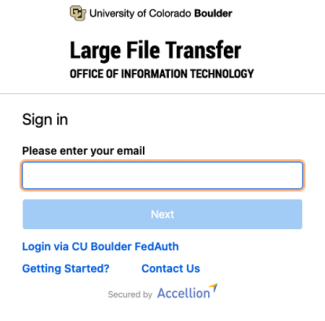
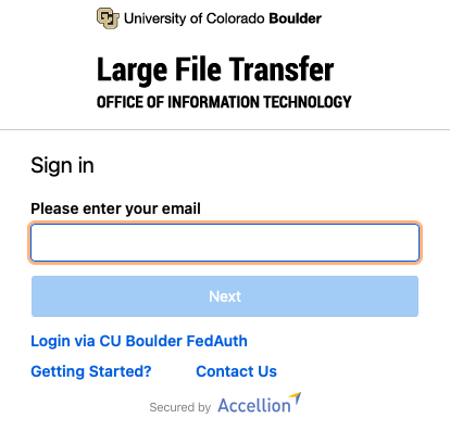
Step 3
Step 4
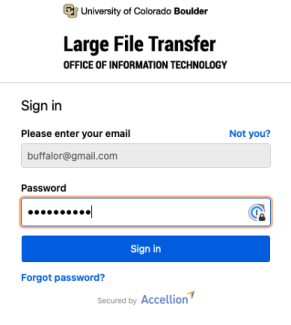
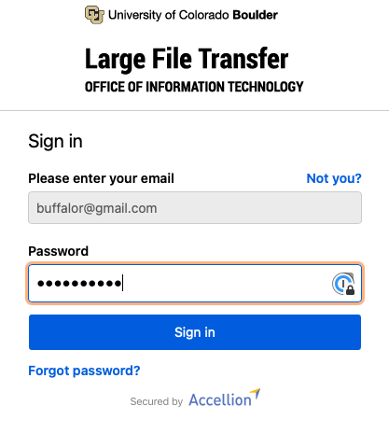
If you entered your credentials correctly and your guest account is still active, you should now be logged in to your Secure File Transfer inbox. Skip to Step 8.
Step 5
Users without an active guest account
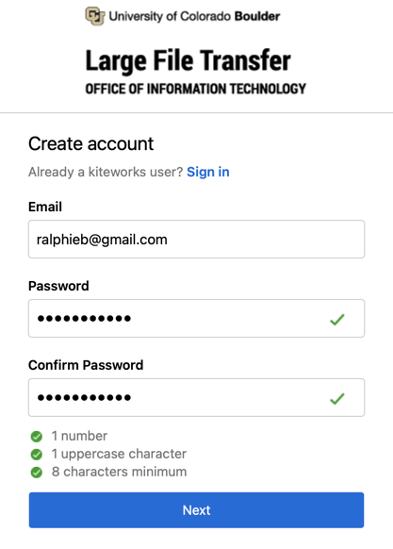
If you haven't registered a temporary guest account in the last 30 days, you will be prompted to do so now.
The email address field will already contain the correct email address. Choose a password that's at least eight characters long and includes at least one number and one uppercase letter.
After entering your new password in both password fields, click Next.

Step 6
Enter the code you see in the captcha code box, then click Create account.
Step 7
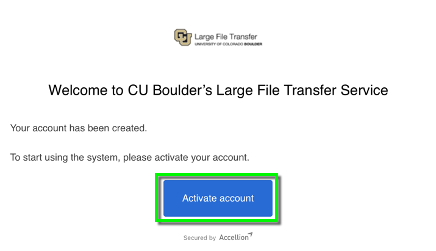
Step 8
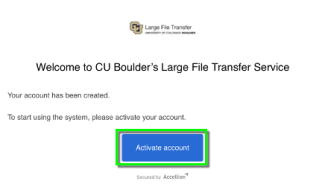
You should now be logged in to your Secure File Transfer inbox. If the message that was shared with you doesn't open automatically, select it from the list of messages in your inbox.
Once the message is selected, you will be able to read the body of the message and see any file attachments. To download the attachments, click the checkbox next to the name of the attached file and click Download.
The file will be saved to your computer's default download location.




